Read and Share a Project's Client Summary
The Client Summary tab shows your client where their Cost Plus project stands: the budget, what has been billed, and what is left to bill. You can share it as a link, an email or a PDF.
Here are the steps to follow:
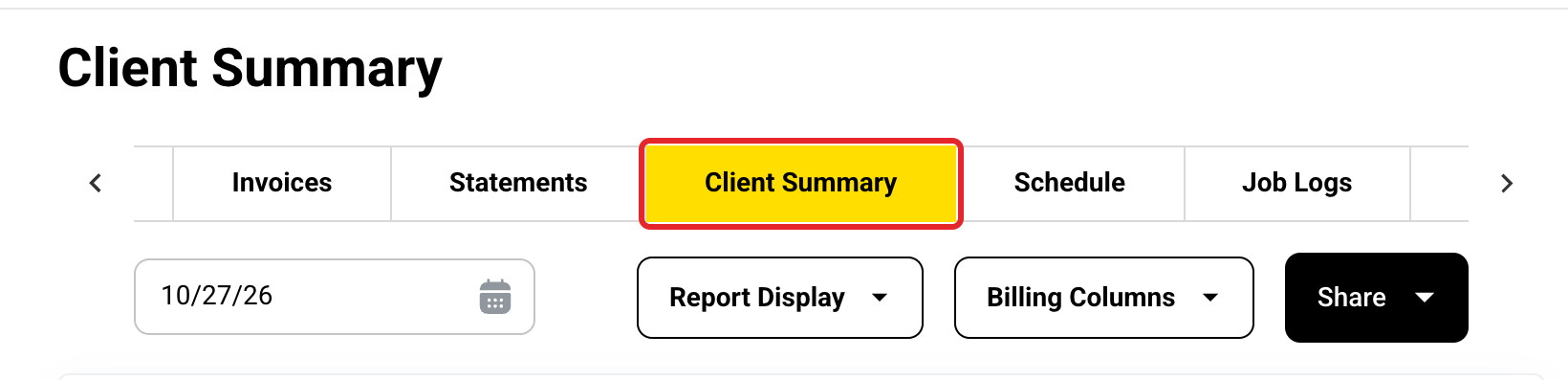
Open the Client Summary tab
Open a Cost Plus project and click the Client Summary tab. It only shows on Cost Plus projects. Owners, Administrators and Managers see it. Members do not.
Pick the date
The date box starts at today. Expenses dated after the date you pick are left out, and so are change orders created after it. Approved estimates always count. You cannot pick a future date. The date prints at the top of the summary.

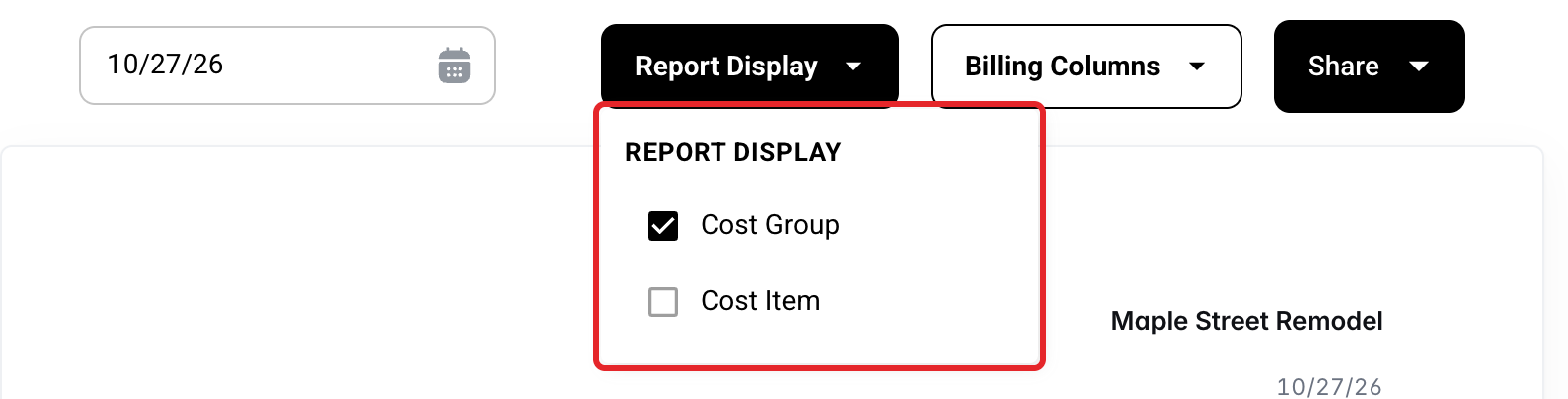
Report Display: Cost Group
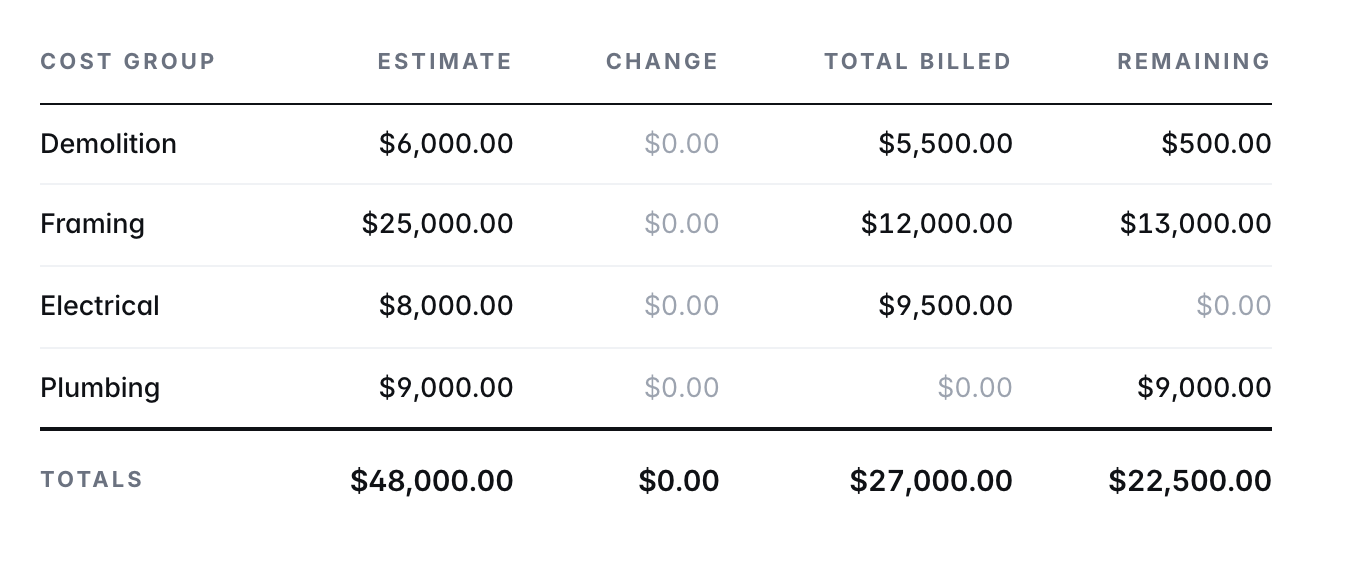
Click Report Display and pick Cost Group. The table shows one row per cost group.
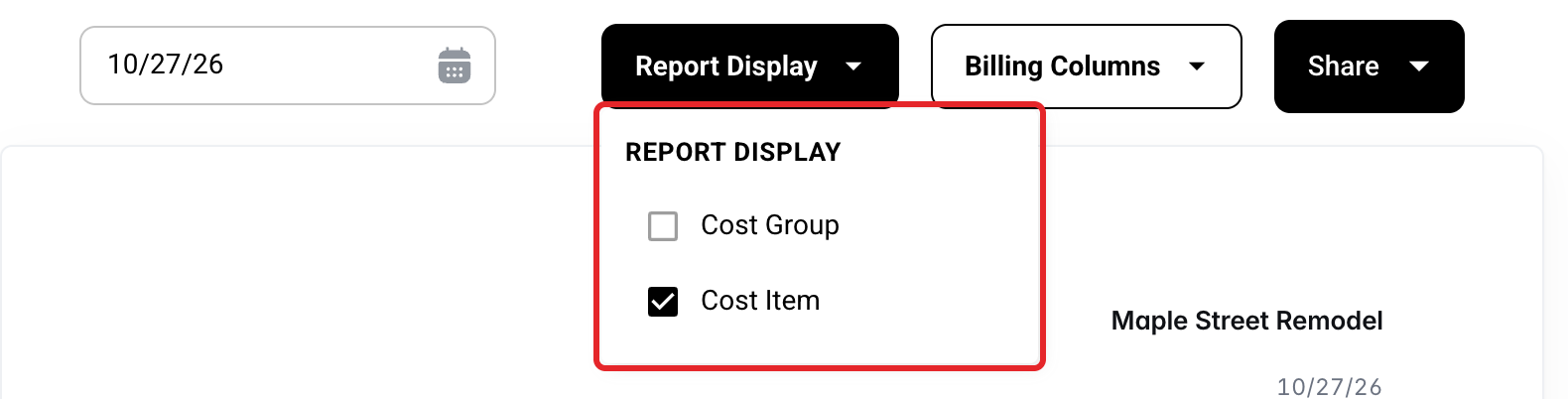
Report Display: Cost Item
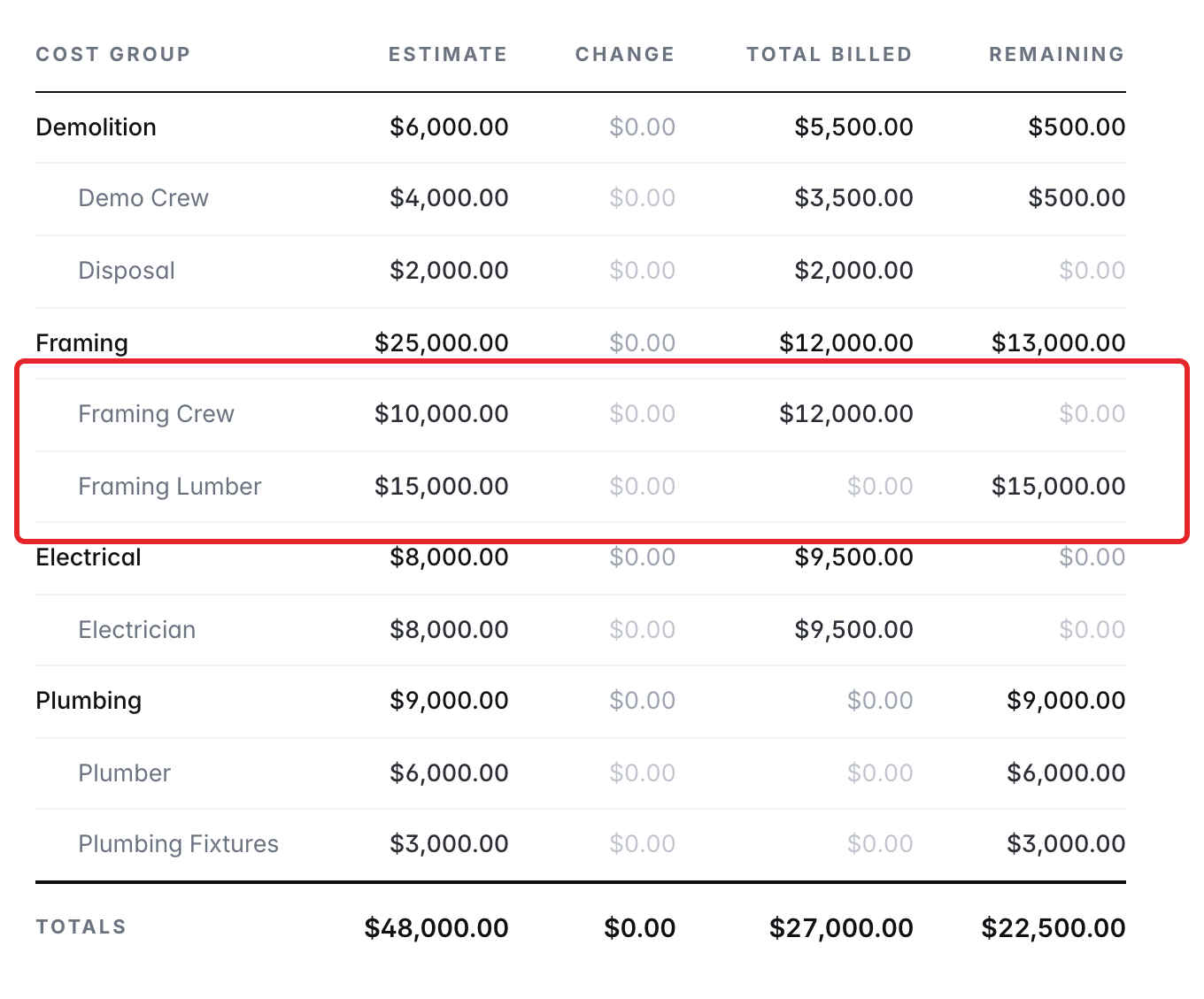
Pick Cost Item to list each cost group's cost items under it. As an example, Framing now shows Framing Crew and Framing Lumber. Your choice is saved on the project, so the tab opens the same way next time.
Billing Columns turned off
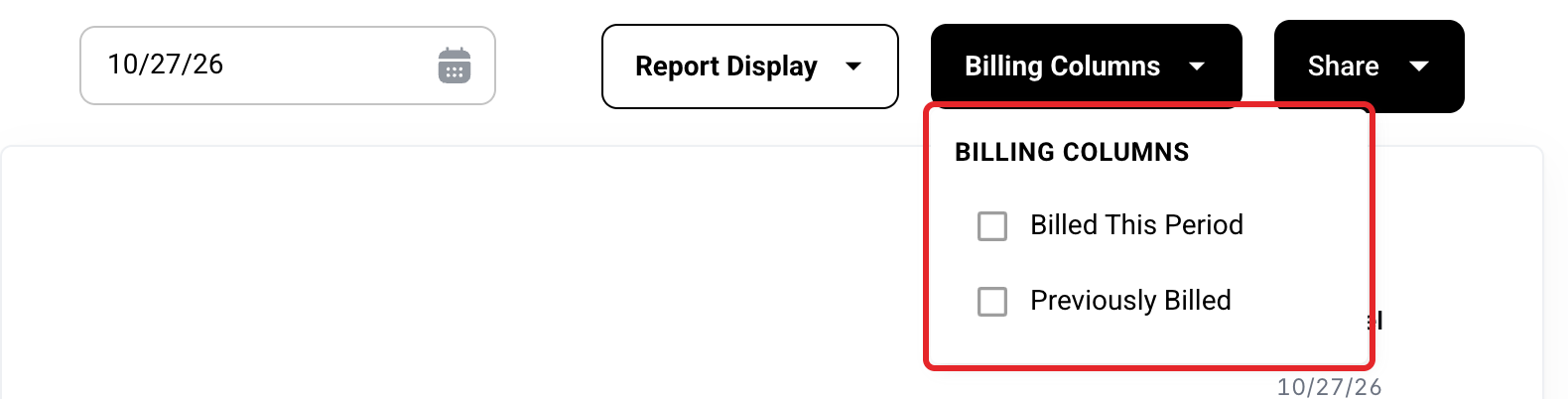
Click Billing Columns. With both boxes unticked, the table shows Estimate, Change, Total Billed and Remaining. Total Billed always shows.
Billing Columns turned on
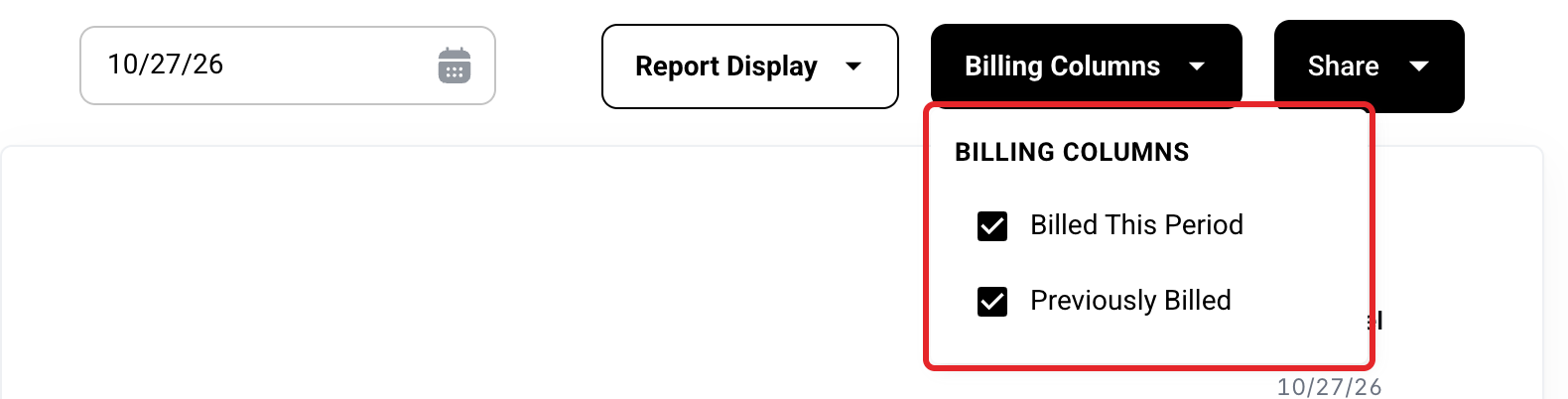
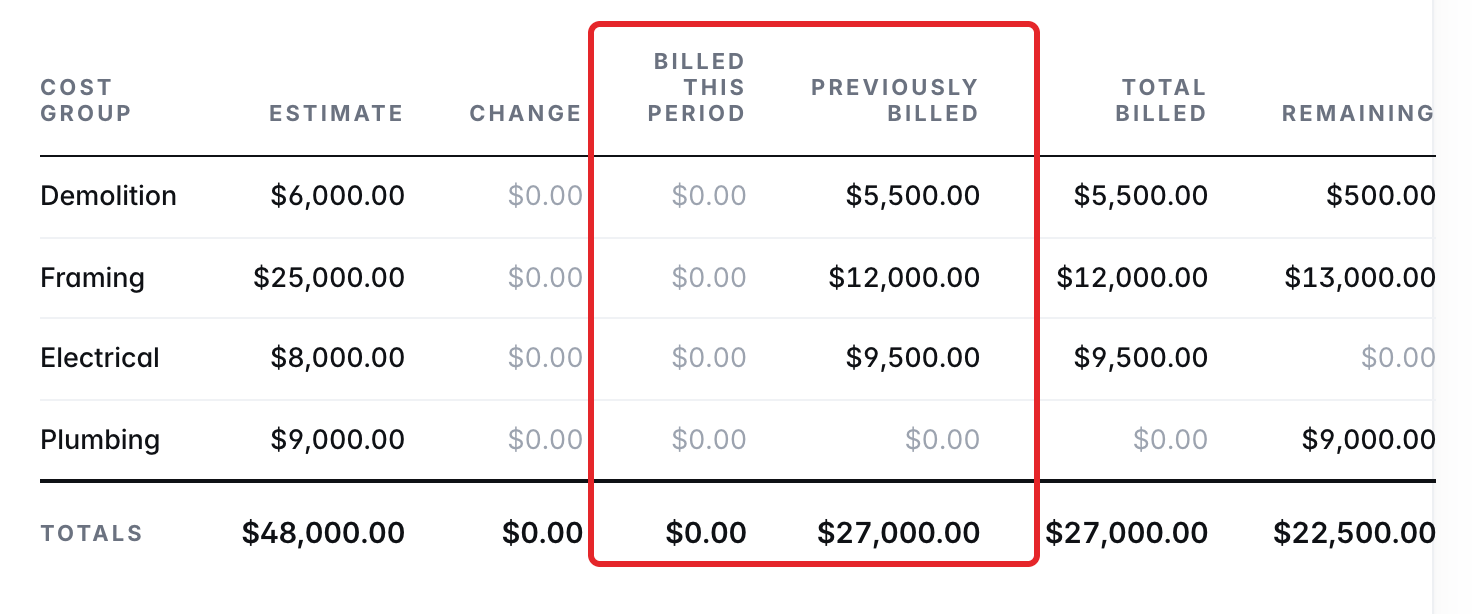
Tick Billed This Period and Previously Billed to add them between Change and Total Billed. Billed This Period stays $0.00 until you release an invoice. Your choice is saved on the project.
Read the top boxes
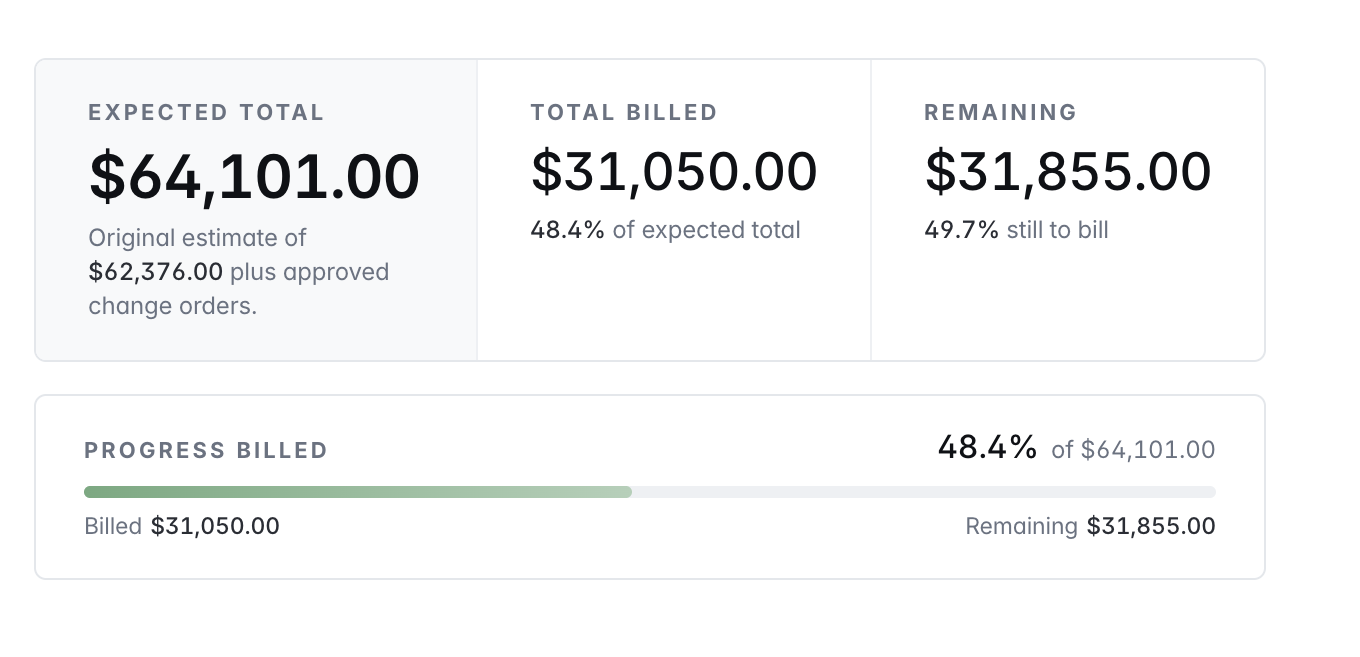
Expected Total is the original estimate plus approved change orders plus any variance. Total Billed shows what has been billed and its percent of the Expected Total. Remaining shows what is left to bill. All three include markup and tax. The Progress Billed bar fills as you bill.
Read the cost table
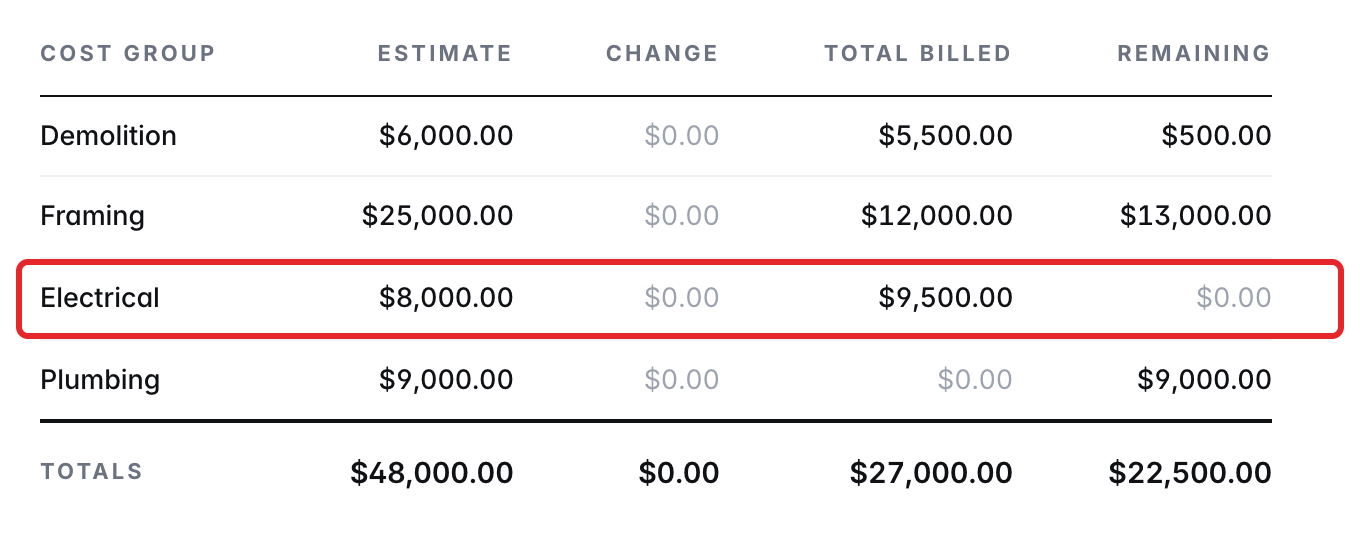
The table shows each cost group before markup and tax. Remaining is Estimate plus Change minus Total Billed, and never goes below $0.00. As an example, Electrical has an $8,000.00 estimate and $9,500.00 billed, so its Remaining is $0.00.
Read the Budget Summary
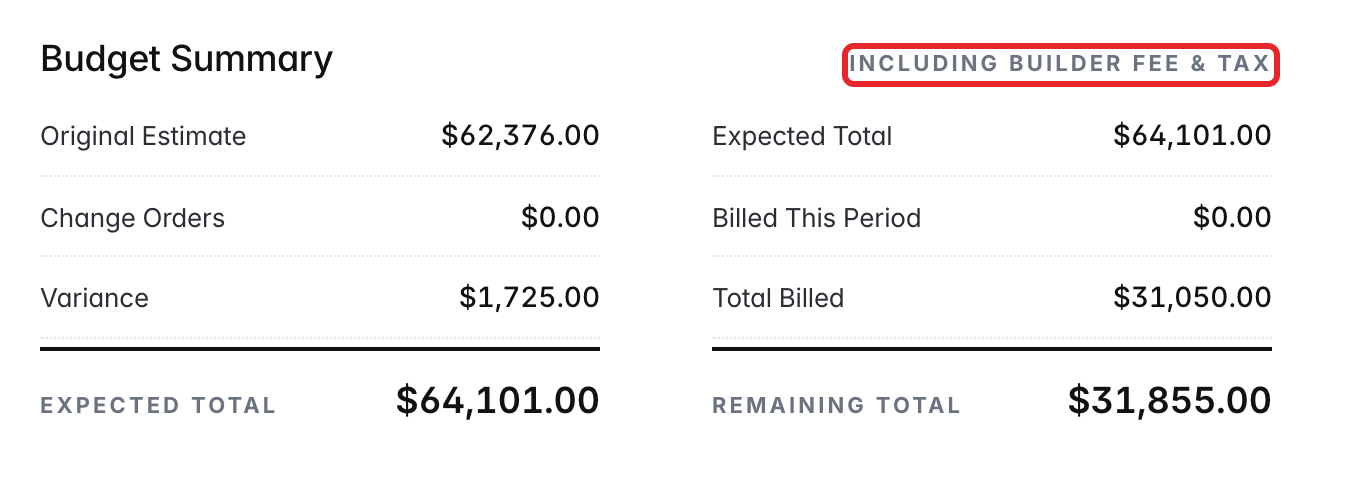
The Budget Summary includes markup and tax. On the left, Original Estimate, Change Orders and Variance add up to the Expected Total. On the right, it shows Billed This Period, Total Billed and the Remaining Total still to bill. The heading uses your company's name for markup (Builder Fee in this picture).
Read Estimated vs. Expected
This box shows how far the Expected Total has moved from the original estimate, with markup and tax. It is the approved change orders plus the variance. An up arrow and a plus sign mean the Expected Total is higher than the original estimate.

Share it with your client
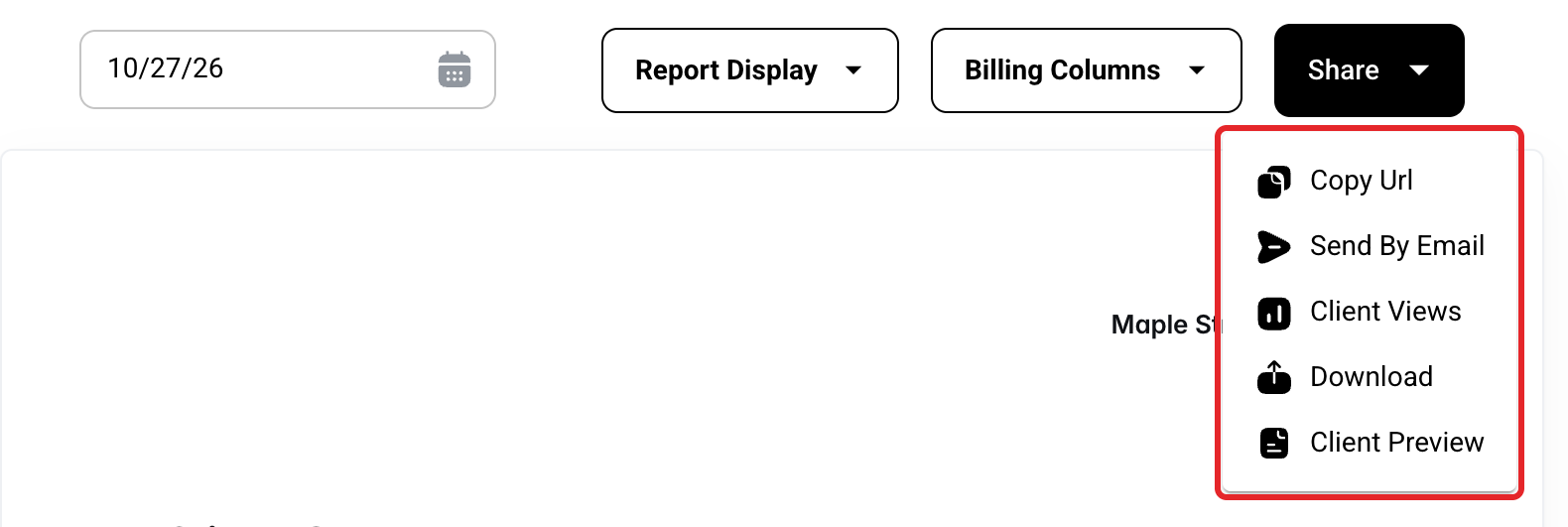
Click Share. Copy Url copies a link you can send. Send By Email emails it to your client. Client Views shows when your client opened it. Download saves a PDF. Client Preview shows the page your client sees. Your client can view, print and download the summary, but there is nothing to sign.
What the columns show
| Column | What it shows |
|---|---|
| Estimate | The approved estimate lines in that cost group (Client Approved or Manually Approved), before markup and tax. |
| Change | The approved change order lines in that cost group, before markup and tax. |
| Total Billed | Billable expenses with the Billed box checked, before markup and tax. |
| Billed This Period | The part of Total Billed that was on the latest released invoice. It is $0.00 until an invoice is released. |
| Previously Billed | Total Billed minus Billed This Period. |
| Remaining | Estimate plus Change minus Total Billed, never below $0.00. For a cost group marked complete, it is the billable expenses not billed yet. |
Where the billed numbers come from
Billed amounts come from your expenses, not from invoice lines. An expense counts as billed once its Billed box is checked, even if you billed it outside Buildwise. Unbillable expenses are left out. Because of this, Total Billed here can be different from Total Billed on the project's Statement if you mark expenses Billed by hand without an invoice. The Client Summary counts those expenses, and the Statement does not.
Taking a deposit
To take a deposit, record it with the Deposit feature instead of building an invoice for it. A recorded deposit shows as Paid, Applied and Remaining, and never counts toward Total Billed, so Total Billed on the Client Summary and on the Statement stay the same. An invoice built for a deposit adds to the Statement's Total Billed but not to the Client Summary's, and that gap stays for the rest of the job.
To see when your client opened the summary, see Track Client Views and Status Emails.
If you have any questions or need support:
💬 Click the beacon on this page to chat with us
📩 Click the beacon on this page to email us