Change, Revert, Void or Delete an Invoice
Made a mistake on an invoice? There are four ways to fix it, and each one does something different.
| To do this | Use | What happens |
|---|---|---|
| Fix a released invoice | Click a line and confirm | Your client's copy updates to the new figures. |
| Work on it as a draft again | Status, Draft | Payments stay on it. Its expenses' Billed boxes are unticked. |
| Cancel it | Void | It prints $0.00 with VOID. This can't be undone. |
| Throw away a draft | Delete | It's gone for good. Only drafts can be deleted. |
Change a released invoice
Click what you want to change
Click a line on the released invoice. Buildwise warns you that your client already has it.
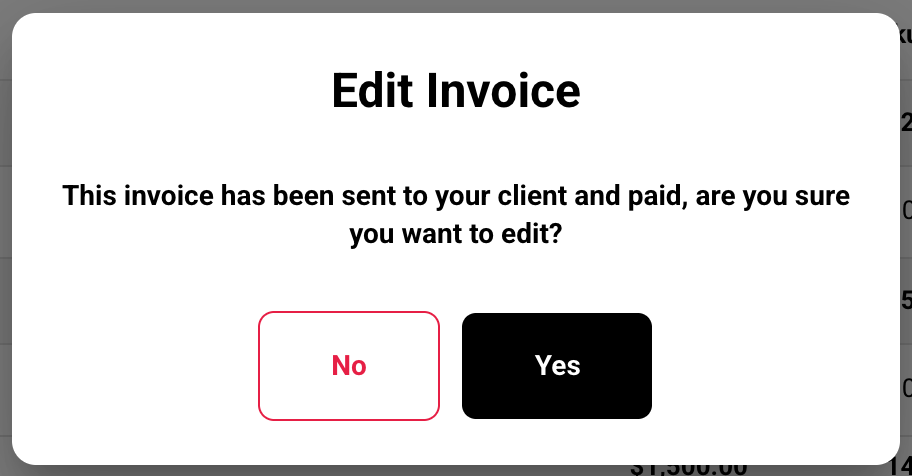
Click Yes and make the change
Your client's link and PDF show the new figures.
Turn it back to Draft
Pick Draft in the Status box
If money is recorded on the invoice, Buildwise asks first.
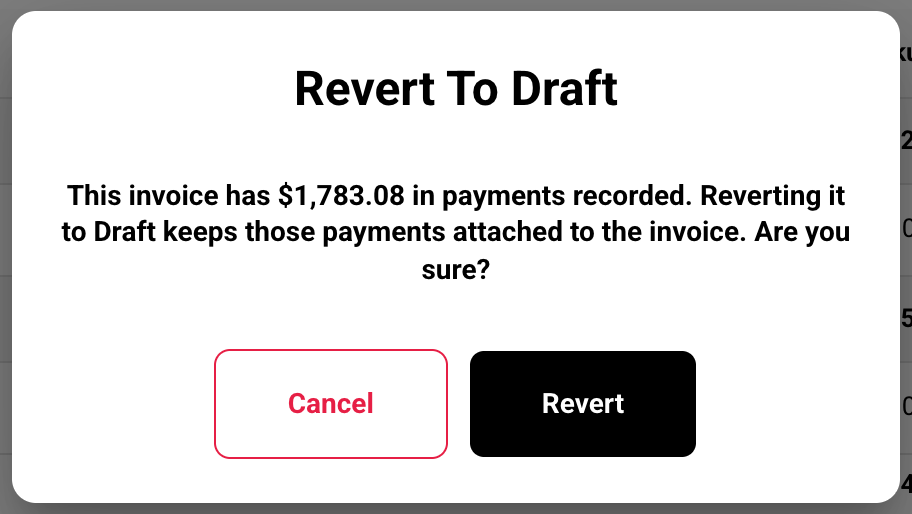
Click Revert
Payments, deposits and credit memos stay on the invoice. Its expenses' Billed boxes are unticked, but they stay on this invoice. Release it again when you're done.
Void an invoice
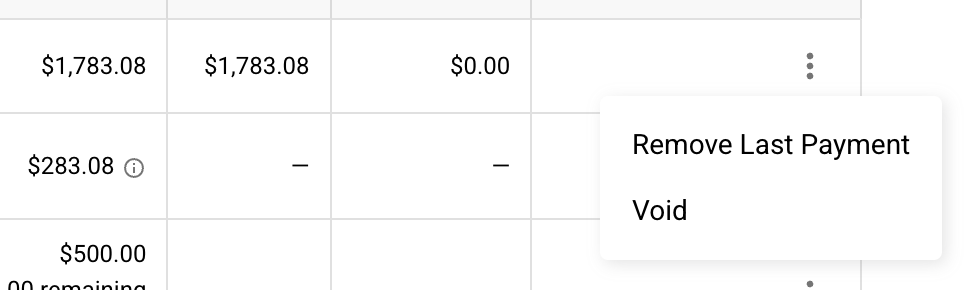
Click Void
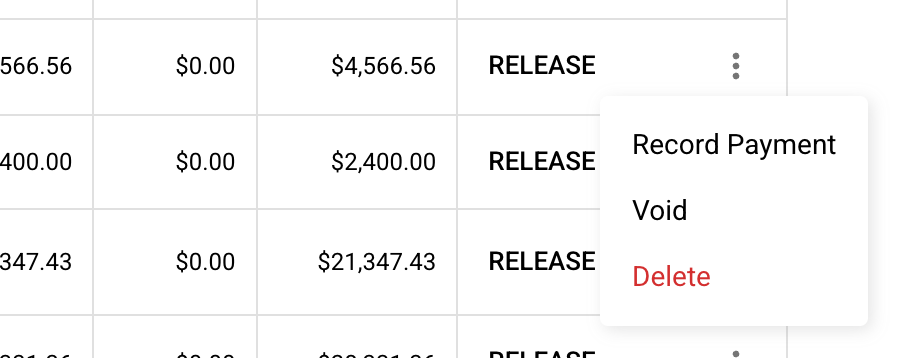
Open the menu on the invoice's row and click Void, or pick Void in the Status box.
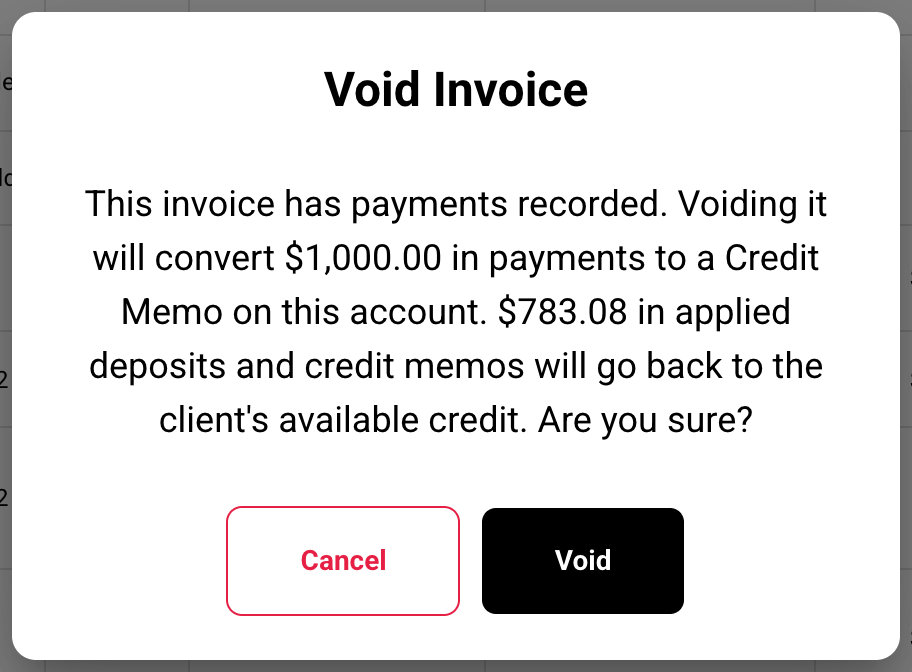
Confirm
Buildwise tells you what happens to the money on it.
| After a void | Result |
|---|---|
| Payments | Become one credit memo on the project. |
| Applied deposits and credit memos | Go back to the client's available credit. |
| Expenses | Freed, so they can go on another invoice. |
| The invoice | Prints $0.00 with VOID and no due date. It keeps its number and can't be changed. |
Delete a draft
Click Delete
Open the menu on the draft's row and click Delete, or click Delete on the draft itself.
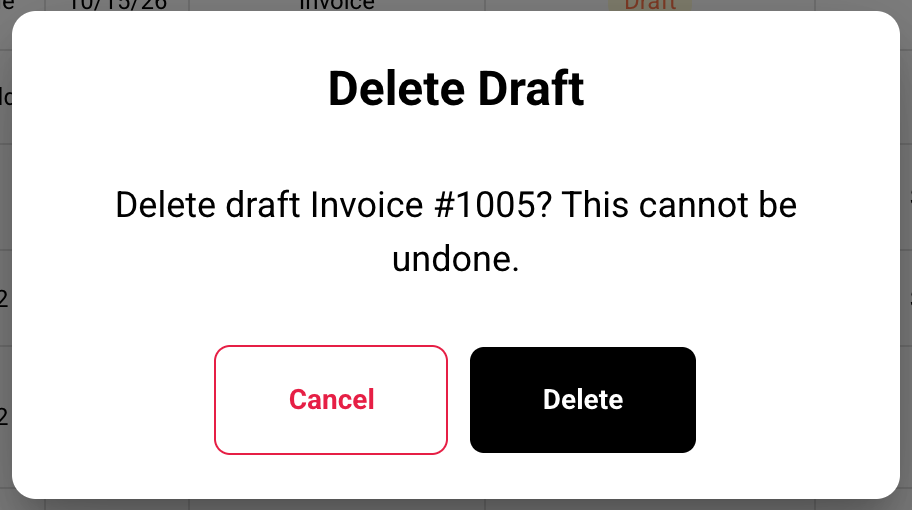
Confirm
The draft is gone for good. Its expenses are freed. If it had the highest number, the next invoice reuses that number.
Released invoices can't be deleted
To cancel a released invoice, void it.
If you have any questions or need support:
💬 Click the beacon on this page to chat with us
📩 Click the beacon on this page to email us