Read the Invoices Page
The Invoices page lists every invoice, credit memo and deposit. Use the filters to find what you need.
Here are the steps to follow:
1
Filter the list
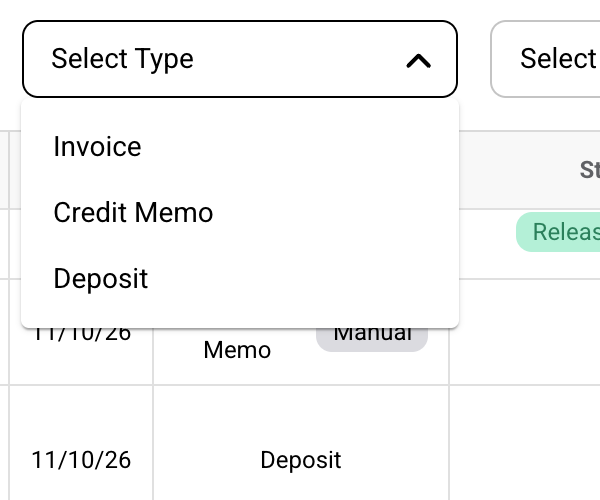
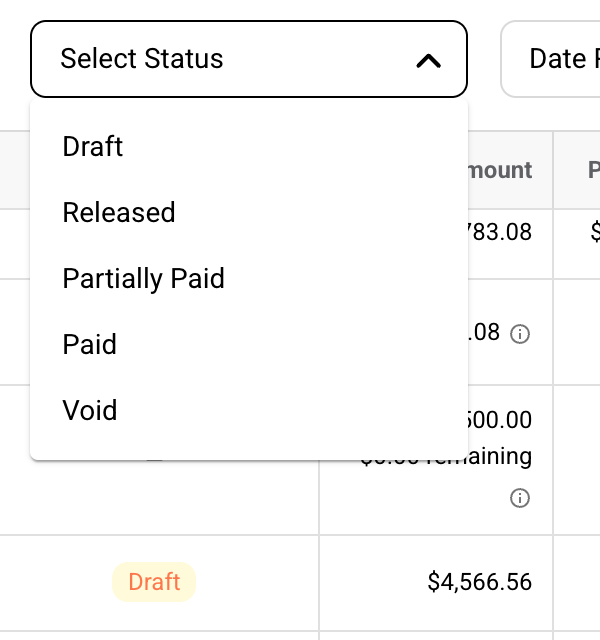
Filter by Select Project, Select Type, Select Status and Date Range.

2
Read each row
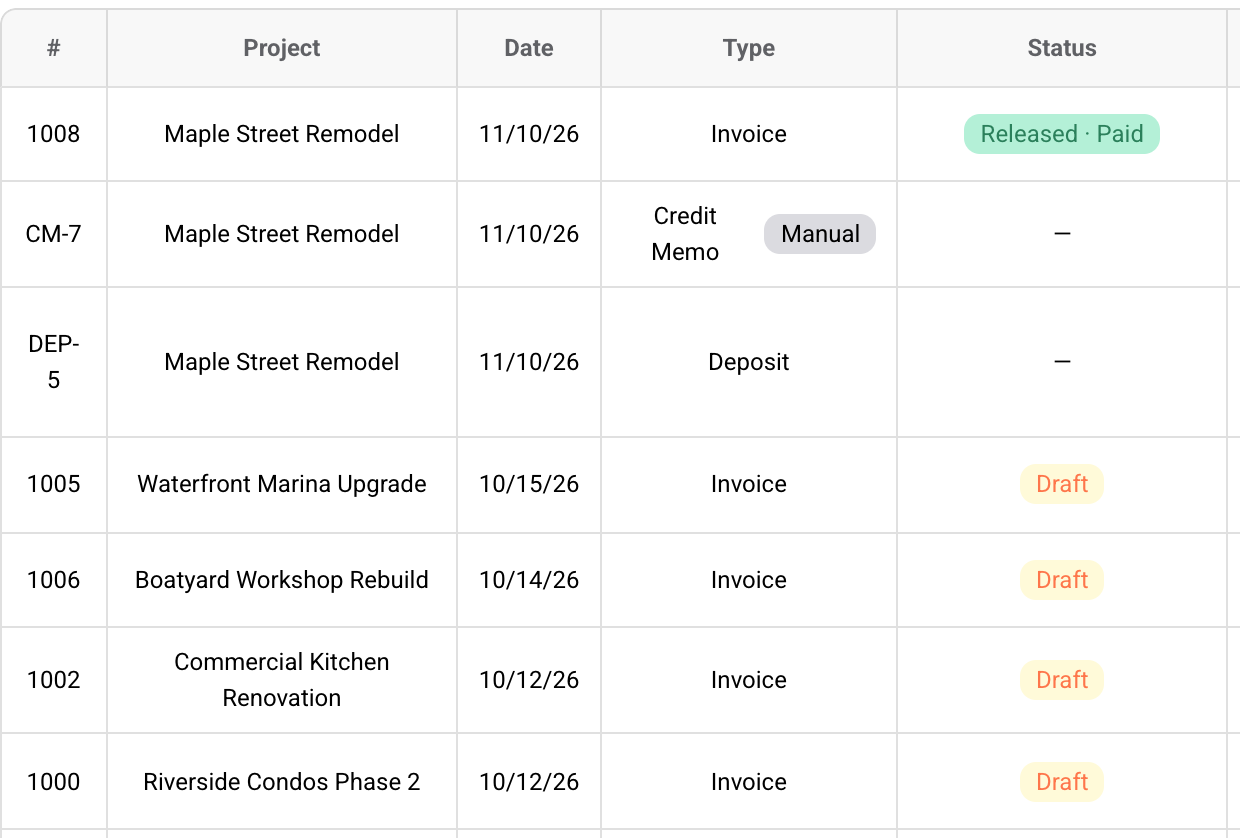
Newest dates are at the top. CM- numbers are credit memos and DEP- numbers are deposits.
3
Read the Totals row
It adds up released invoices only. Drafts, voids, deposits and credit memos aren't added in.

4
Check the project's balance
Open a project's Invoices tab to see four cards at the top.


What the columns mean
| Column | What it shows |
|---|---|
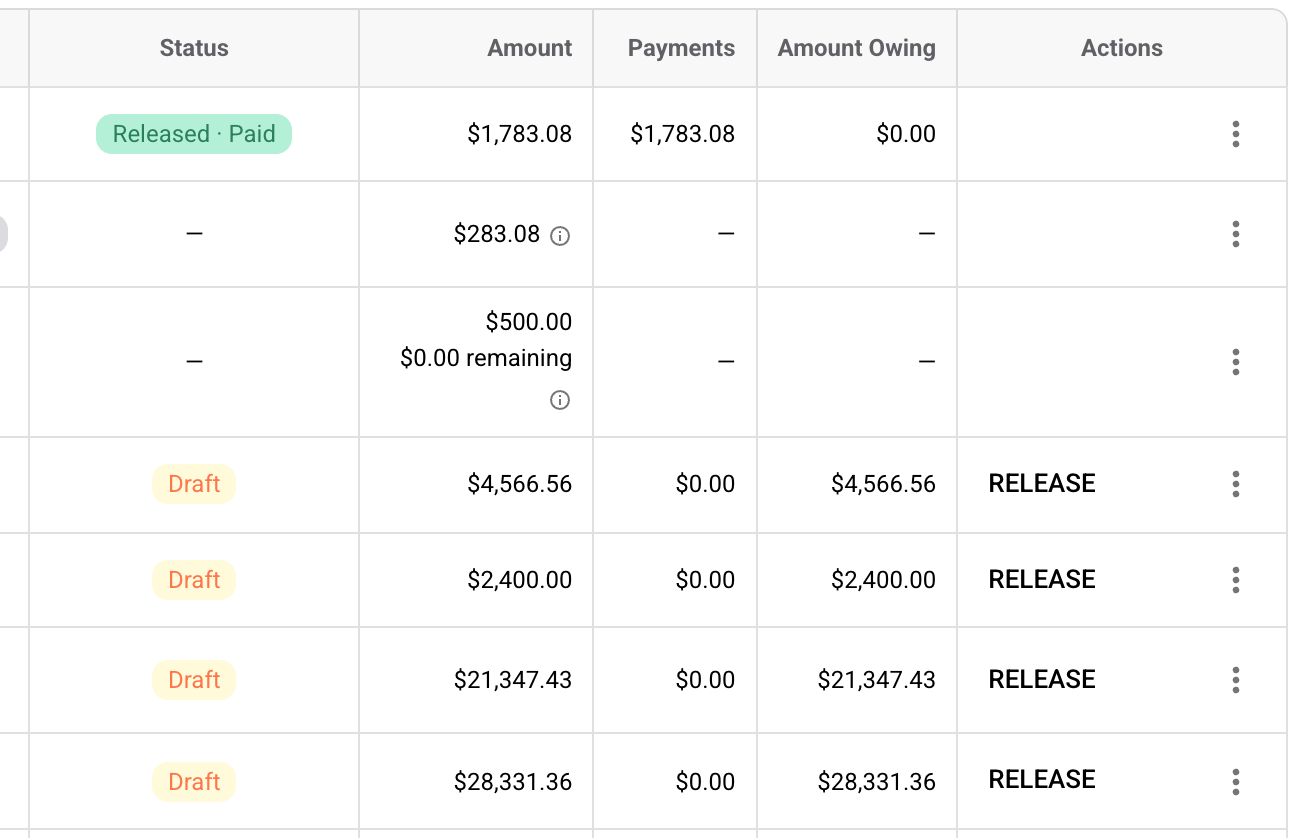
| Amount | The invoice total. |
| Payments | Payments plus applied credit memos and deposits. |
| Amount Owing | Amount minus Payments. |
| Actions | Release on a draft, or Record Payment until it's fully paid. The menu has the rest. |
What the status means
| Status | Meaning |
|---|---|
| Draft | Not sent. Your client can't open it. |
| Released | Sent, nothing paid yet. |
| Released · Partially Paid | Some of it is paid. |
| Released · Paid | Fully paid. |
| Void | Cancelled. |
The project cards
| Card | What it shows |
|---|---|
| Invoiced | Released invoices added up. |
| Payments | Payments plus applied credit memos and deposits on those invoices. |
| Balance | Invoiced minus Payments. |
| Deposit Balance | Deposits not yet applied to a released invoice. |
Invoice numbers
Numbers count up across your whole company, not per project.
If you have any questions or need support:
💬 Click the beacon on this page to chat with us
📩 Click the beacon on this page to email us