Job Logs in the Mobile App
Write what happened on site, add photos and share it with your client, right from your phone.
Here are the steps to follow:
Open Job Logs
Tap Job Logs. You see every log in your company. Use Project, the calendar and the search to narrow the list.
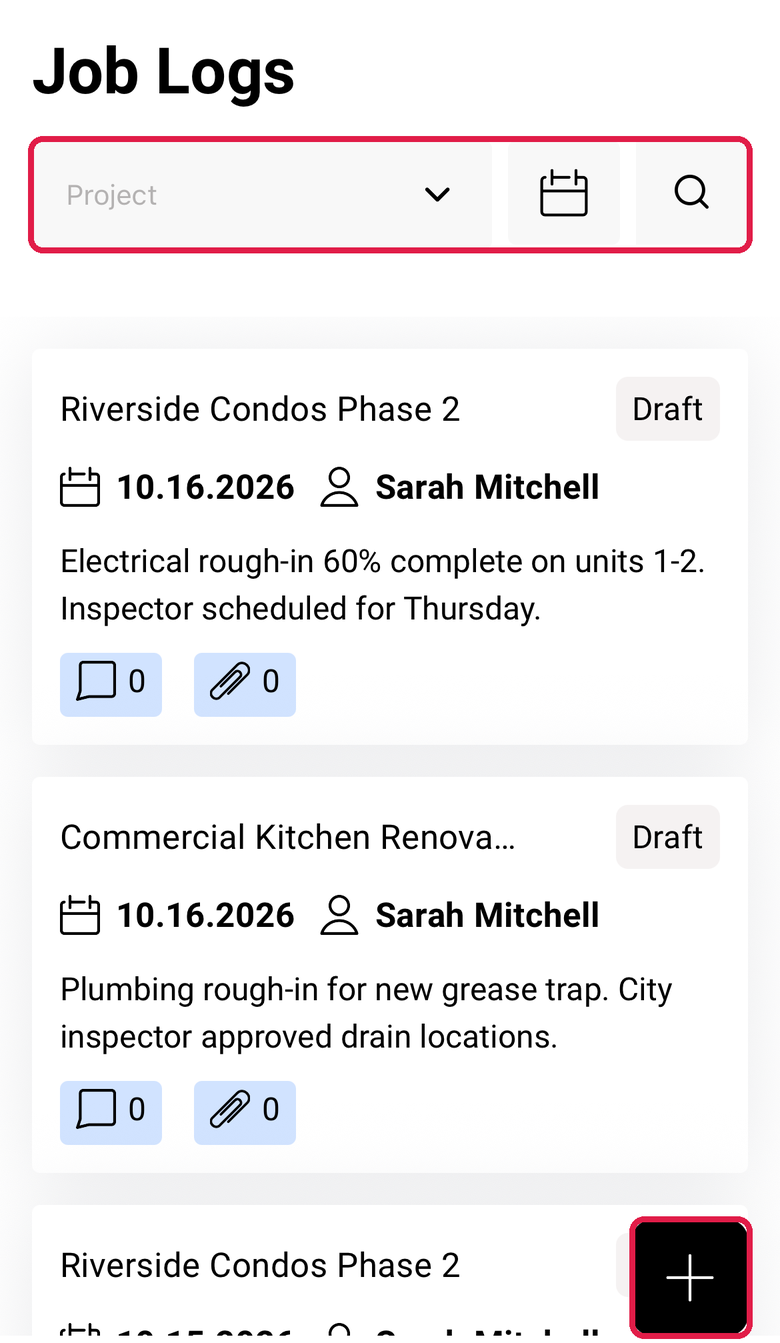
Start a log
Tap +, then tap Please select a project and pick the project. The date is today. A new log starts with your company's template, as a Draft.
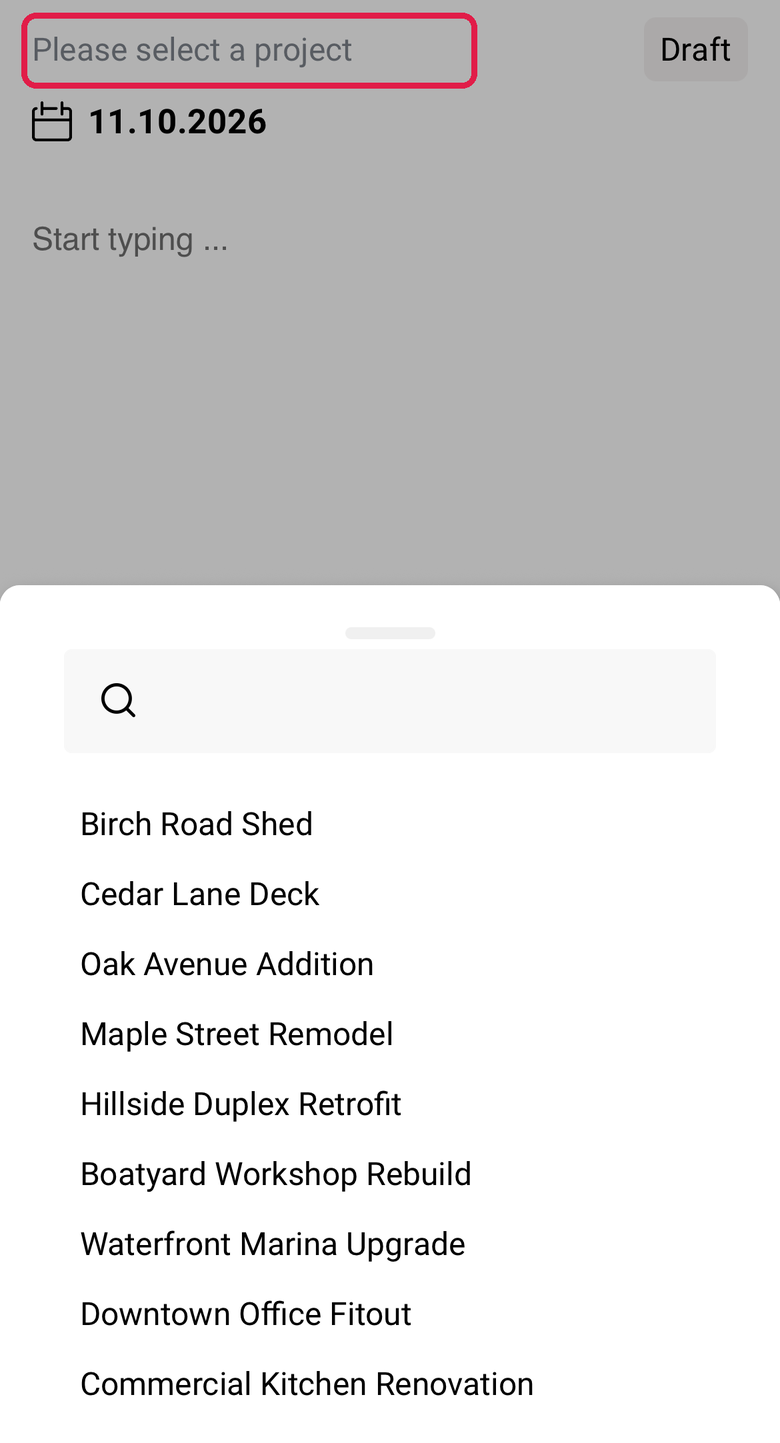
Write it
Type what happened. Use the buttons above the keyboard for bold, italic and lists. You need a project and some text to save.
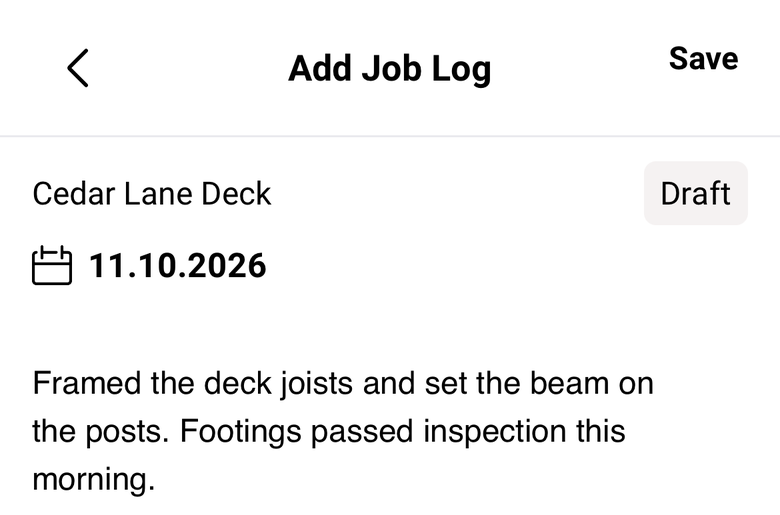
Add photos
Tap the camera to take a photo, or the picture button to pick several from your phone. Each photo can be up to 20 MB.

Save
Tap Save. The log opens on its Home tab. Attachments shows the photos and Comments shows the comments.
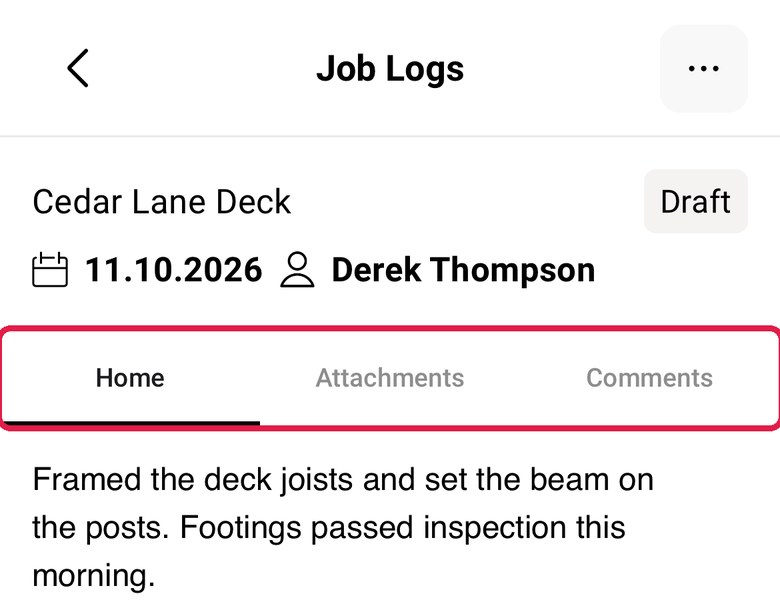
Share it by email
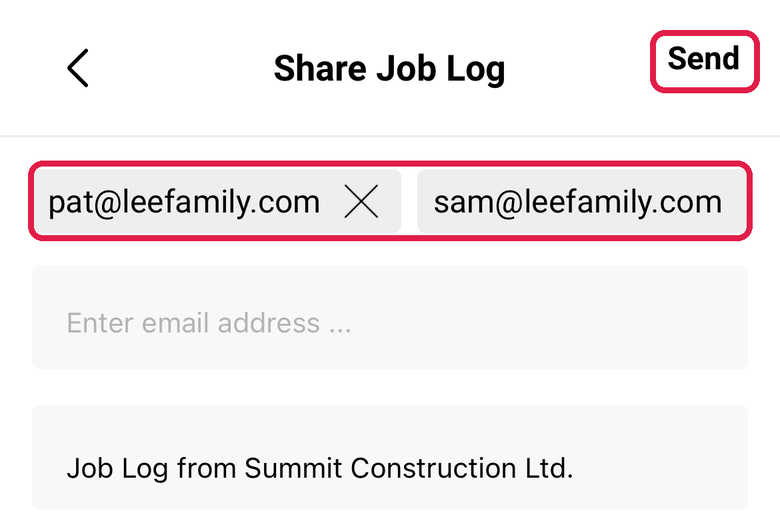
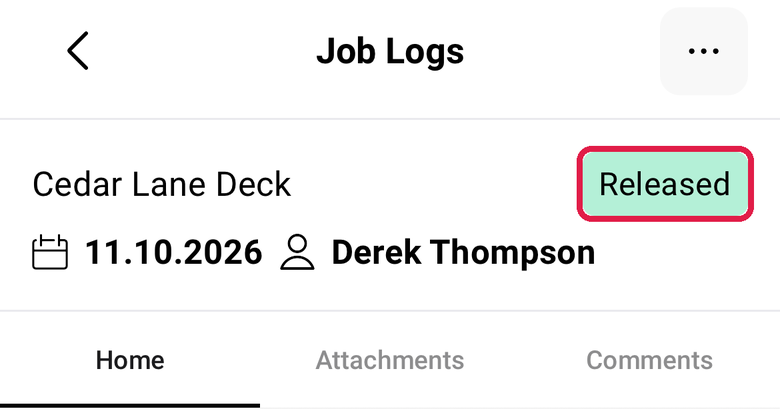
Tap ···, then Share by email. Your client's emails fill in. Tap Send. The log changes to Released.
Comments
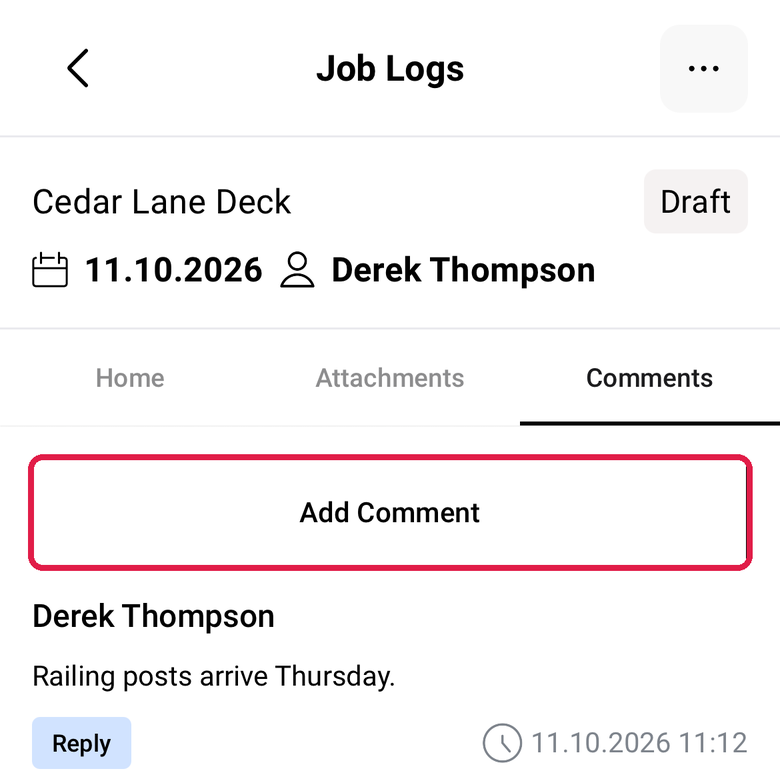
Open the Comments tab and tap Add Comment. Type it and tap send. Tap Reply to answer one.
Edit, copy or delete a log
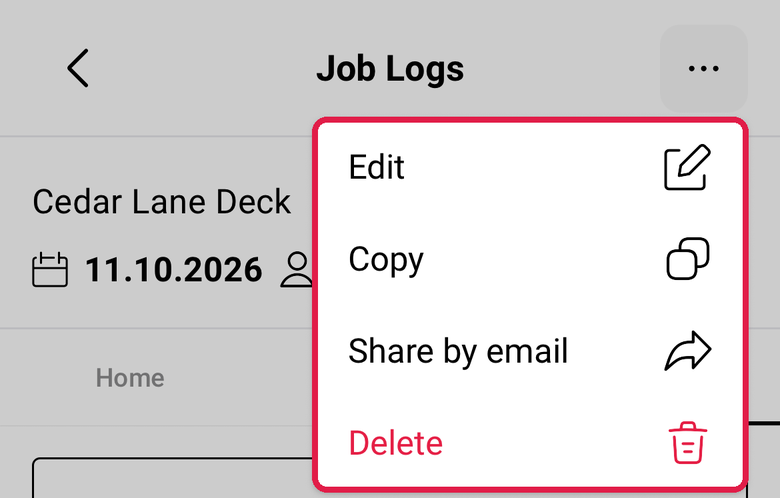
Tap ··· on a log for Edit, Copy, Share by email and Delete.
Good to know
Anyone in your company can change, copy or delete any log. Comments can't be changed or deleted from the phone. Copy doesn't copy the photos.
💬 Have a question? Click the round message button in the bottom-right corner of this page, then click Send a message. We usually reply within a few hours.