Using the Labor Page
The Labor page shows the hours your team has logged: by project, cost code, person or position, plus who's on the clock right now.
Who can use it
Owners, Administrators and Managers. Click Labor in the left sidebar. Each project also has a Labor tab. Members don't see either one.
Pick a view
Pick a view next to Group by: Project, Cost Code, Employee, Position or Timeclock. Inside a project, you get Cost Code, Employee and Position.

| Filter | What it does |
|---|---|
| Select Project | Shows only the projects you pick. |
| Select Employee | Shows only the people you pick. |
| Status | On the Project and Cost Code views only. It starts on Active. If you pick projects in Select Project, those projects always show, whatever their status. |
| Date Range | Shows only hours worked between those days. |
The Employee and Position views count every project, active or not.
Project and Cost Code views
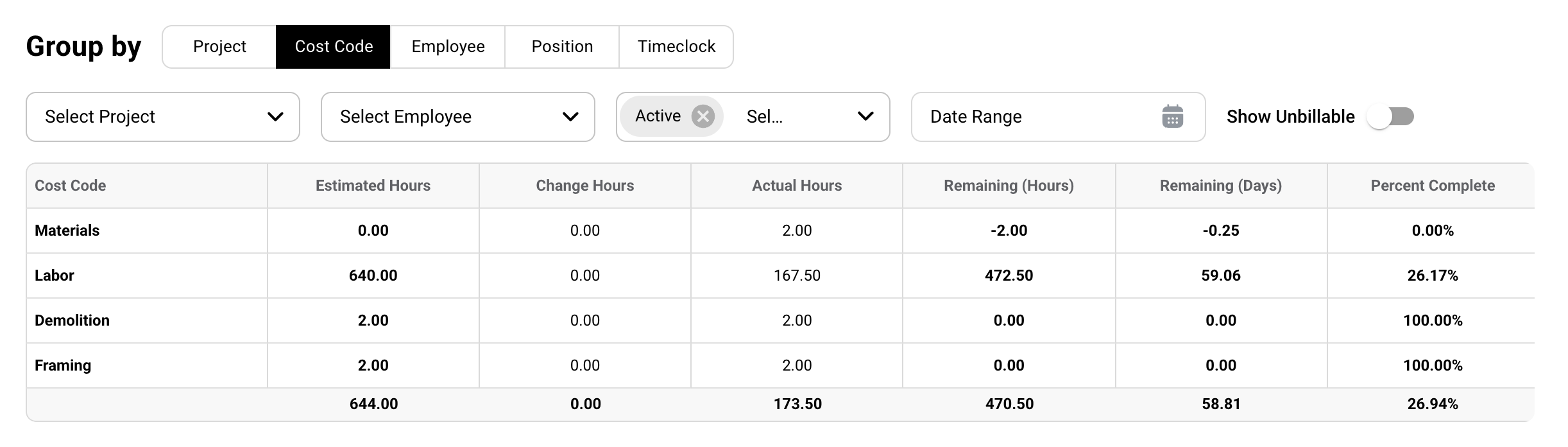
These compare the hours you estimated with the hours your team has logged.
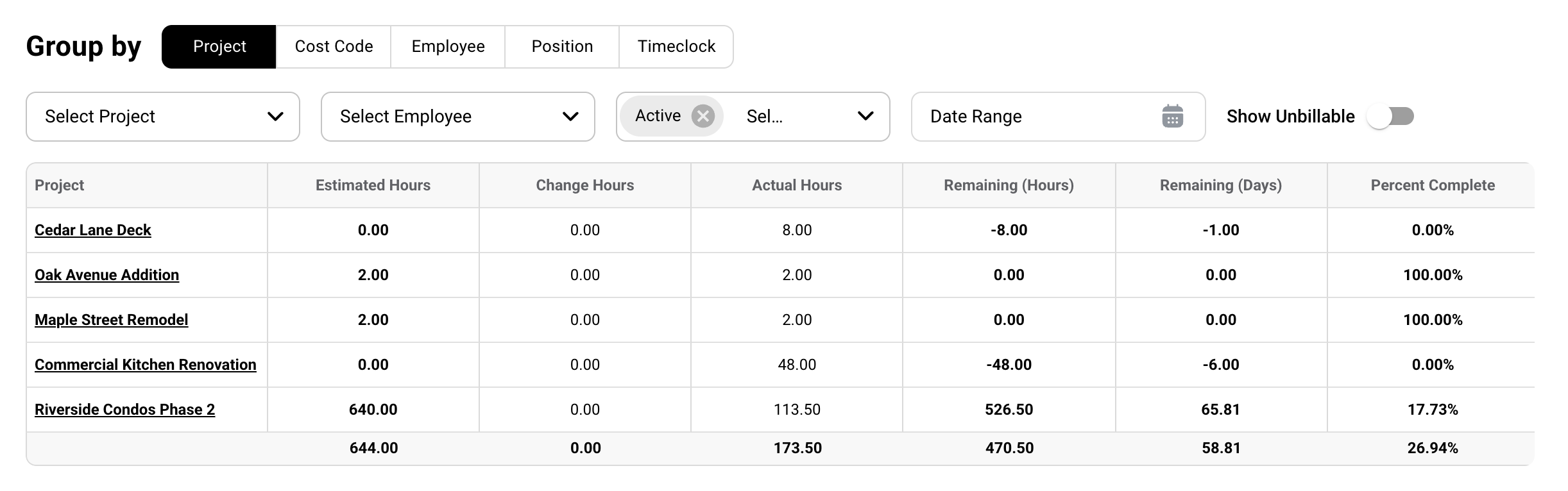
| Column | What it shows |
|---|---|
| Estimated Hours | Labor hours on estimates that are Client Approved or Manually Approved. |
| Change Hours | Labor hours on approved change orders. A credit takes hours away. |
| Actual Hours | Hours your team logged. Lunch isn't counted here. |
| Remaining (Hours) | Estimated Hours + Change Hours − Actual Hours. |
| Remaining (Days) | Remaining (Hours) ÷ the Hours Per Day in Settings. |
| Percent Complete | Actual Hours ÷ (Estimated Hours + Change Hours). |
As an example: 120 Estimated Hours + 8 Change Hours − 90.5 Actual Hours = 37.50 hours left. At 8 Hours Per Day, that's 37.50 ÷ 8 = 4.69 days. Percent Complete is 90.5 ÷ 128 = 70.70%.
Date Range filters Actual Hours by the day the work was done and Change Hours by the day the change order was approved. Estimated Hours aren't filtered by date.
Employee and Position views
These total each person's, or each position's, hours for payroll.
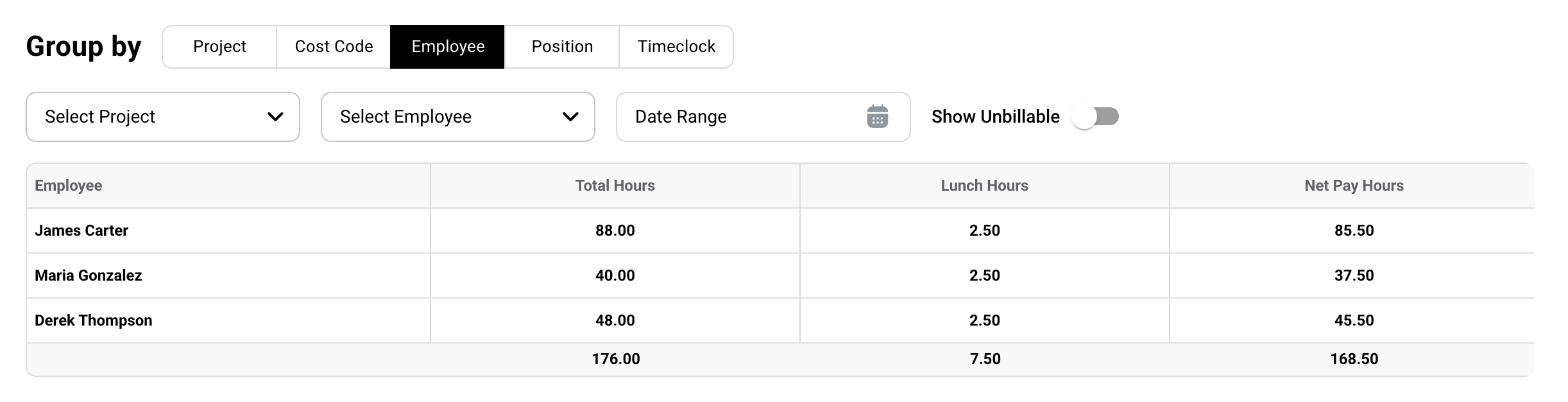
| Column | What it shows |
|---|---|
| Total Hours | Every hour logged, Lunch included. |
| Lunch Hours | Hours logged to the Lunch cost group. |
| Net Pay Hours | Total Hours − Lunch Hours. |
As an example, 4.5 hours framing + 0.5 hours Lunch + 3.5 hours trim = 8.50 Total Hours, 0.50 Lunch Hours and 8.00 Net Pay Hours. Lunch time always has a rate of $0.
Click a name on the Employee view to open that person's timesheet. See Viewing Timesheets.
Missing someone on the Position view?
A team member with no Position doesn't show on the Position view. Give them one on the Members list in Settings.
Show Unbillable
On Cost Plus projects, hours marked unbillable are hidden until you turn on Show Unbillable. Hours on Fixed Cost projects always count. The switch starts off. Inside a project, it only shows on a Cost Plus project that has unbillable hours.

Timeclock view
Shows clock-ins from the mobile app, newest first, with Date, Project, Employee, Clock-In and Clock-Out. It refreshes every 10 seconds. It's on the main Labor page only.

| Clock-Out shows | What it means |
|---|---|
| A time | They clocked out. |
| In Progress | They're on the clock now. |
| Paused | Their timer is paused. |
| Checked Out | The session is closed. |
| Unclosed | The session was left open more than 24 hours and they clocked in again. |
💬 Have a question? Click the round message button in the bottom-right corner of this page, then click Send a message. We usually reply within a few hours.