Find, Download and Delete Overhead Expenses
On the web app, the Overhead Expenses page lists your company costs that aren't for a project. Here's how to filter the list, download it and delete a row.
Filter the list
Hover over Expenses in the left menu and click Overhead Expenses. Then use the filters at the top.

| Filter | What it does |
|---|---|
| Select Supplier | Shows only the suppliers you pick. |
| Select Category (COA's) | Shows only the categories you pick. |
| Date Range | Shows only expenses between those days. |
The newest date is at the top. Split lines sit together under their expense. More rows load as you scroll down.
The totals row
The bottom row adds up Cost, the tax columns and Total $ for every expense that matches your filters, not just the rows on screen.
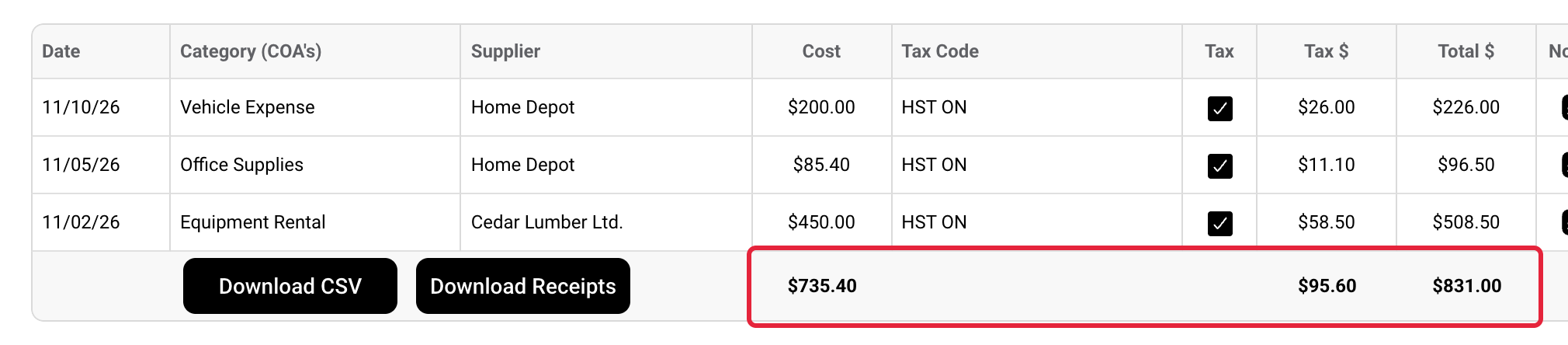
| Cost | Tax $ | Total $ | |
|---|---|---|---|
| 11/10/26 | $200.00 | $26.00 | $226.00 |
| 11/05/26 | $85.40 | $11.10 | $96.50 |
| 11/02/26 | $450.00 | $58.50 | $508.50 |
| Totals row | $735.40 | $95.60 | $831.00 |
Download the list
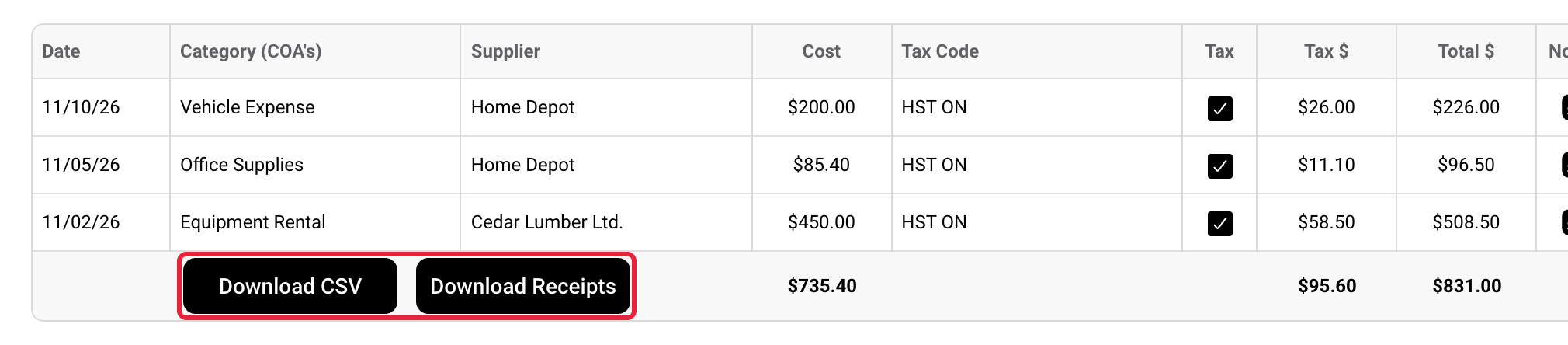
| Button | What you get |
|---|---|
| Download CSV | A spreadsheet of the matching expenses with Date, Category (COA's), Supplier, Cost, Tax Code, Tax (or GST and PST), Total and Notes. |
| Download Receipts | One PDF with the receipts of the matching expenses. |
If a download fails, you'll see Download CSV error or Download Receipts error.
Delete an expense
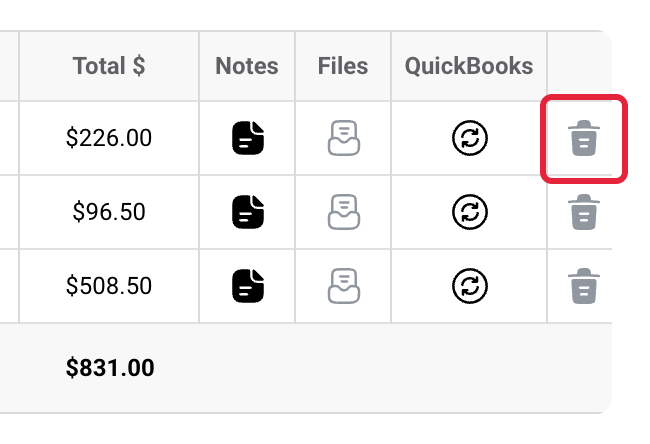
Click the trash can
Click the trash can at the end of the row.
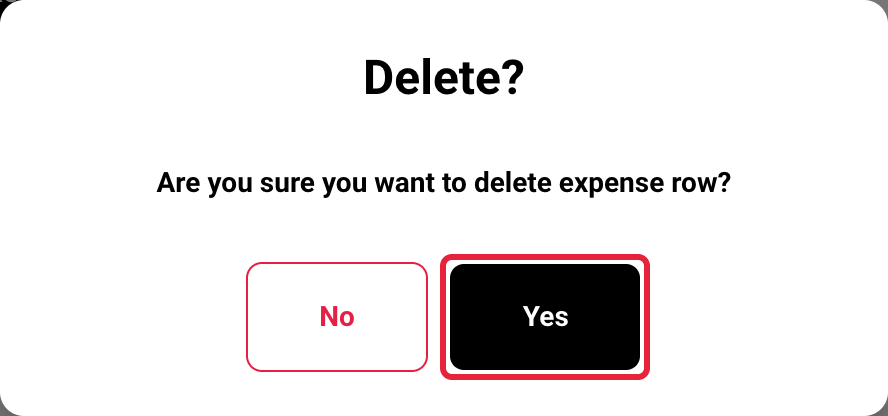
Click Yes
Buildwise asks Are you sure you want to delete expense row? Click Yes.
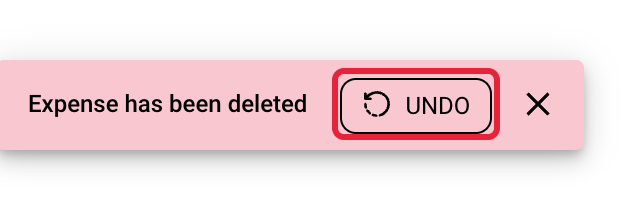
Undo if you need to
Expense has been deleted shows at the bottom of the page. Click UNDO to bring it back.
Rows you can't change in the table
You can't change or delete these rows in the table. Their trash can is greyed out:
- A split line.
- An expense that has been sent to QuickBooks.
Clicking one of these rows opens the Expense / Transaction window instead. If you delete an expense that's in QuickBooks from there, it's deleted in Buildwise only. It stays in QuickBooks.
This page has no select boxes and no Approve button. Those are on Project Expenses. See Find, Download and Delete Expenses.
💬 Have a question? Click the round message button in the bottom-right corner of this page, then click Send a message. We usually reply within a few hours.