How Dates Show in Buildwise
Buildwise shows dates the same way across the web app. Here is what to expect, and which date boxes fill in today's date for you.
How dates and times look
| Where | Looks like | Example |
|---|---|---|
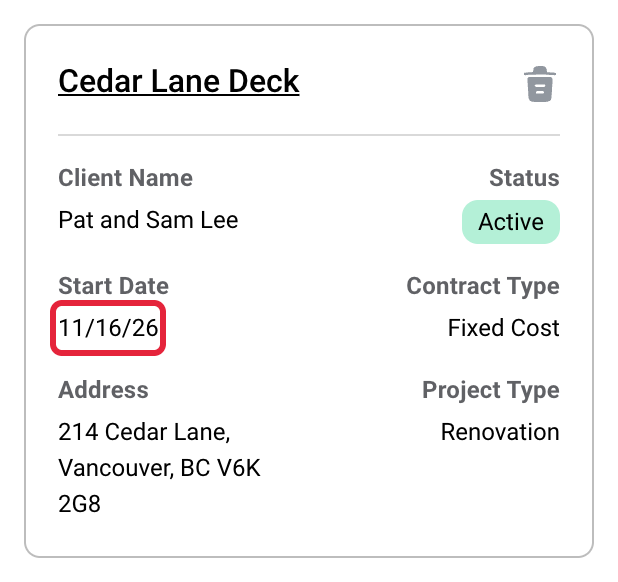
| Most dates: lists, tables, date boxes | Month/Day/Year, two digits each | 11/02/26 (November 2, 2026) |
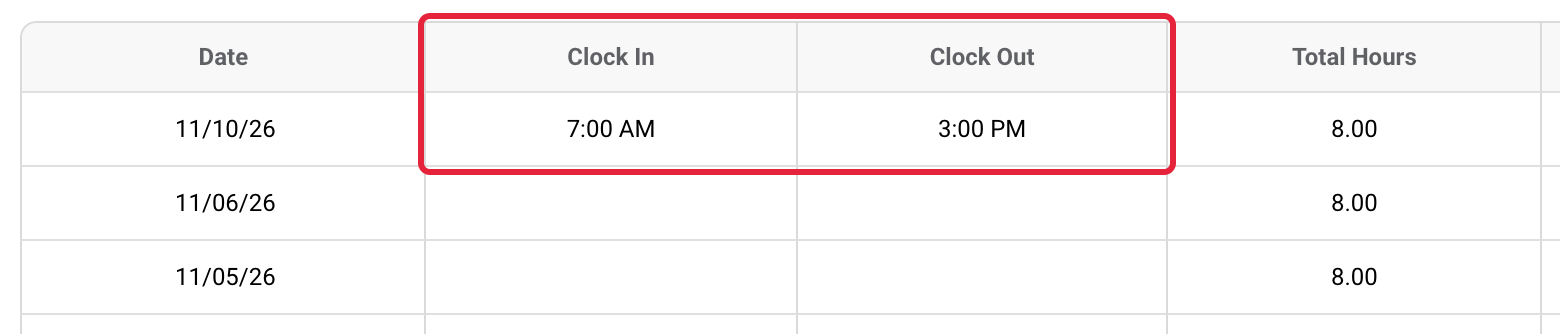
| Clock In and Clock Out times | 12-hour clock with AM or PM | 7:00 AM, 3:00 PM |
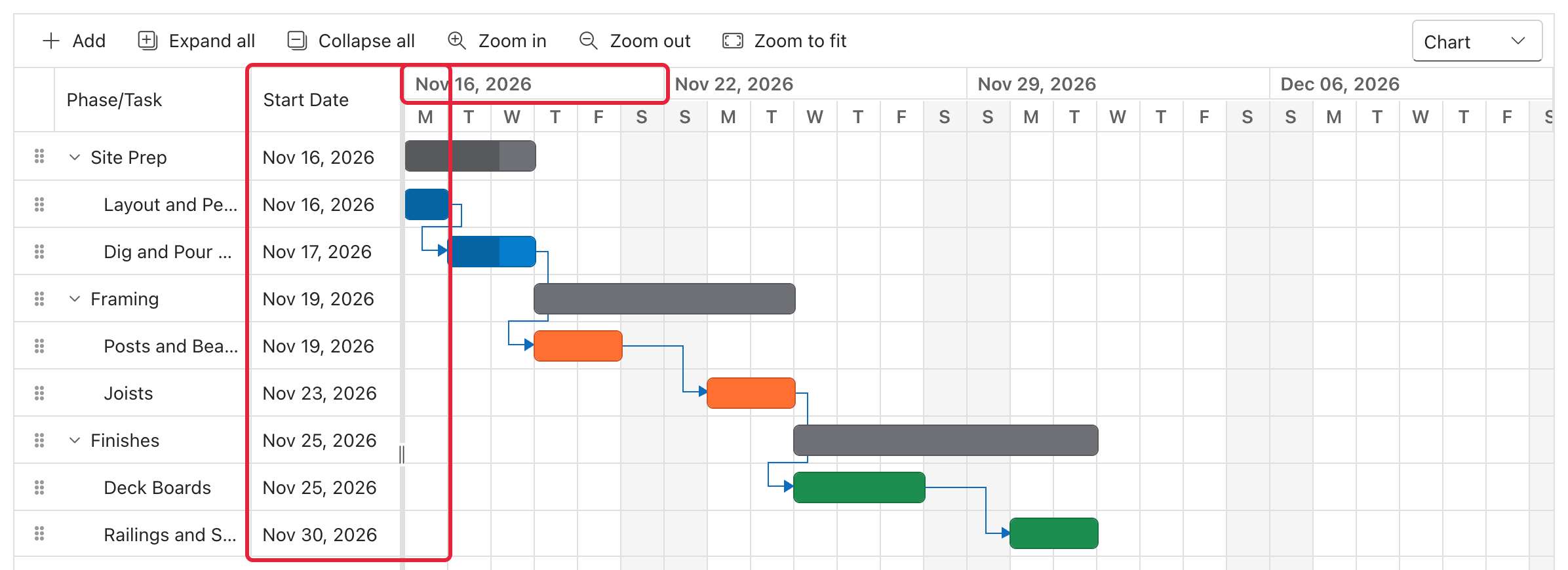
| The schedule chart | Short month, day and full year | Nov 02, 2026 |
A start date on a project card:
Clock times on a timesheet on the Labor page:
Dates on a project's Schedule tab:
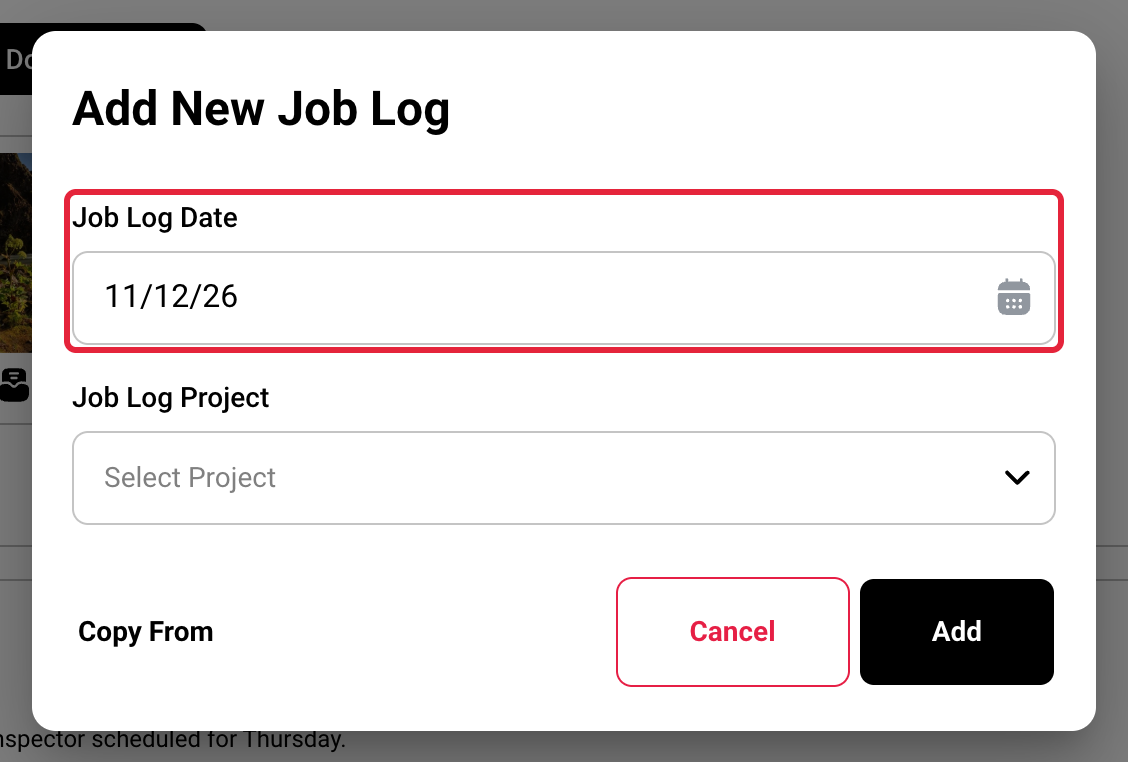
Date boxes that start on today
- A new job log starts on today's date. You can change it.
- A new task on the schedule starts and ends on today's date until you change it.
Date boxes that start blank
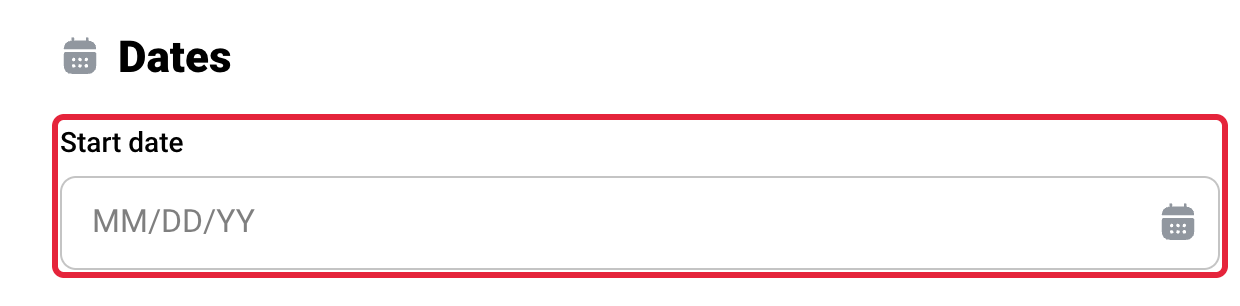
A project's Start date, on the Overview tab in Dates, stays blank until you pick one. A blank box shows MM/DD/YY as a hint.
💬 Have a question? Click the round message button in the bottom-right corner of this page, then click Send a message. We usually reply within a few hours.