Lock an Estimate or Change Order
Overview
Lock functionality prevents accidental changes to estimates or change orders by another Team Member. This functionality is linked to the status of the document:
Draft
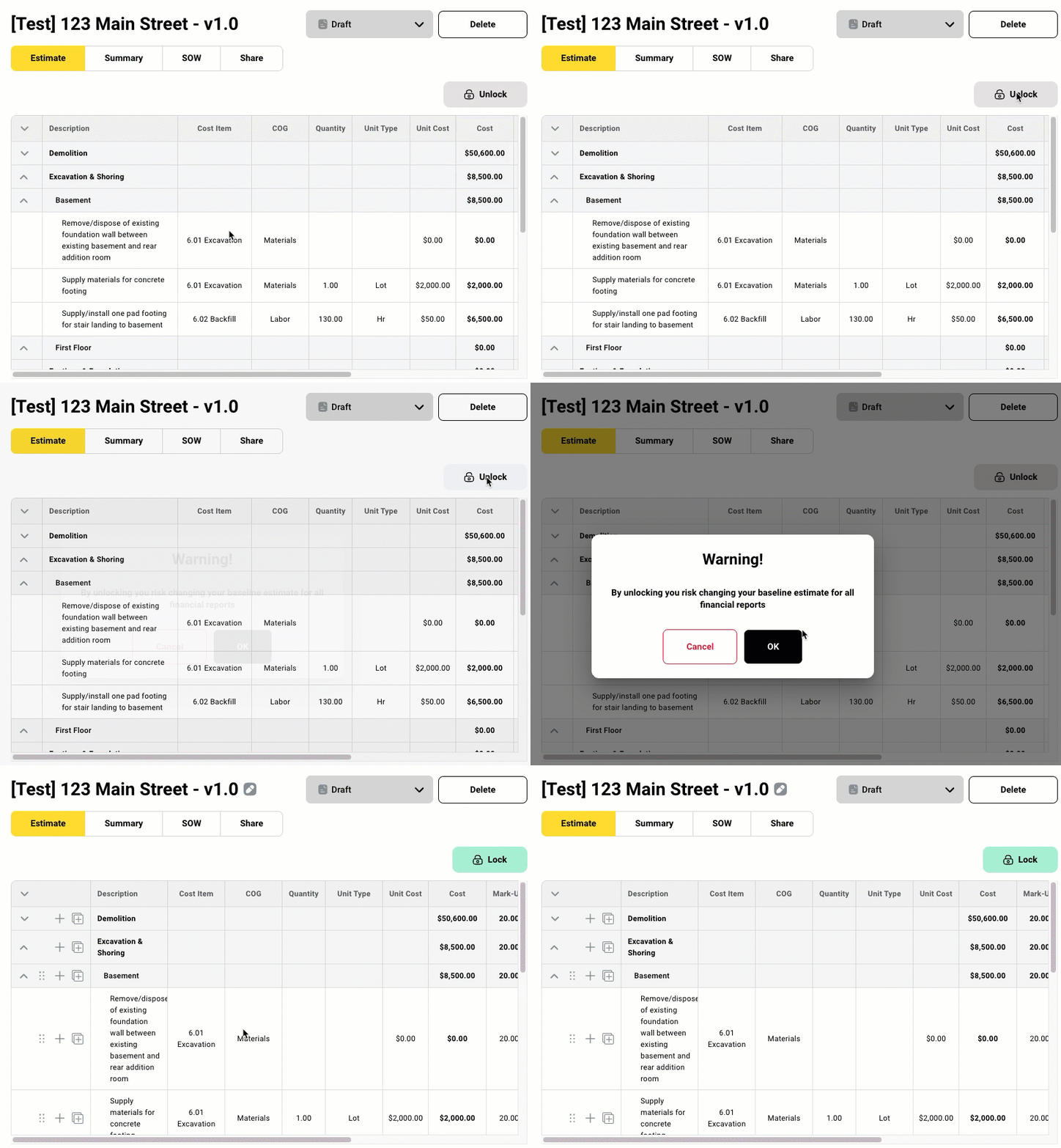
You can lock or unlock any estimate or change order in Draft status.
Note: Locked documents that are reverted to Draft status are automatically unlocked.
To unlock a Draft document, click Unlock. A Warning! confirmation pop-up opens:
Warning! By unlocking you risk changing your baseline estimate for all financial reports
Click Yes to confirm.
Released
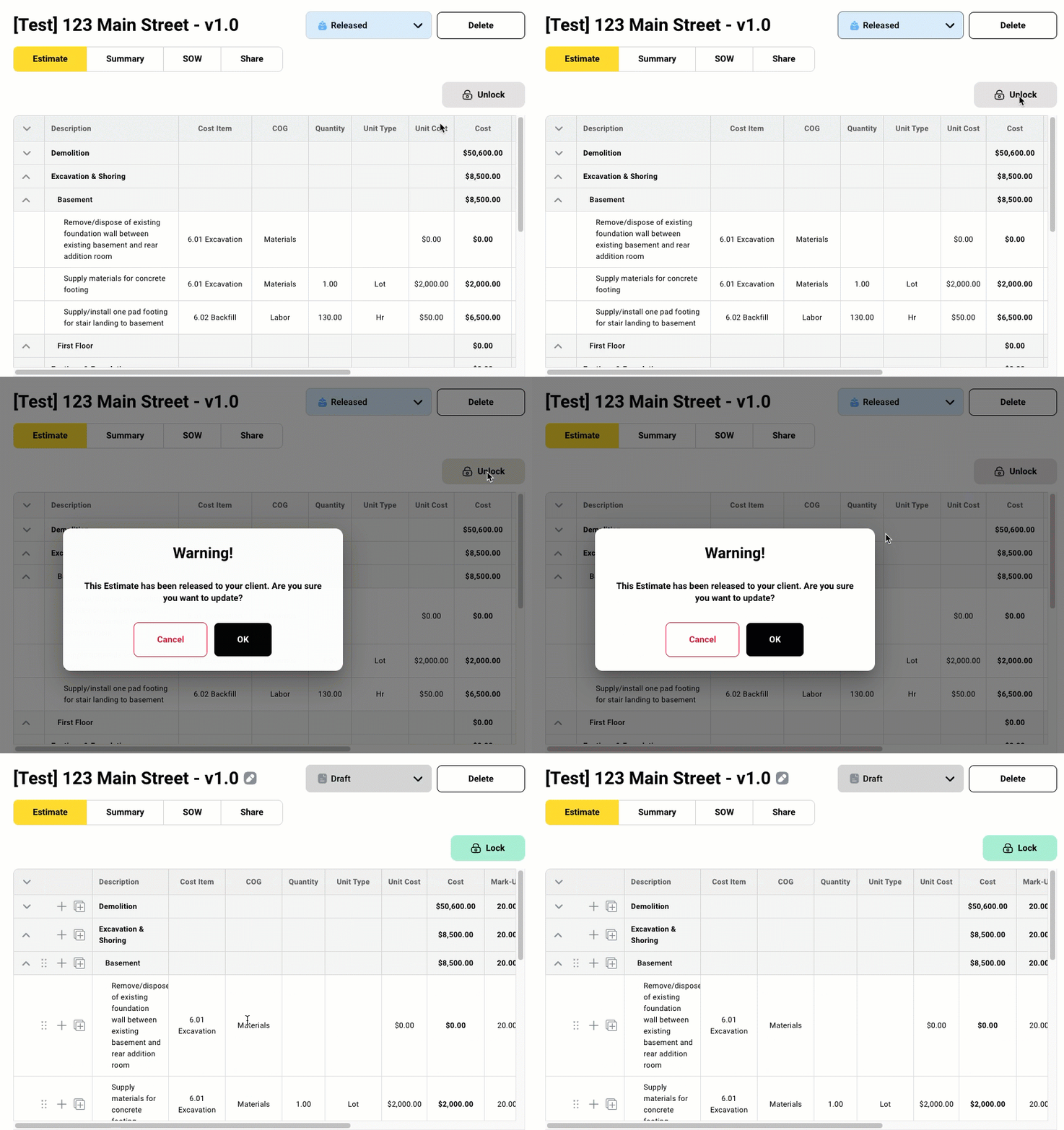
When the estimate or change order status is changed or reverted to Released, the document is automatically locked. Documents in Released status can be unlocked but will receive a warning confirmation pop-up.
Click Unlock. A Warning! confirmation popup opens.
Warning! This [Estimate/Change Order Name] has been released to your client. Are you sure you want to update?
Click Yes to confirm.
Client Approved or Manually Approved
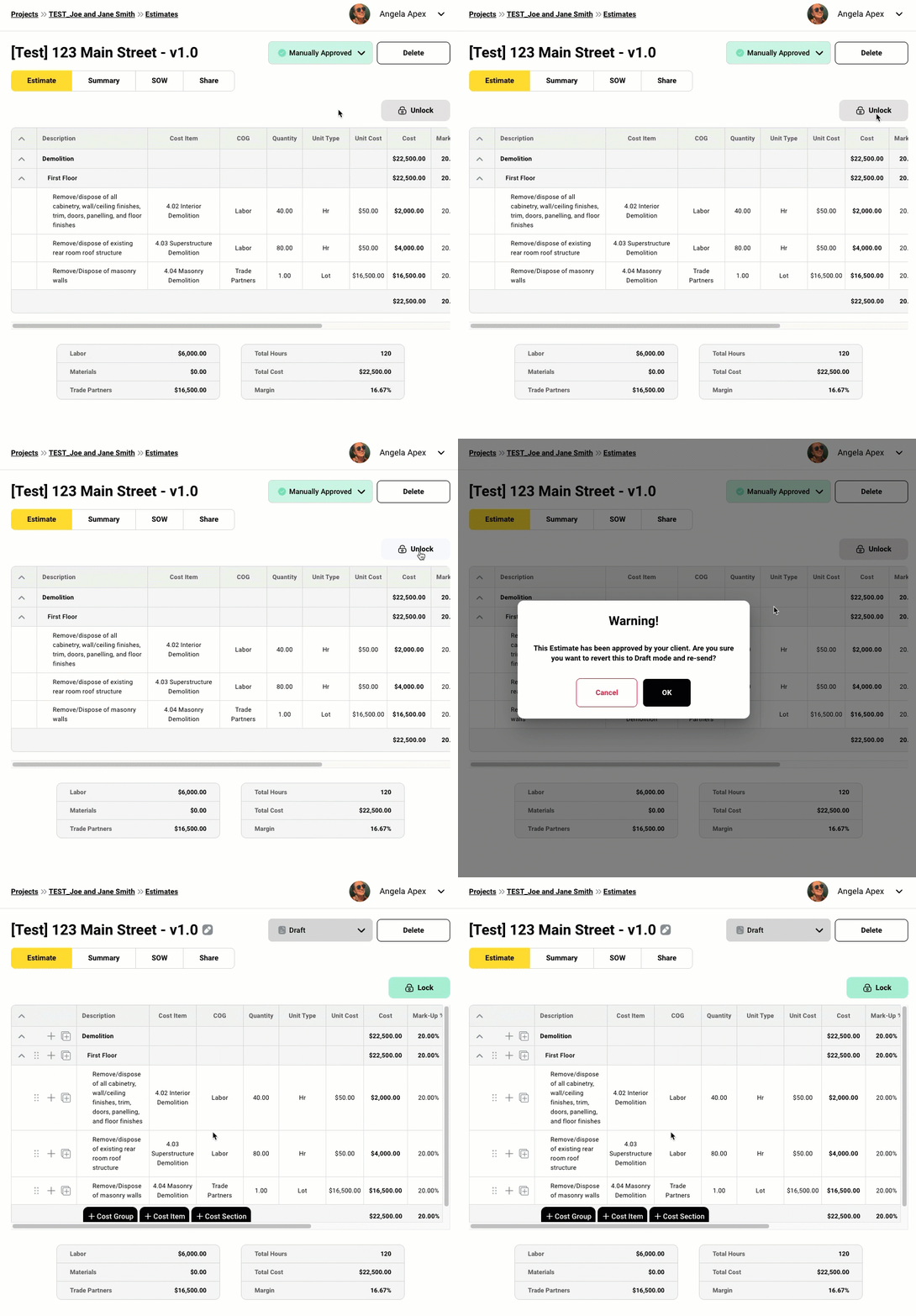
When the estimate or change order status is changed to Client Approved or Manually Approved, the document is automatically locked. An approved change order can be unlocked while its project has no expenses. An approved estimate can be unlocked while its project has no expenses and no approved change orders. Either way, a warning confirmation pop-up opens.
Click Unlock. A Warning! confirmation popup opens.
Warning! This [Estimate/Change Order] has been approved by your client. Are you sure you want to revert this to Draft mode and re-send?
Click Yes to confirm.
Declined
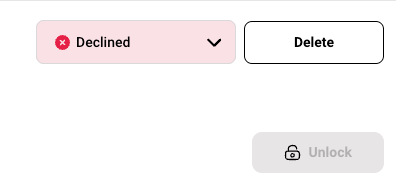
When the estimate or change order status is changed to Declined, the document is automatically locked and cannot be unlocked.
If you have any questions or need support:
💬 Click the beacon on this page to chat with us
📩 Click the beacon on this page to email us