How Do I Reset My Password If I Forgot It?
Forgot your password? You can reset it yourself in about a minute. The steps are the same on your phone or your computer, in any web browser.
Reset your password
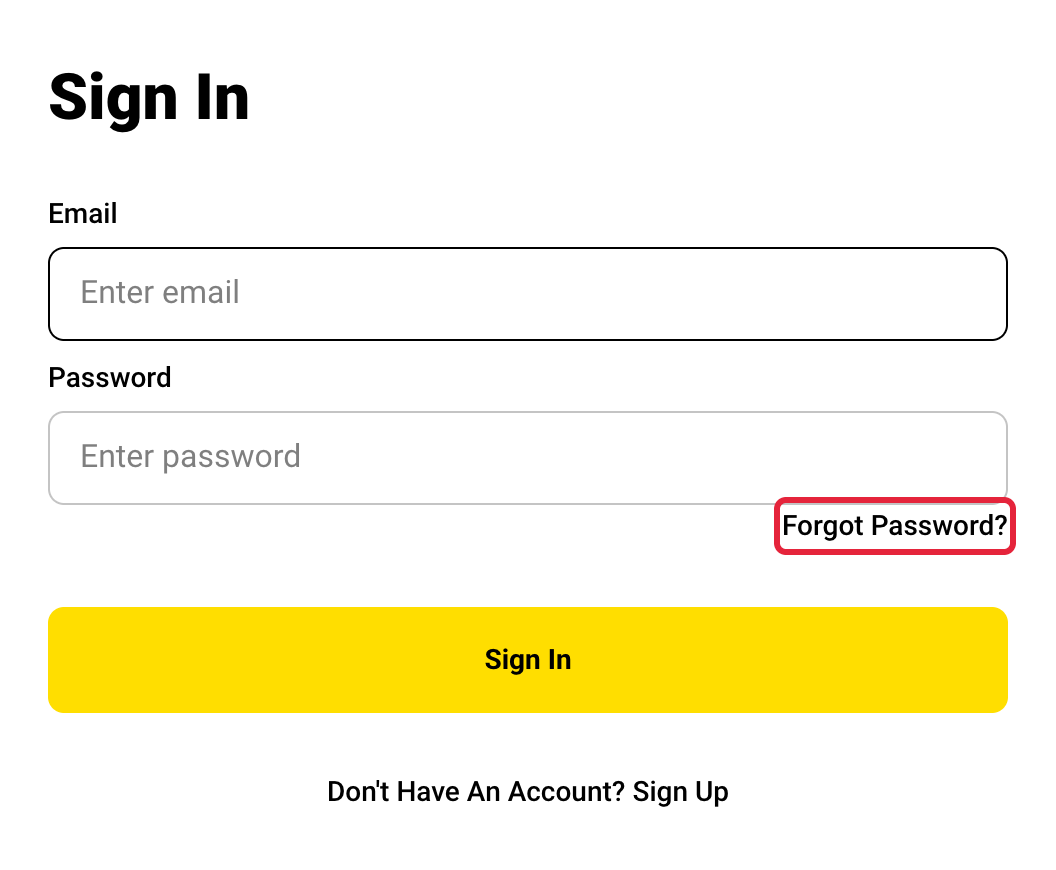
Click Forgot Password? on the Sign In page
Go to app.buildwiseapp.com and click Forgot Password? under the Password box, just above the Sign In button.
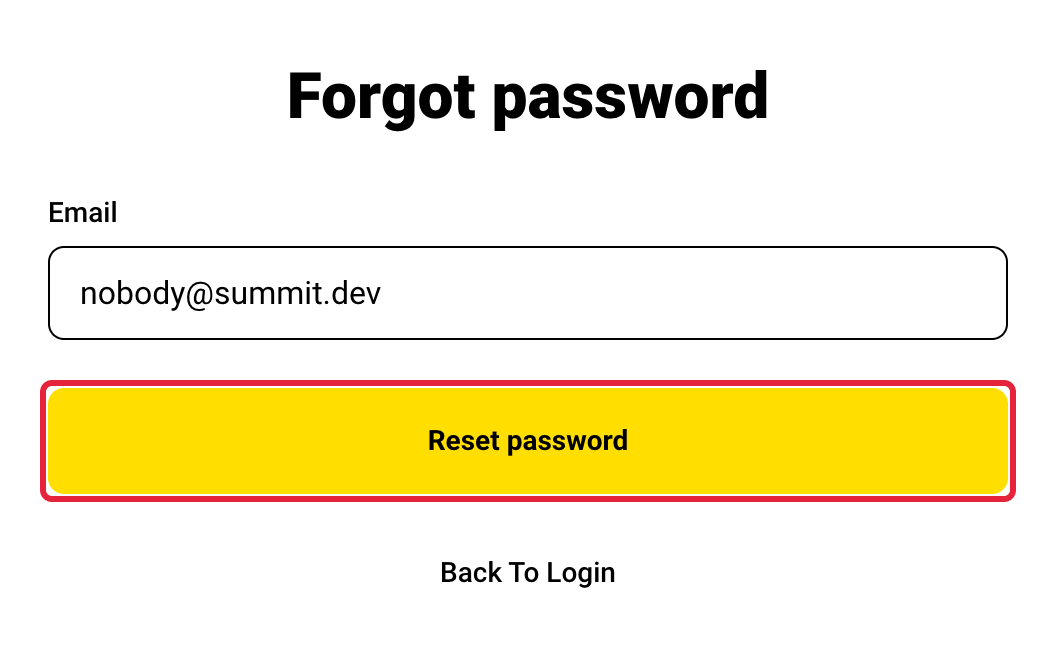
Enter your email and click Reset password
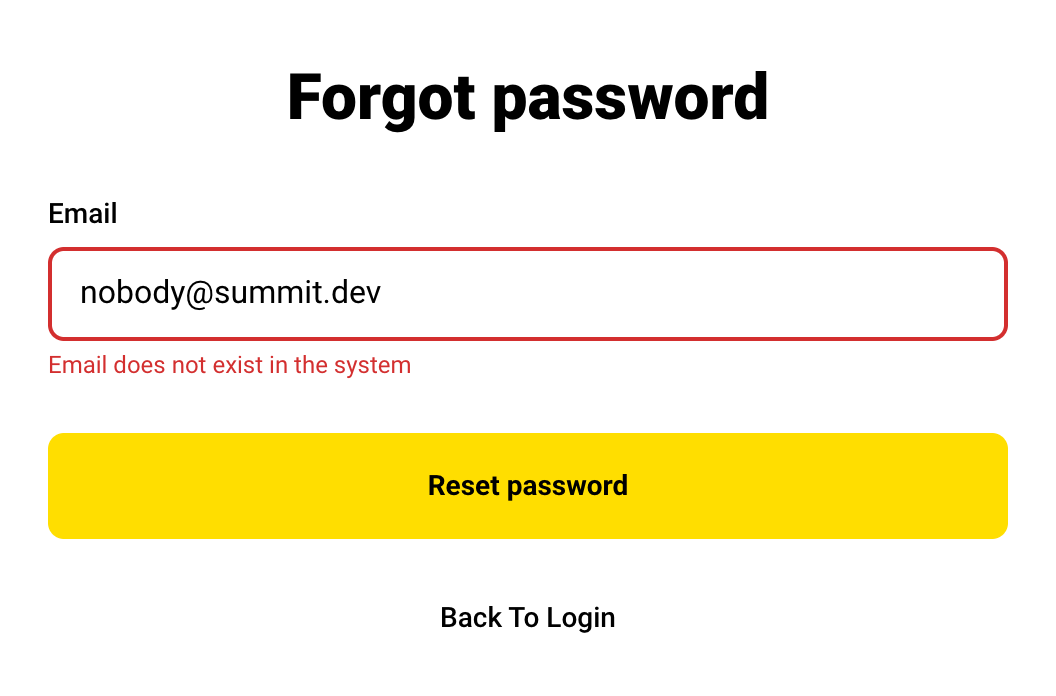
Type the email on your Buildwise account and click Reset password. It has to be the same email you sign in with. If it isn't, the page says Email does not exist in the system and no email is sent.
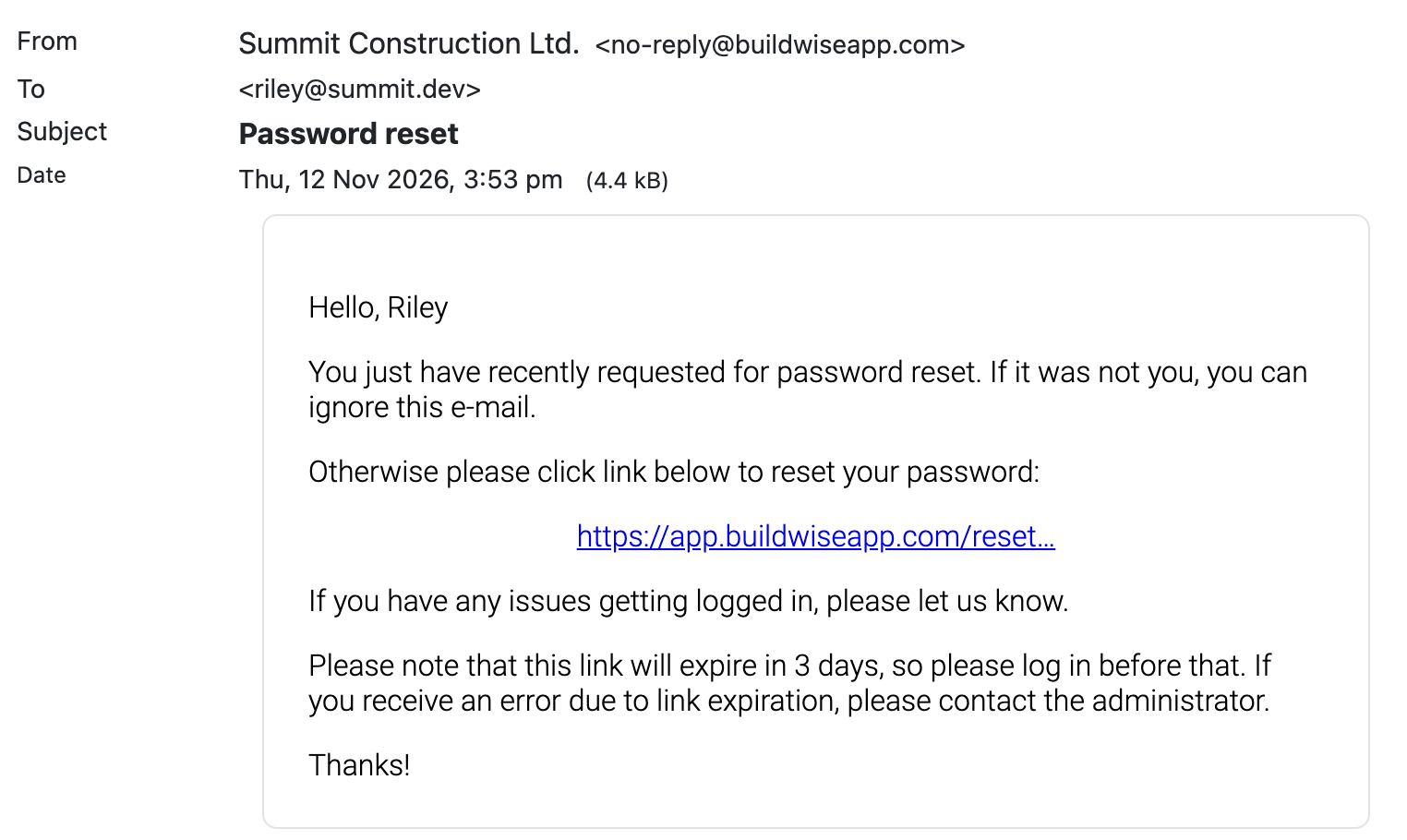
Open the email and click the link
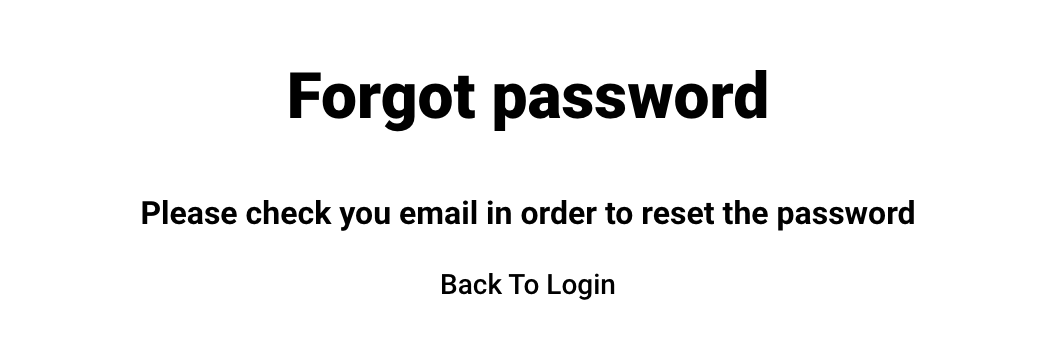
When it works, the page says Please check your email in order to reset your password. We send an email called Password reset, with your company's name as the sender. It usually arrives within a minute or two. Click the link inside it. The link works for 3 days.
Enter your new password twice
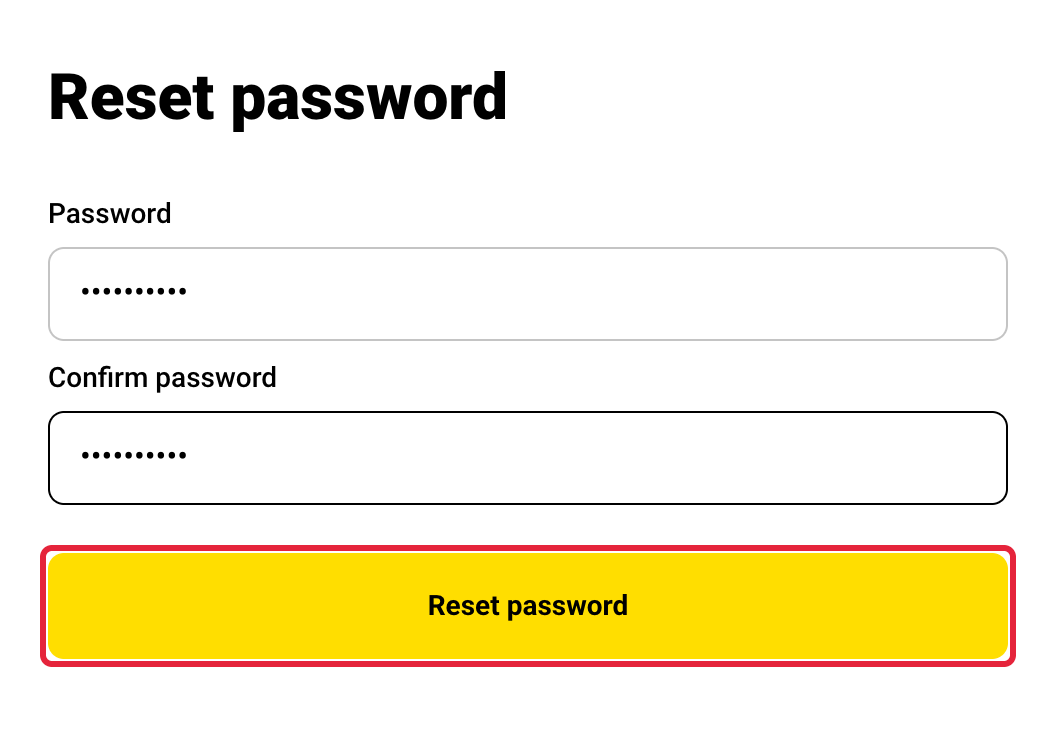
The link opens the Reset password page. Type a new password of at least 8 characters in Password and again in Confirm password, then click Reset password. Both boxes have to match.
Sign in with your new password
That's it. The Sign In page opens. Sign in with your email and the password you just set.
If something goes wrong
| Problem | What to do |
|---|---|
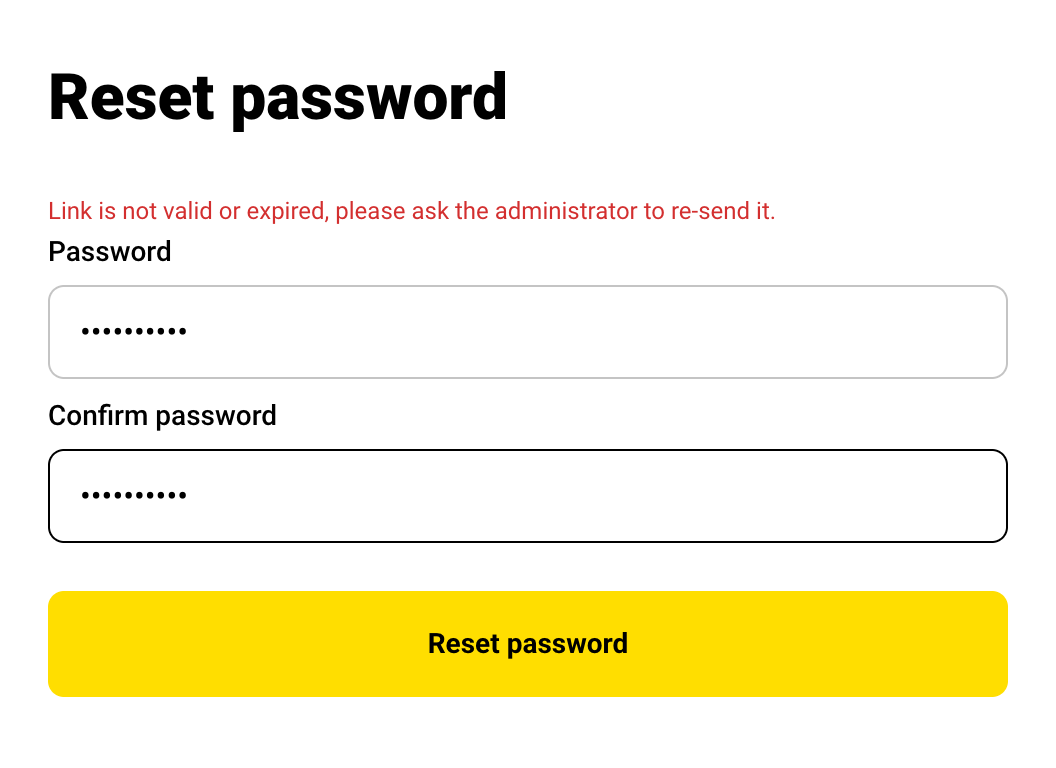
| The link has expired | Reset links stop working after 3 days, or as soon as a new password is set. The Reset password page then says Link is not valid or expired, please ask the administrator to re-send it. Go back to the Sign In page, click Forgot Password? again and request a fresh link. |
| The email never showed up | Check your spam or junk folder first. If it's not there, search for an email called Password reset, wait a few minutes, then request a new link. |
Still can't sign in? See Why Can't I Sign In?.
💬 Have a question? Click the round message button in the bottom-right corner of this page, then click Send a message. We usually reply within a few hours.