Read a Project's Budget Tab
The Budget tab inside a project shows each cost group's budget, what you have spent so far, and what is left.
Here are the steps to follow:
Open the Budget tab
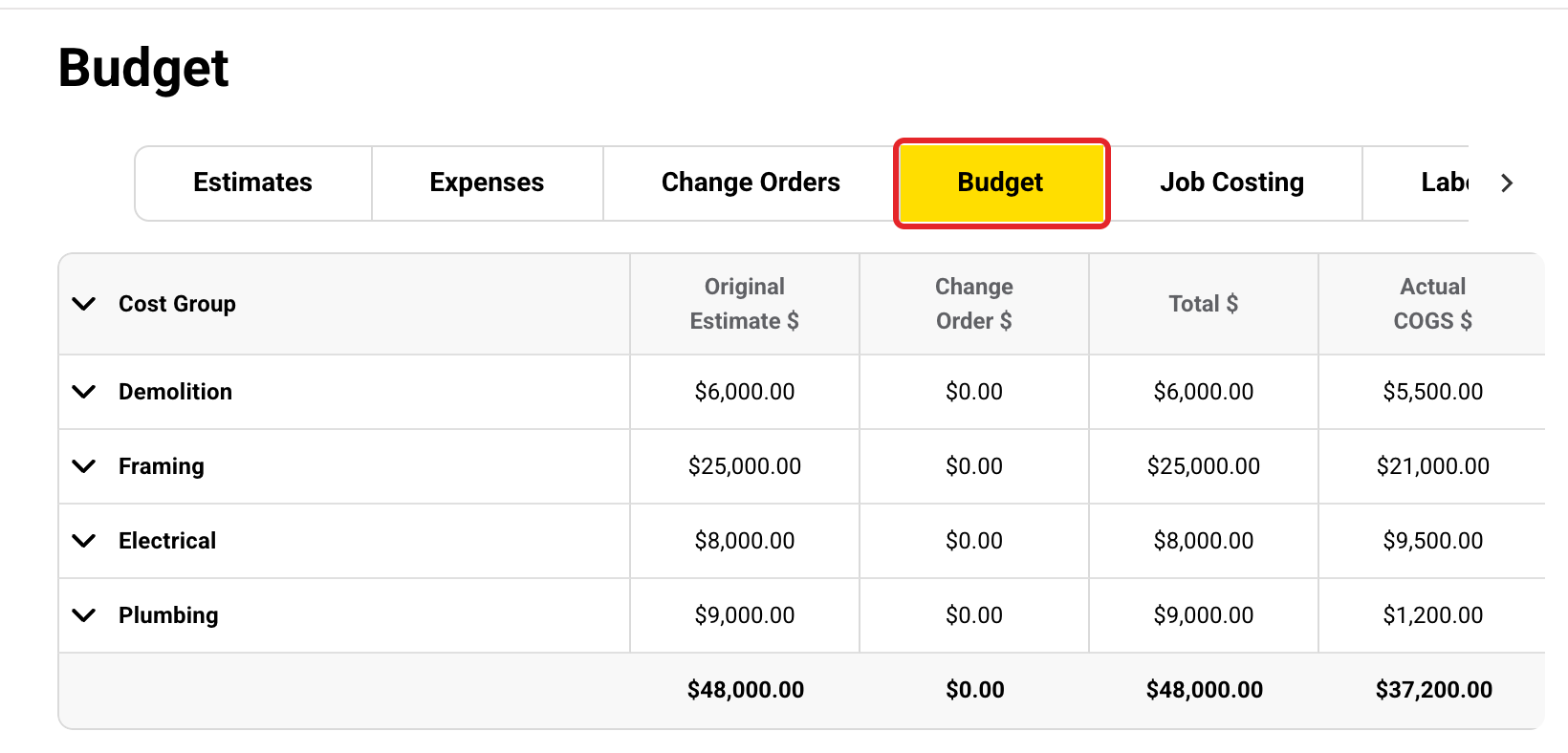
Open the project and click the Budget tab. Each row is one cost group. The bottom row adds them up.
Open a cost group
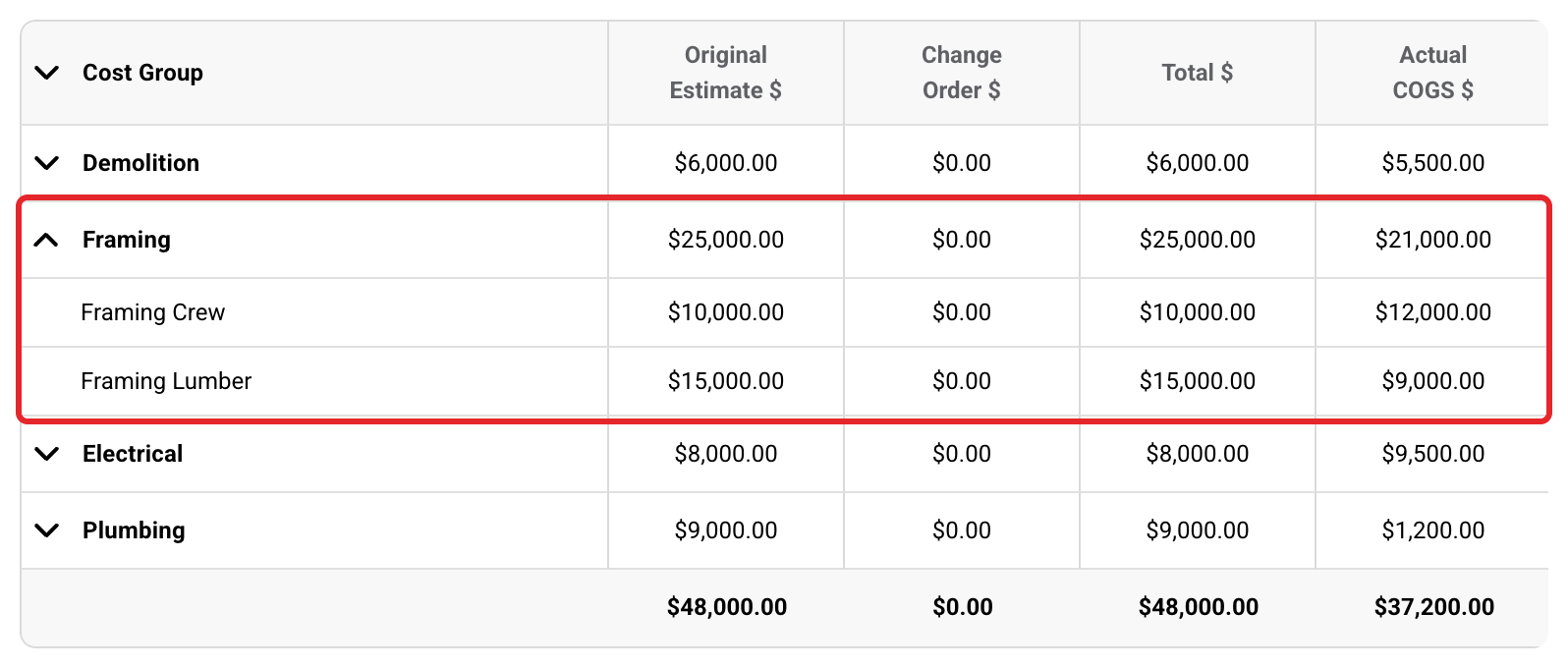
Click the arrow next to a cost group to see its cost items.
Mark a cost group complete
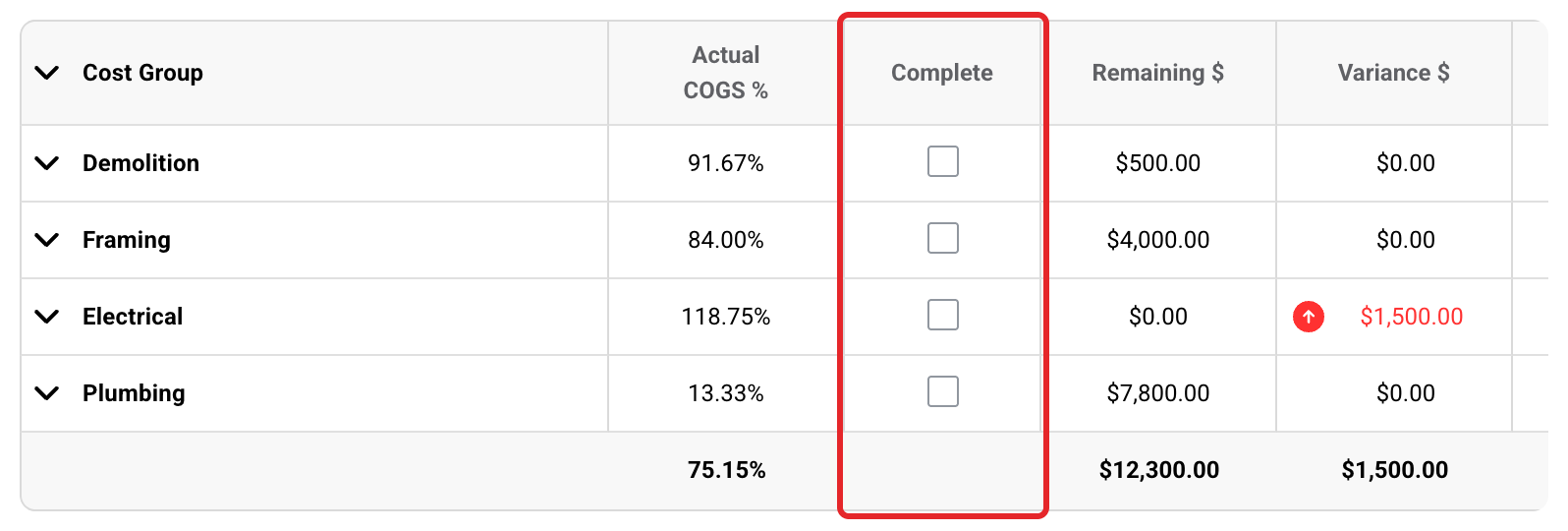
When the work in a cost group is done, tick its Complete box. Remaining $ drops to $0.00, and Variance $ and Gross Profit $ are worked out on the final cost. This also shows on the Budgets page. You can untick it at any time. On a Cost Plus project, you can only tick it once every expense in that cost group is billed or marked unbillable, so nothing gets missed in billing. If a billable expense that is not billed yet lands in that cost group later, Buildwise unticks Complete for you. On a Fixed Cost project, you can tick it at any time.
Cost Plus: check Projected Overrun $
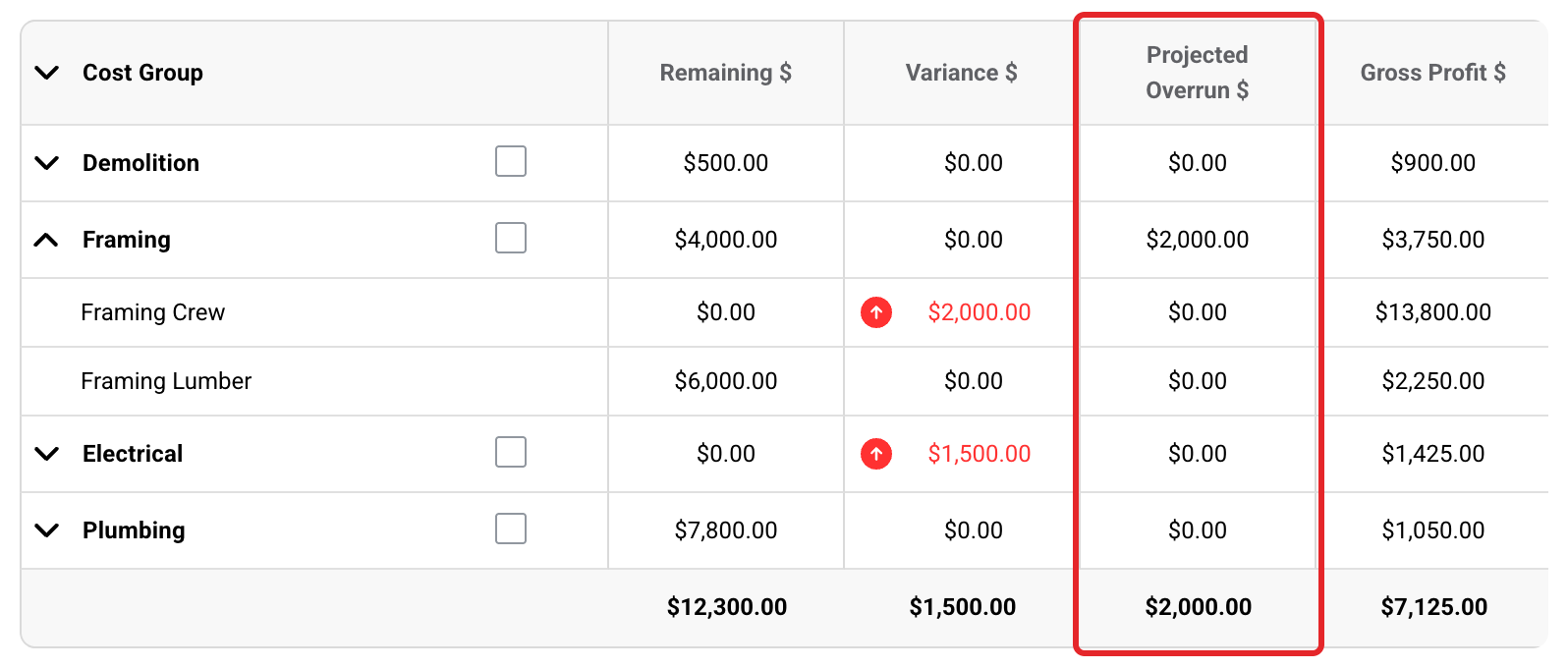
Projected Overrun $ shows money already overspent in Labor, Material or Trade that Variance $ does not show yet. As an example, Framing Crew is $2,000.00 over, but Framing Lumber still has money left, so Variance $ for Framing is $0.00 and Projected Overrun $ is $2,000.00. To see how it is worked out, see View Job Costing Across All Projects.
Cost Plus: read the Projected Total bar
Under the table, Original Estimate $, Change Orders $, Variance $ and Projected Overrun $ add up to Projected Cost $. Then markup and Tax $ are added to give Projected Total $. The markup box uses your company's name for markup (Builder Fee in this picture). It counts the markup on the approved estimate and change orders, plus the markup on expenses that went over budget. Tax $ only shows when it is not $0.00.

Fixed Cost: read the summary
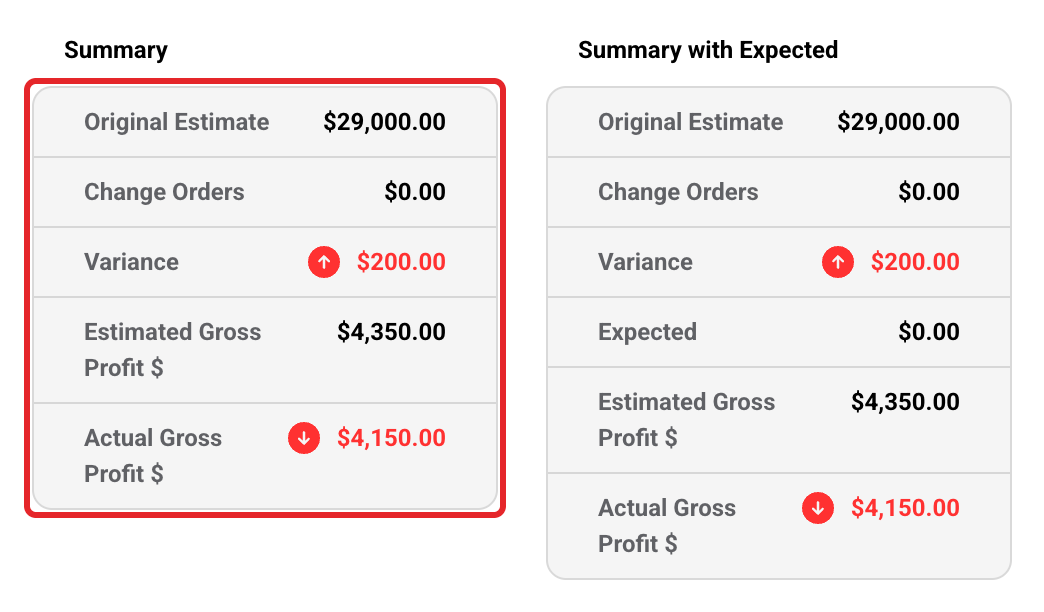
On a Fixed Cost project, the Summary under the table shows Original Estimate, Change Orders, Variance, Estimated Gross Profit $ and Actual Gross Profit $. Estimated Gross Profit $ is the markup on the approved estimate and change orders. Actual Gross Profit $ is Estimated Gross Profit $ minus Variance. It shows green when it is above the estimate and red when it is below.
Fixed Cost: type an Expected $ amount
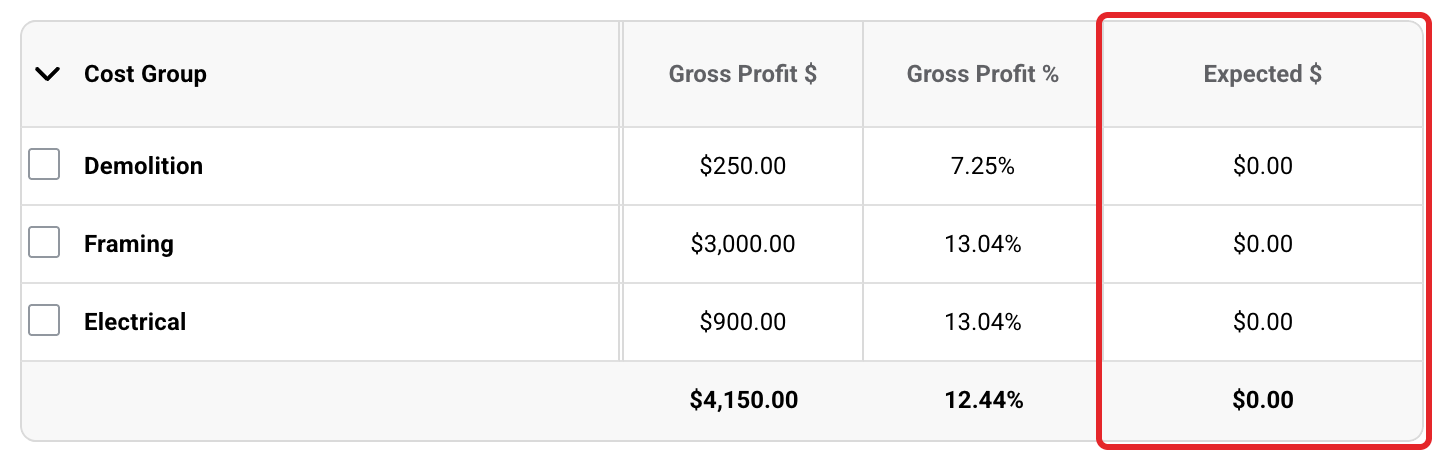
Use Expected $ for costs you still expect in a cost group. Type a positive amount if you will spend more than what is left in Remaining $, or a negative amount if you will spend less. It only changes the Summary with Expected box: Actual Gross Profit $ there is Estimated Gross Profit $ minus (Variance + Expected $). Buildwise never clears Expected $ for you, even when a change order is approved.
When Expected $ shows
Expected $ and the Summary with Expected box only show on a Fixed Cost project whose Materials, Labor and Trade markups are all the same. Cost Plus projects never show them.
What the columns show
| Column | What it shows |
|---|---|
| Original Estimate $ | The cost of the approved estimate (Client Approved or Manually Approved), before markup and tax. |
| Change Order $ | The cost of the approved change orders, before markup and tax. |
| Total $ | Original Estimate $ plus Change Order $. |
| Actual COGS $ | What has been spent so far, at cost (plus PST when it is on), without markup. On Cost Plus projects, unbillable expenses are not counted. |
| Actual COGS % | In each row, Actual COGS $ divided by Total $. In the bottom row of a Cost Plus project, it divides by Total $ plus Variance $ instead. |
| Complete | Tick it when the work in that cost group is done. |
| Remaining $ | Total $ minus Actual COGS $, but never below $0.00. It is $0.00 once the cost group is marked complete. |
| Variance $ | How far over budget the cost group is. A red up arrow means over budget. A green down arrow means a cost group was marked complete under budget. $0.00 means there is budget left, but it is too early to tell. |
| Projected Overrun $ | Cost Plus only. See step 4. |
| Gross Profit $ | The profit on the cost group in dollars. While it is open and under budget, it is the markup on the approved estimate and change orders (on Cost Plus, minus any unbillable expenses). Once it is complete or over budget, it is worked out on the actual costs. |
| Unbillable $ | Cost Plus only, when the project has at least one unbillable expense. |
| Gross Profit % | Gross Profit $ as a percent. |
| Invoiced $ | Cost Plus only. The expenses you have billed. |
| Expected $ | Fixed Cost only. See step 7. |
For every project at once, see View Budgets Across All Projects.
If you have any questions or need support:
💬 Click the beacon on this page to chat with us
📩 Click the beacon on this page to email us