Read a Project's Job Costing Tab
The Job Costing tab inside a project compares estimated and actual costs for that one project, split into Labor, Material and Trade.
Here are the steps to follow:
Open the Job Costing tab
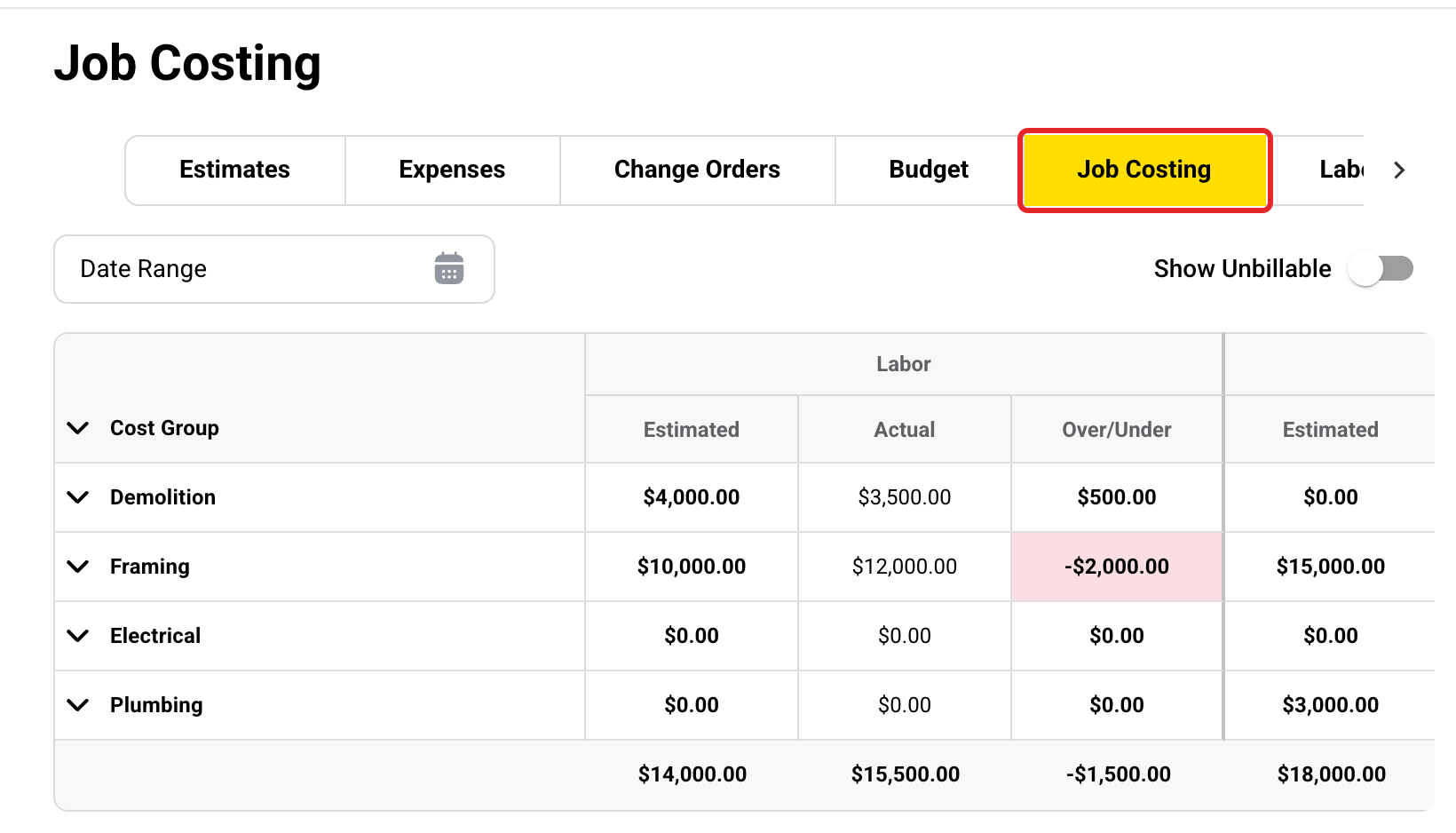
Open the project and click the Job Costing tab. Each cost group has Estimated, Actual and Over/Under for Labor, Material and Trade. A red Over/Under cell means that part is over budget.
Open a cost group
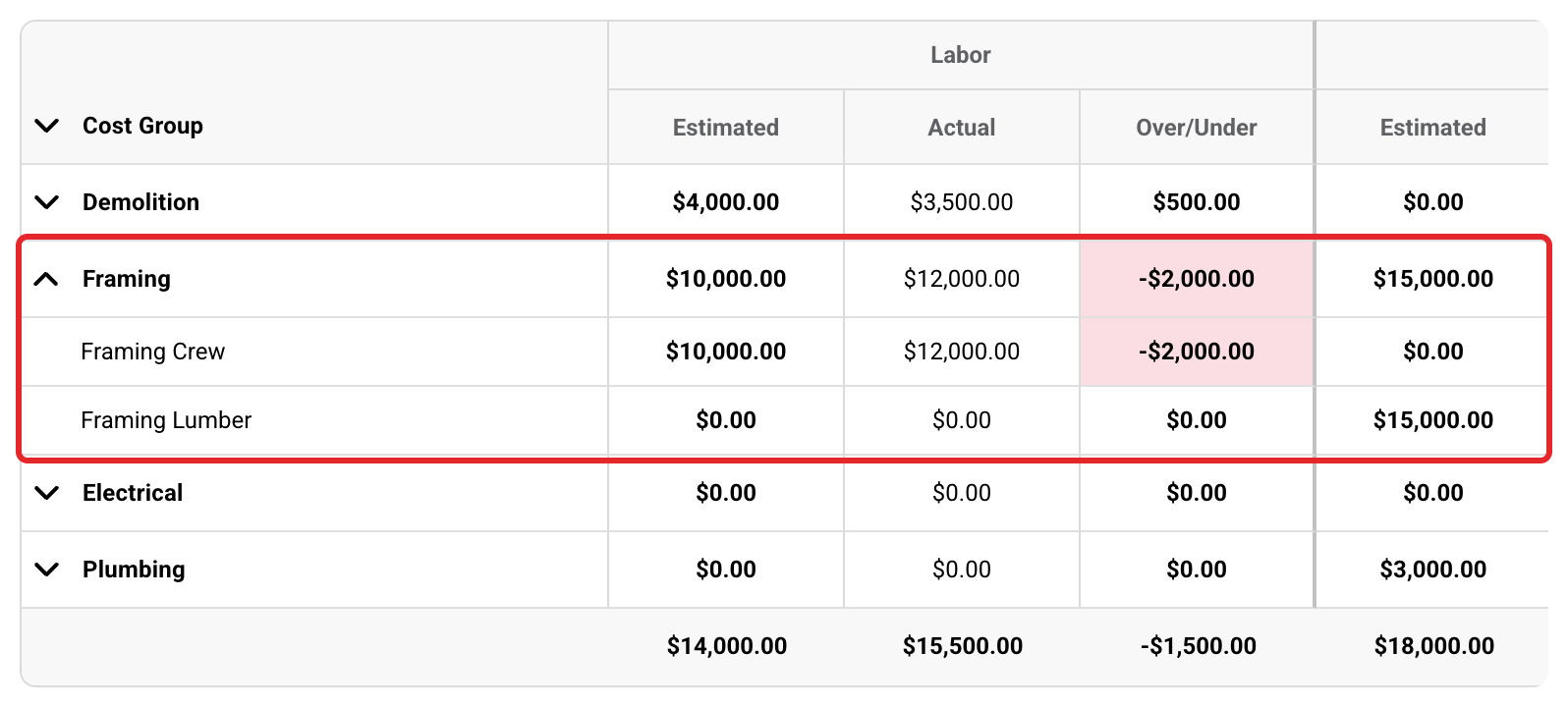
Click the arrow next to a cost group to see its cost items. Lines with no cost item do not get their own row, but their money still counts in the cost group's row.
Cost Plus: show unbillable expenses
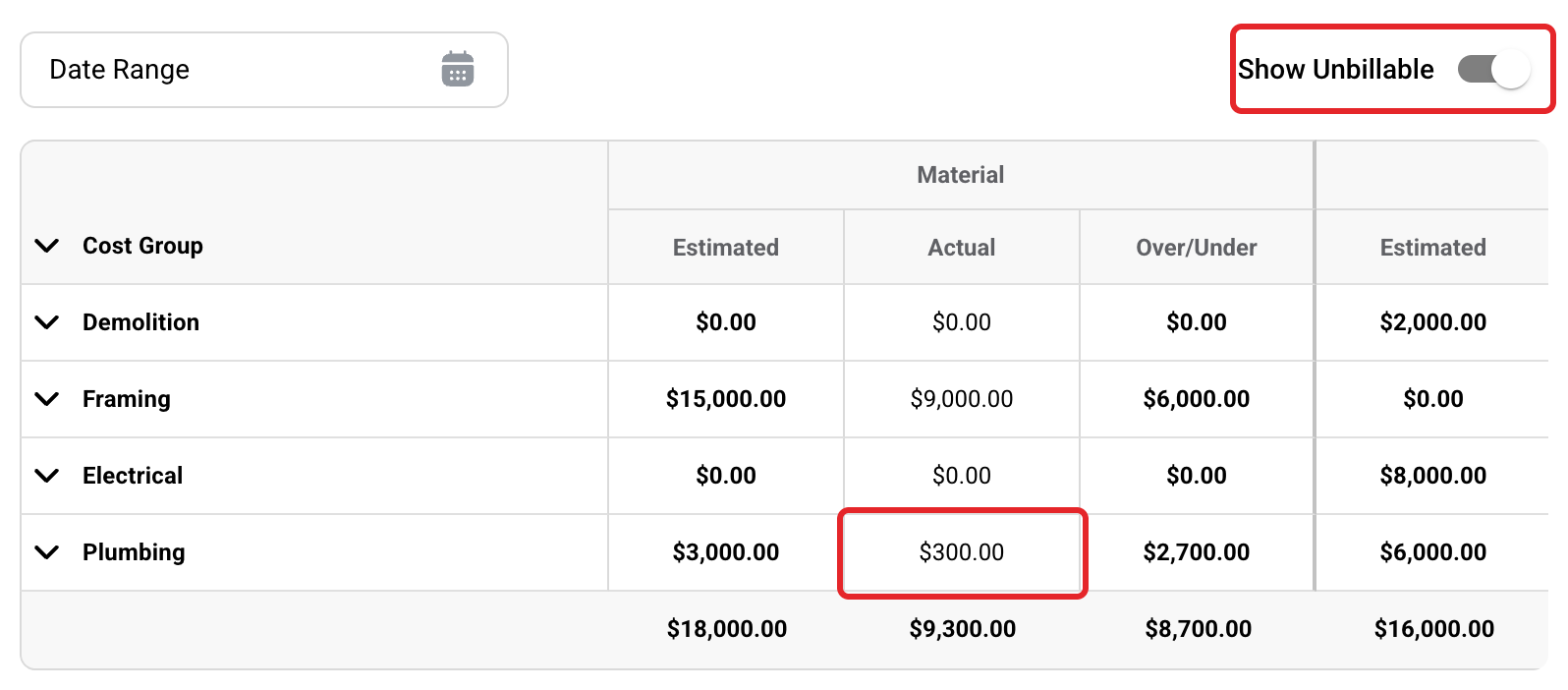
On a Cost Plus project, unbillable expenses are left out of Actual. Turn on Show Unbillable to add them back. As an example, the $300.00 unbillable plumbing fixtures now show under Material. The switch only shows on Cost Plus projects that have at least one unbillable expense. On a Fixed Cost project, unbillable expenses always count.
Check the Totals
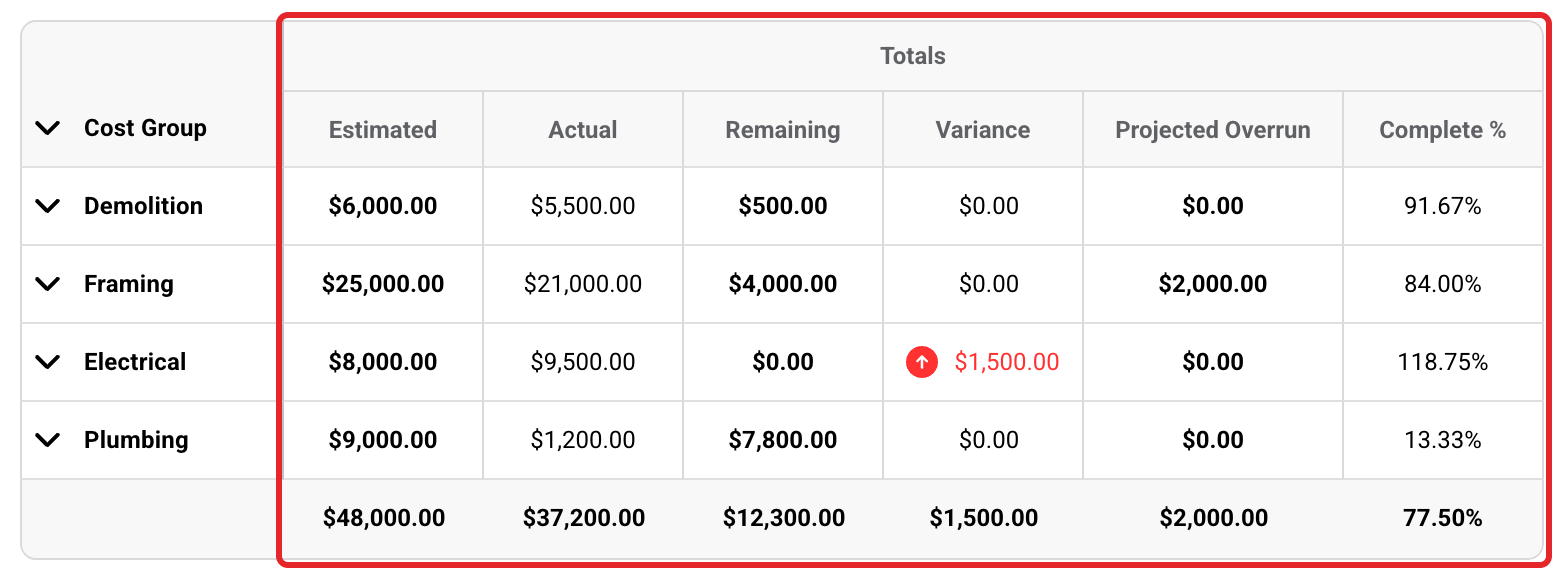
Scroll right to see Estimated, Actual, Remaining, Variance, Projected Overrun and Complete % for each whole cost group. Projected Overrun only shows on Cost Plus projects. For what each column means, and how Projected Overrun works, see View Job Costing Across All Projects.
Cost Plus: read the Projected Total bar
Under the table, Original Estimate $, Change Orders $, Variance $ and Projected Overrun $ add up to Projected Cost $. Then markup and Tax $ are added to give Projected Total $. The markup box uses your company's name for markup (Builder Fee in this picture). Only billable expenses count toward markup and tax, even when Show Unbillable is on. Tax $ only shows when it is not $0.00.

Date Range counts only the expenses dated inside it. Estimated never changes with the date range, and the Projected Total bar follows it too.
Who sees this tab
Owners, Administrators and Managers see the Job Costing tab. Members do not.
If you have any questions or need support:
💬 Click the beacon on this page to chat with us
📩 Click the beacon on this page to email us