Billed, Unbillable and Approved on an Expense
Three boxes on each expense tell you where it stands. Billed means your client has been charged for it. Unbillable means you won't charge for it. Approved means it is ready for payment.
Here are the steps to follow:
Tick Billed when you bill outside Buildwise
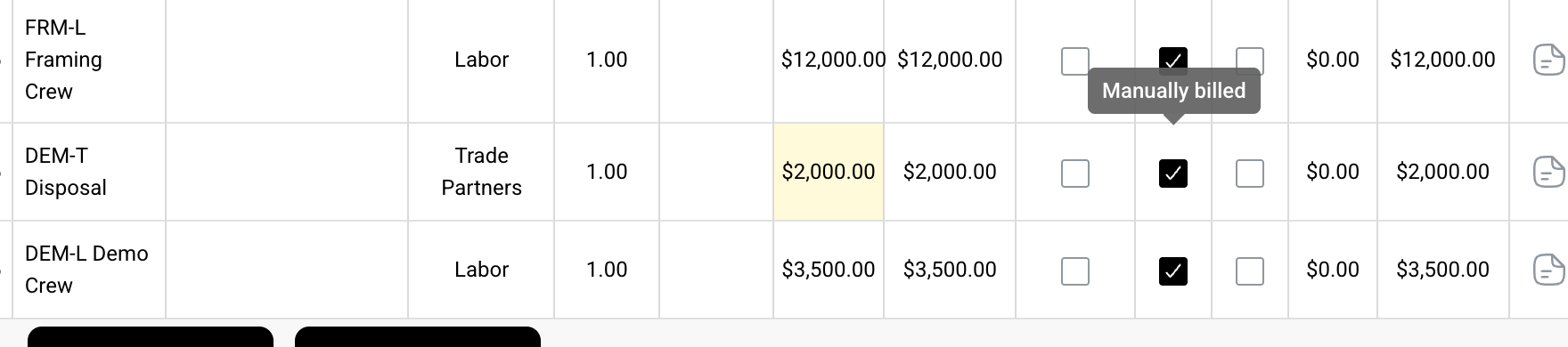
If you bill a cost some other way, tick Billed on the row yourself. A black check means it was billed by hand.
Read the Billed box
Hover over the box to see which invoice the expense is on.
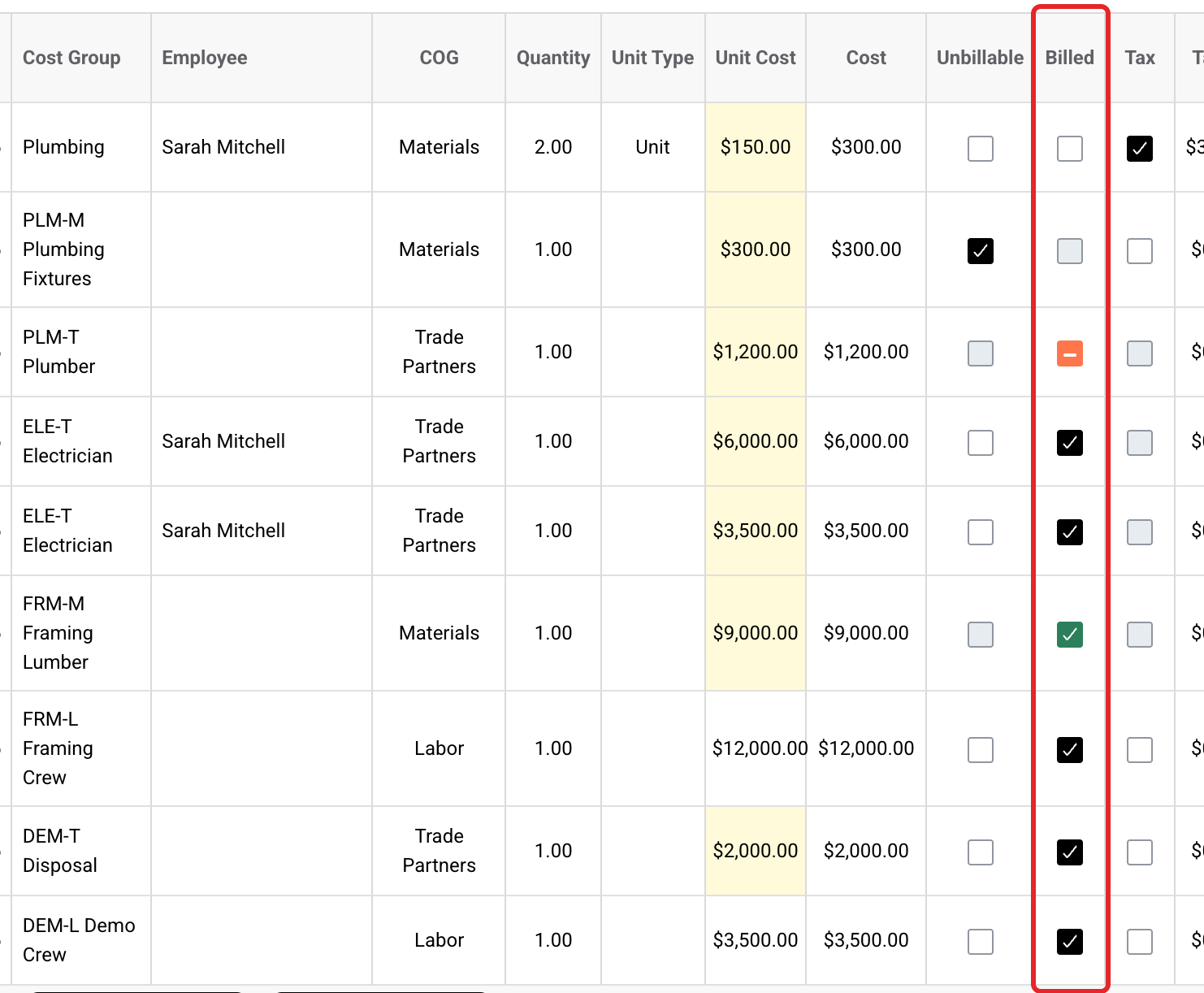
| Billed box | What it means |
|---|---|
| Empty | Not billed yet. |
| Black check | Billed by hand. Hover shows Manually billed. |
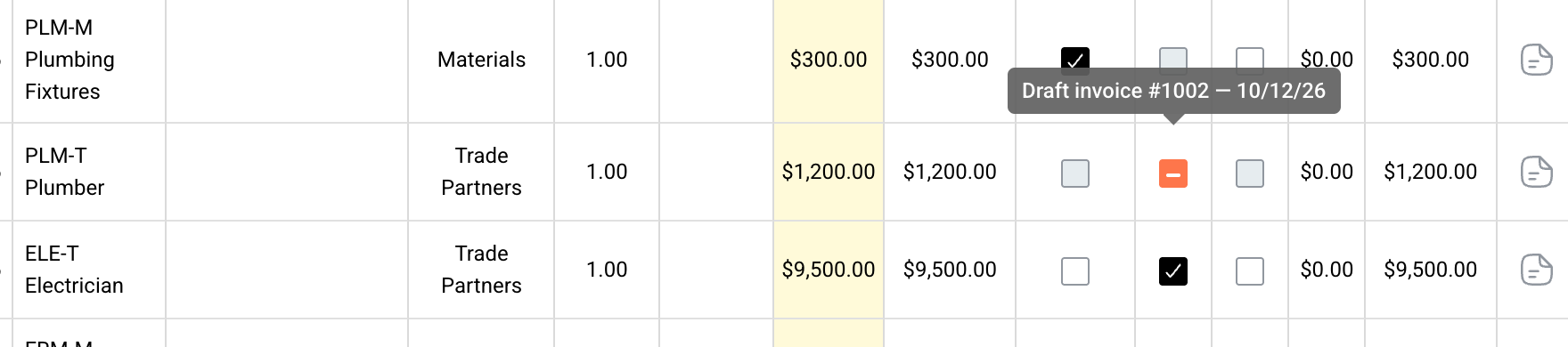
| Orange dash | On a draft invoice. Not billed yet. Hover shows the draft invoice number and date. |
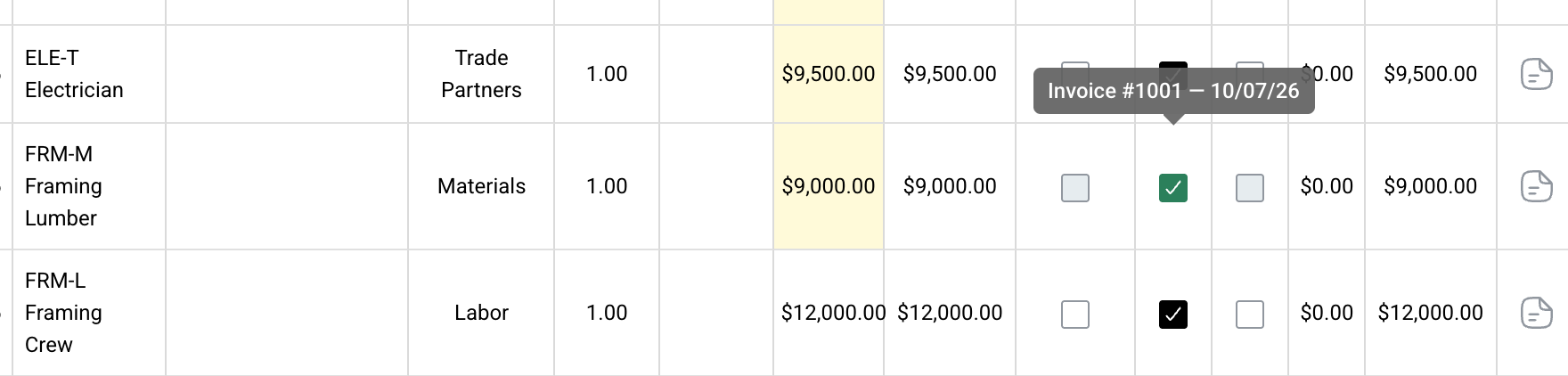
| Green check | Billed on a released invoice. Hover shows the invoice number and date. |
Result: on a draft invoice
Result: on a released invoice
Untick Billed on an invoiced expense
On an expense that is on a draft invoice, unticking Billed takes it off the invoice. On a released invoice, the invoice keeps its line.
Tick Unbillable for costs you won't charge
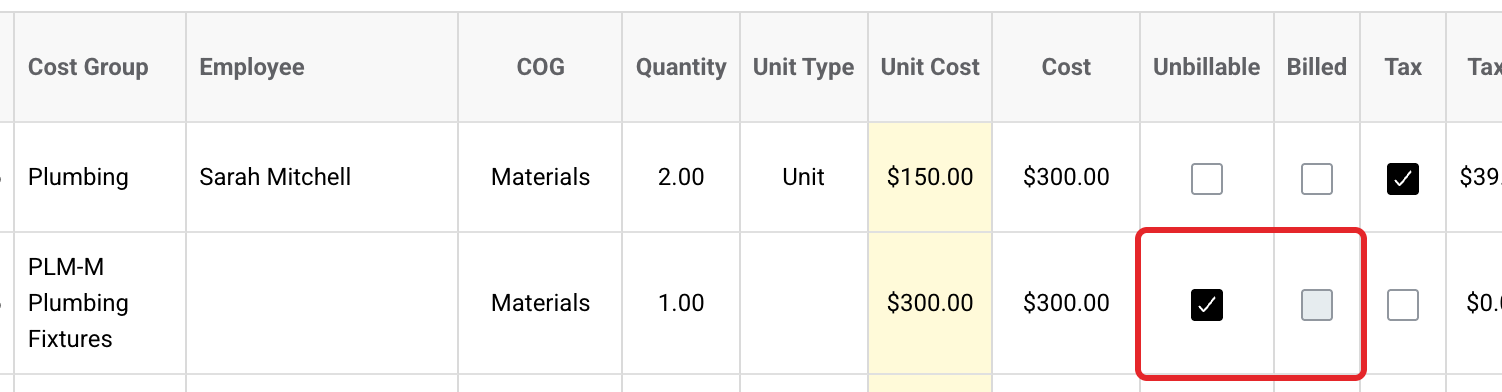
Tick Unbillable for costs you will not charge your client. Billed is grayed out on an Unbillable expense. Unbillable is locked once the expense is synced to QuickBooks or on an invoice.
Approve an expense
Open the expense and click Approve. Or tick the rows you want and click Approve or Unapprove above the table. Only Owners, Administrators and Managers can approve.


See who approved it
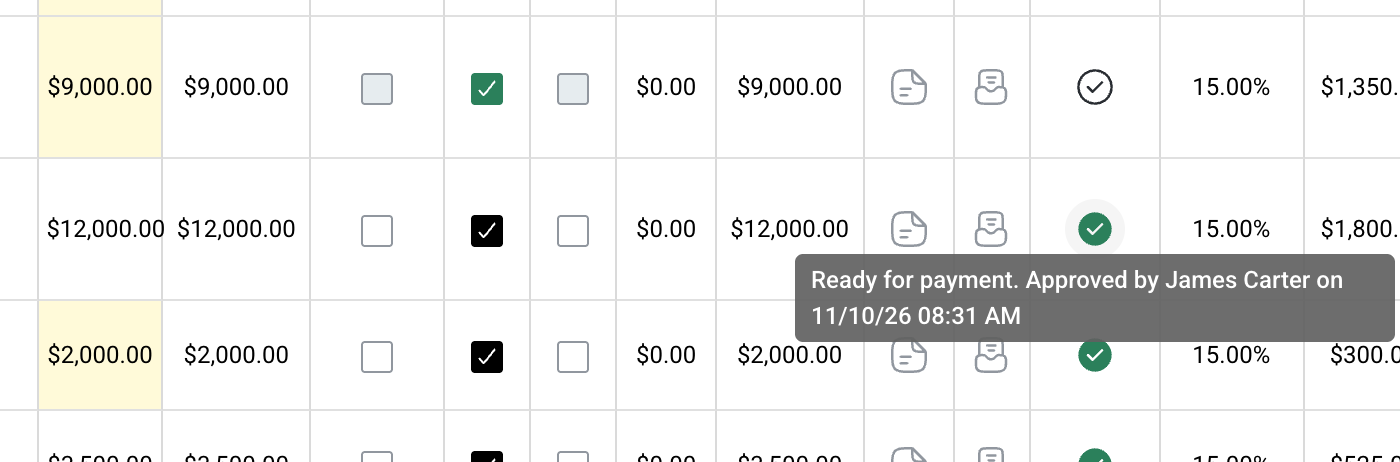
An approved expense shows a green tick in the Approved column. Hover over it to see who approved it and when.
What invoices do to Billed
| When this happens | Billed box |
|---|---|
| Expense added to a draft invoice | Orange dash. Held for the invoice, not billed yet. |
| Invoice released | Green check. Billed. |
| Invoice voided | Back to empty. Not billed. |
| Expense ticked Billed by hand | Never changed by invoices. |
Why it matters
The Client Summary's Total Billed counts expenses marked Billed. See Read and Share a Project's Client Summary.
💬 Have a question? Click the round message button in the bottom-right corner of this page, then click Send a message. We usually reply within a few hours.