Edit a Draft Invoice
A new invoice opens as a Draft. Change it as much as you need before you release it. Your client can't open a draft.
Here are the steps to follow:
Read the lines
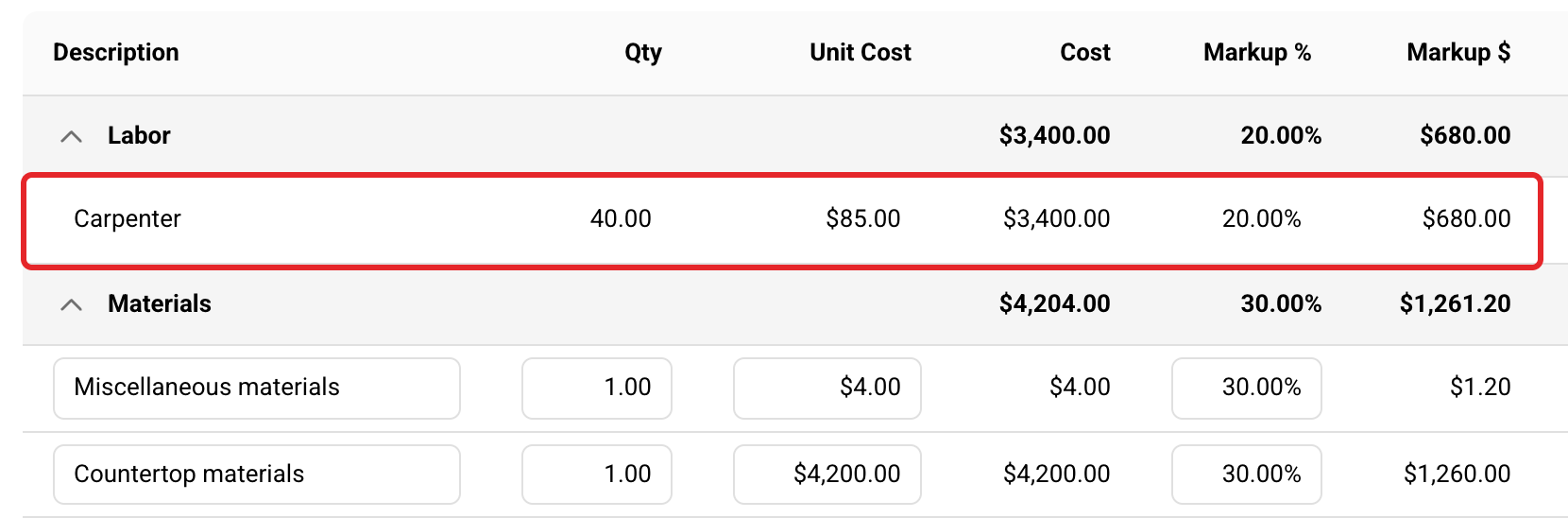
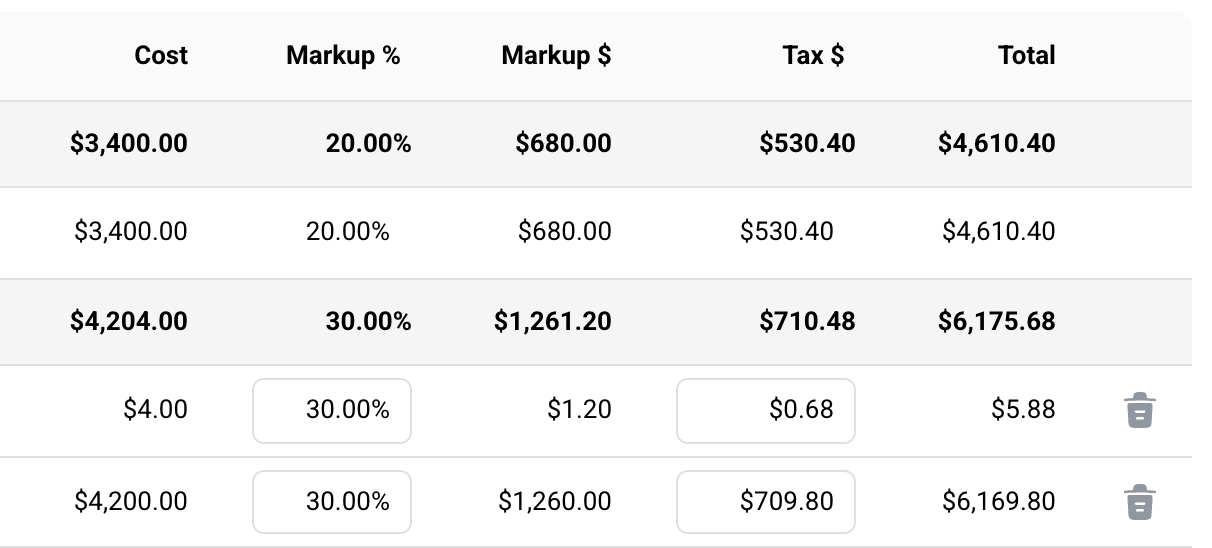
On a Cost Plus invoice, lines are grouped into Labor, Materials and Trade Partners. Each line shows its cost, markup, tax and total. Fixed Cost invoices have no markup or tax columns; the tax shows in the totals.
Change a line
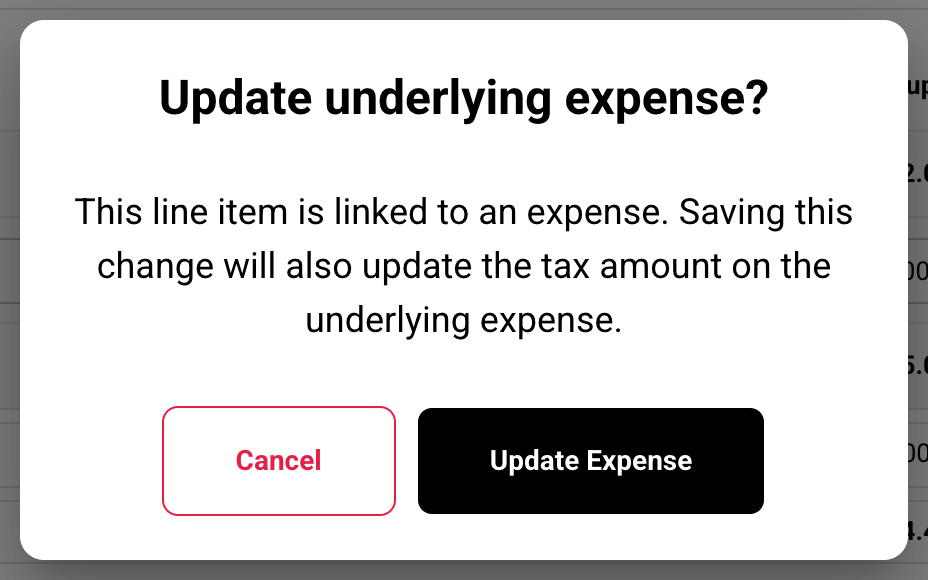
Click a line to change its quantity, unit cost, markup or tax. On a Cost Plus draft, a line that came from an expense changes that expense too. If you type a tax amount, Buildwise asks first.
Add lines
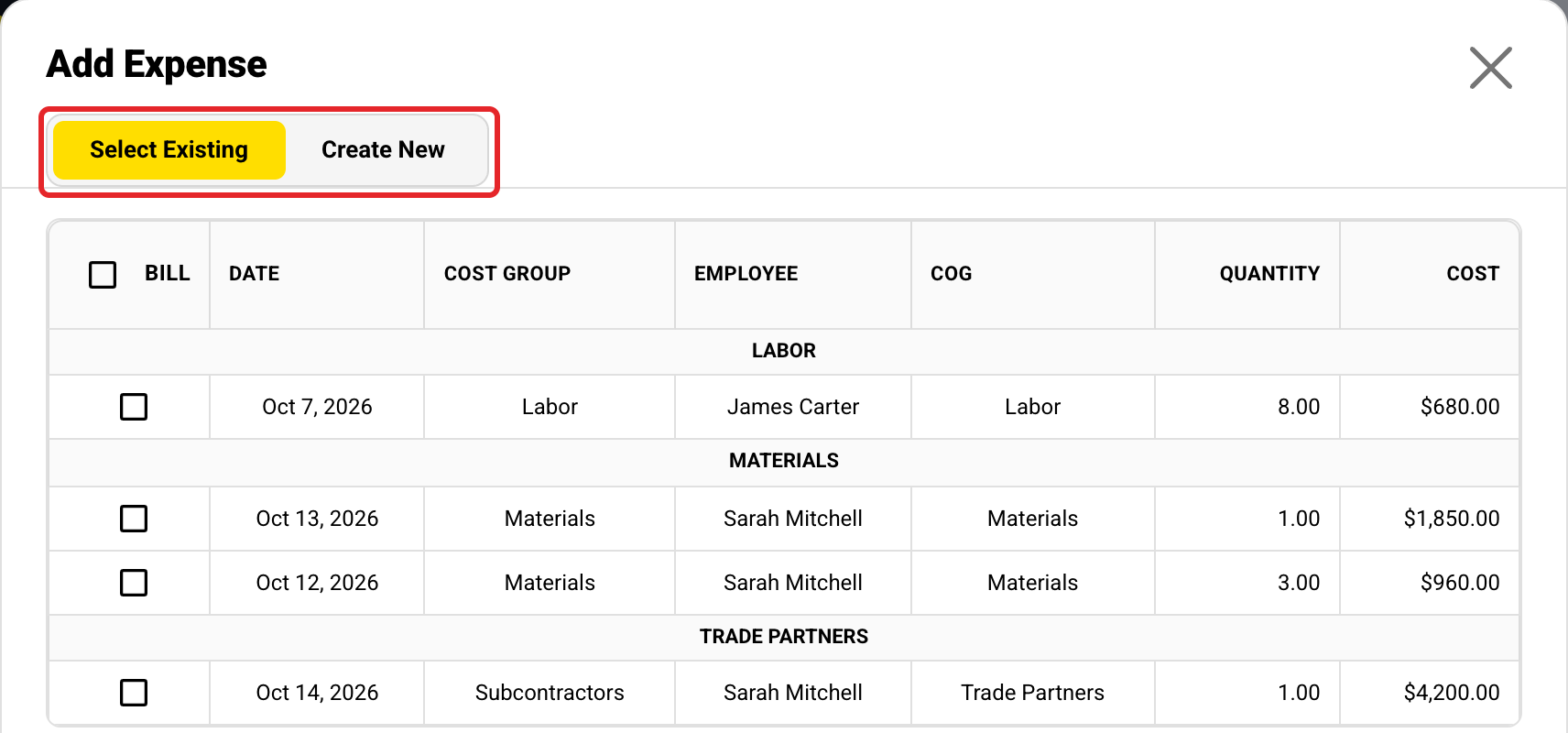
On Cost Plus, click Add Expense. Pick from Select Existing, or make a new expense with Create New. On Fixed Cost, Percent Complete invoices use Add from Cost Groups, and Free Form invoices use Add Line in each section.
Choose how the client's copy looks
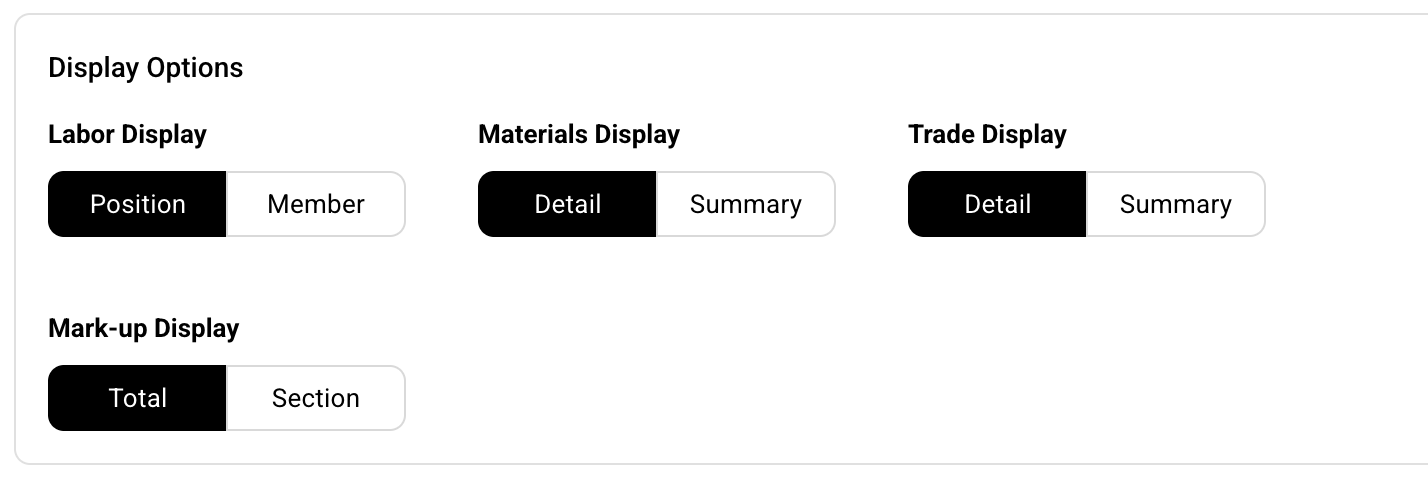
On Cost Plus, Display Options change only how lines print for your client. The amount charged stays the same.
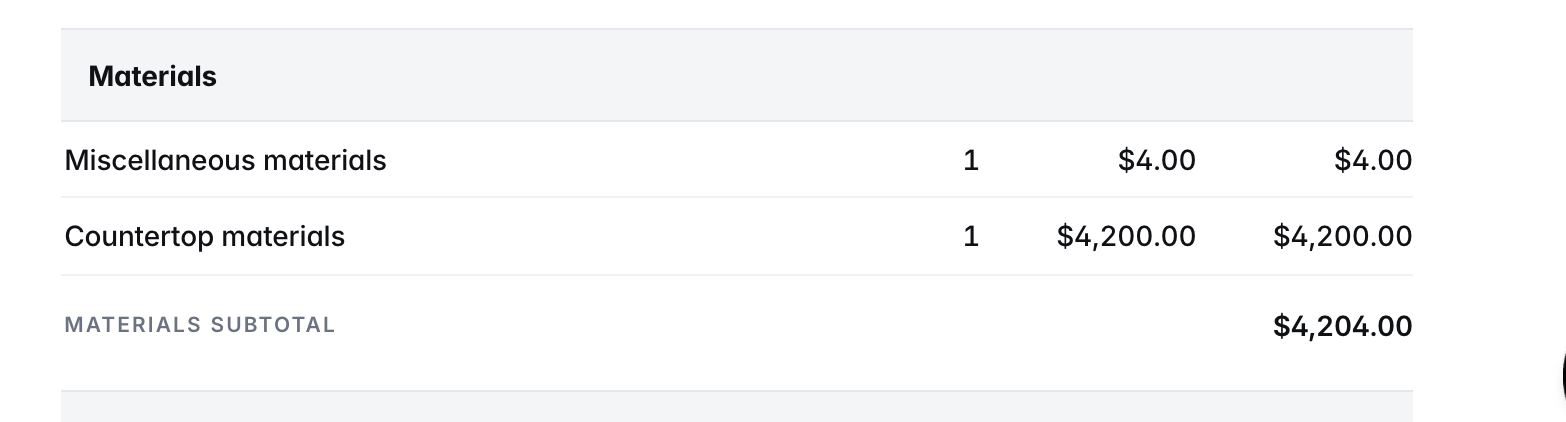
Result: Materials Display, Detail
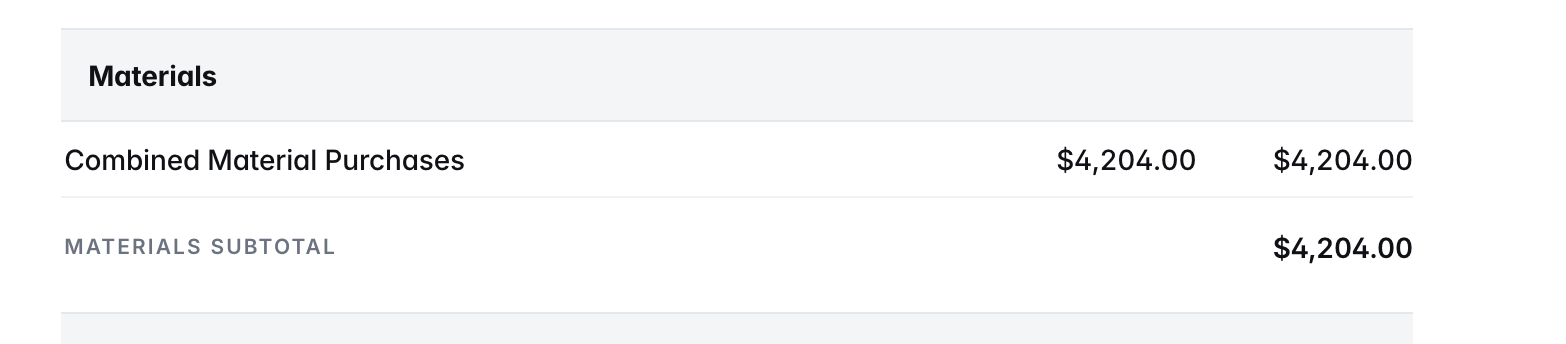
Result: Materials Display, Summary
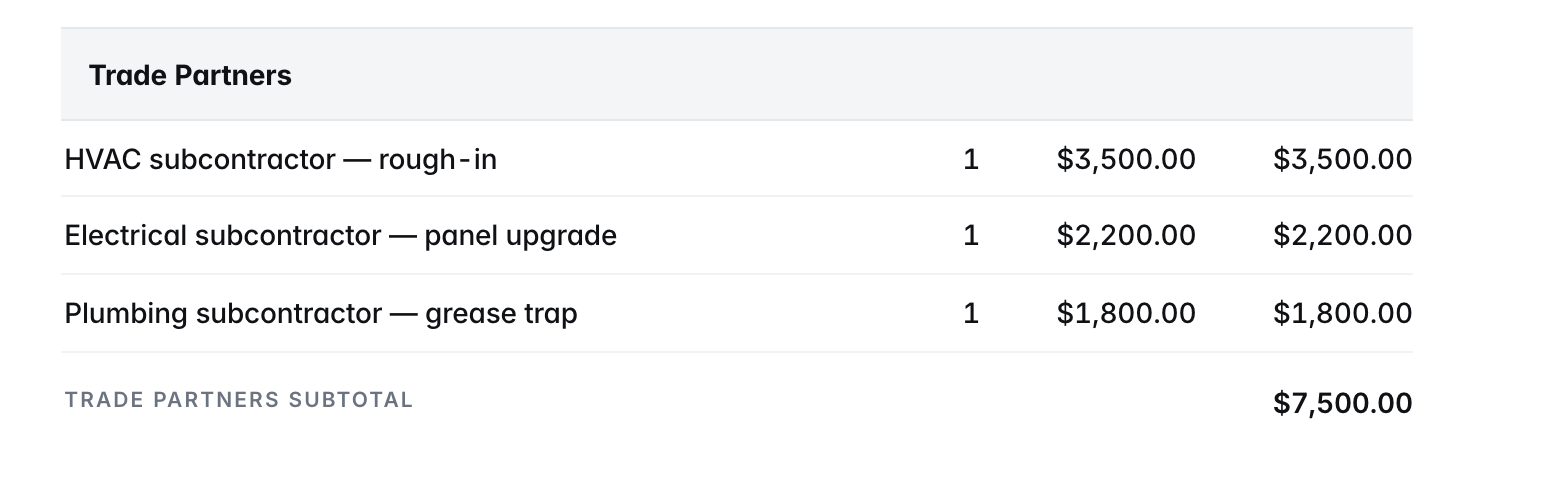
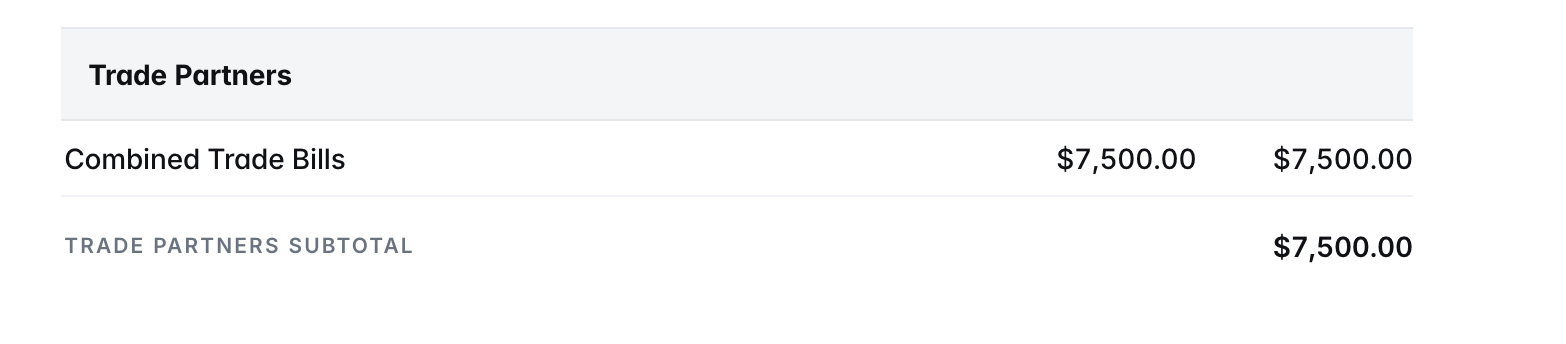
Result: Trade Display, Detail
Result: Trade Display, Summary
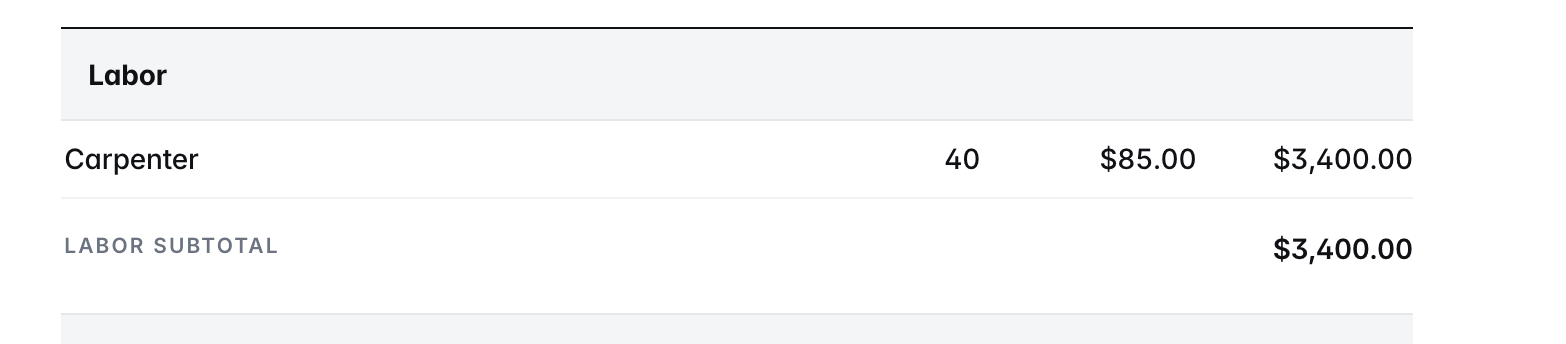
Result: Labor Display, Position
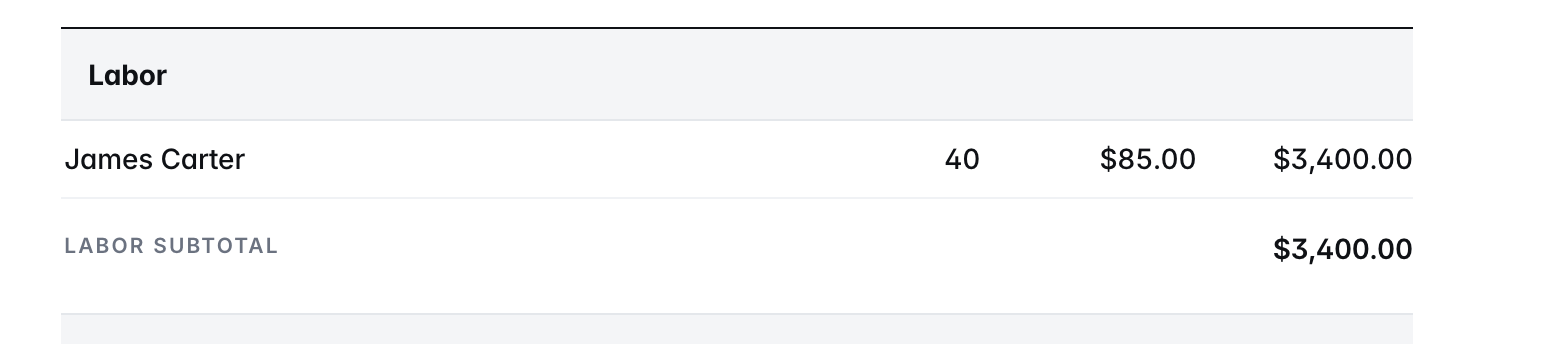
Result: Labor Display, Member
Result: Mark-up Display, Total
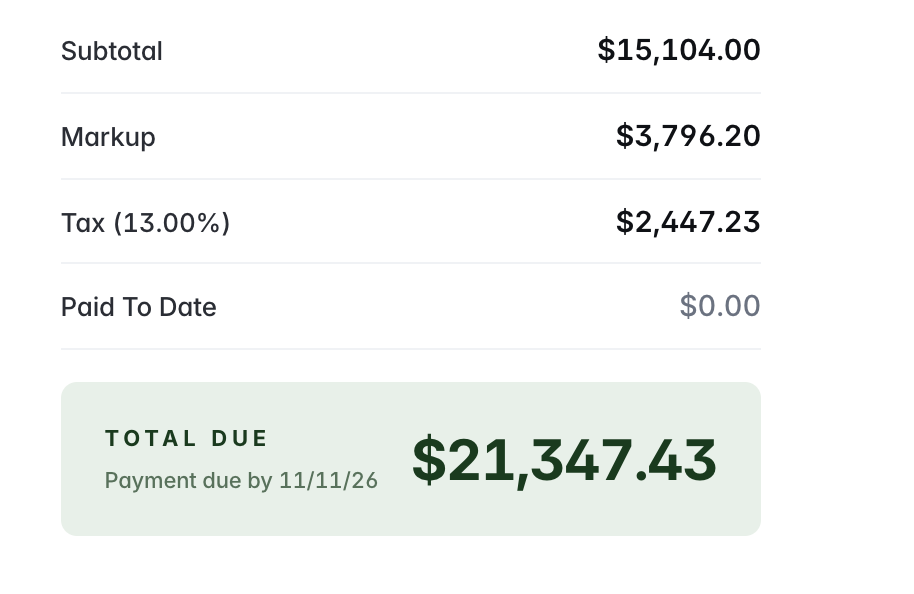
Result: Mark-up Display, Section
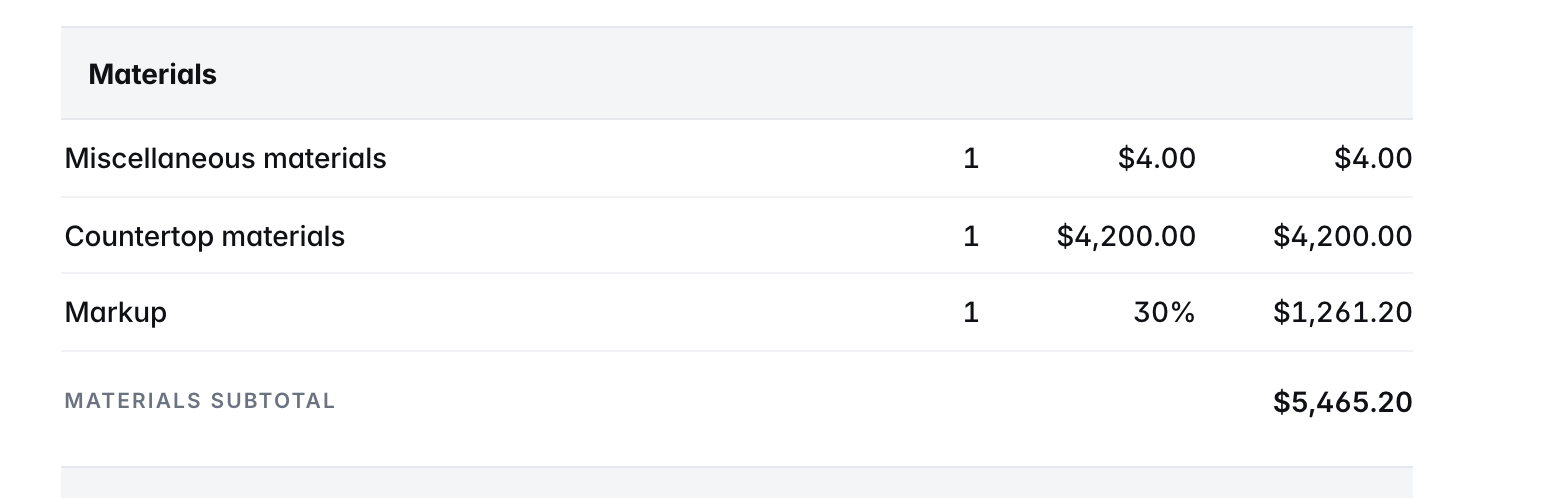
Result: Mark-up Display, Section (totals)
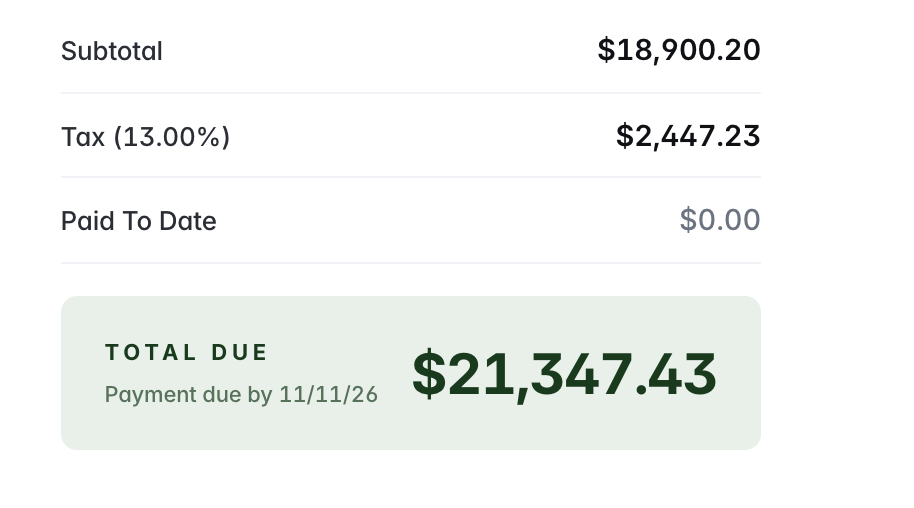
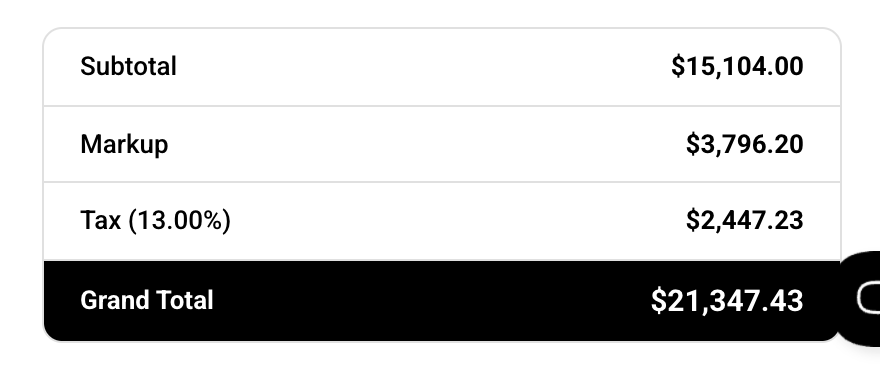
Check the totals
The box under the lines shows the Subtotal, Markup, Tax and Grand Total.
Delete a line
Click the trash can on the line. Its expense is freed so it can go on another invoice. If the expense was made from this invoice, pick Keep expense or Delete expense.
Changes on the Expenses page show up here
While the invoice is a Draft, changing an expense's quantity, unit cost, markup, notes or tax updates its line right away. A line you changed by hand on the invoice keeps your change.
Labor lines
Labor isn't listed entry by entry. Buildwise combines it into one line per position (or per team member), and you can't edit or delete it on the invoice. To change hours or rates, change the time entries.
Move labor to another cost group, even after it's billed
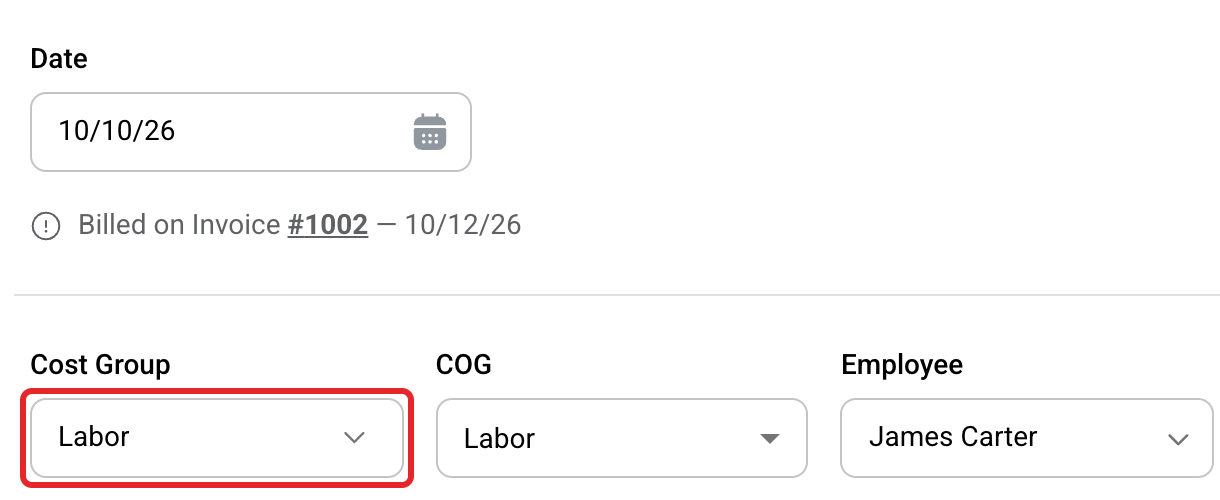
You can move a labor entry to a different cost group at any time, even when it's on a draft, on a released invoice, or ticked Billed by hand. The invoice doesn't change, because labor lines are grouped by each person's position, not by cost group.
Filter to the person's labor
Open the project's Expenses tab. Set Select COG to Labor and pick the person in Select Employee.
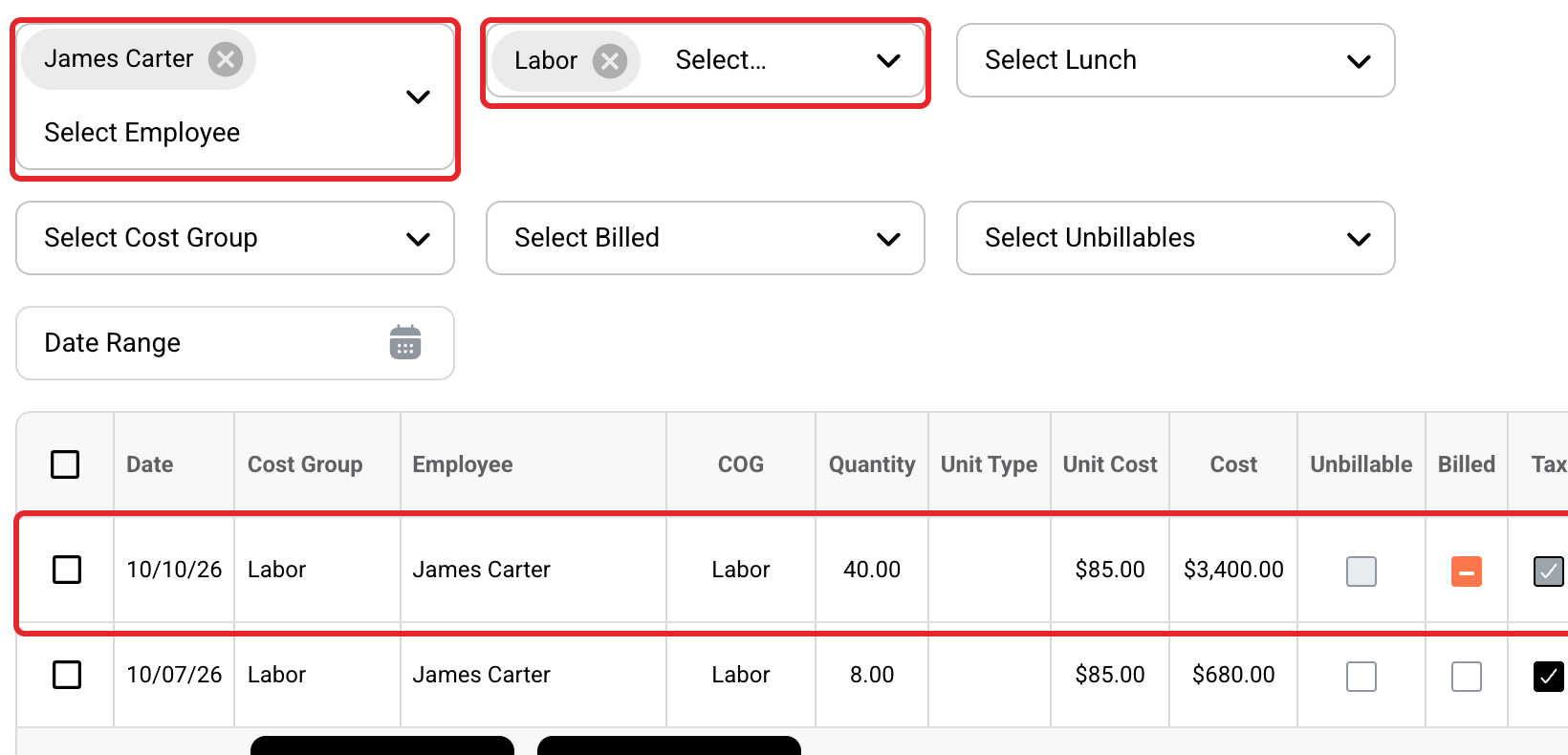
Open the entry
Click the icon in the Files column on the row. If the entry isn't on an invoice, you can also click the Cost Group right on the row.
Change the Cost Group
Pick the new Cost Group and click Save. Repeat for each entry.

When the invoice is ready, see Release and Send an Invoice.
If you have any questions or need support:
💬 Click the beacon on this page to chat with us
📩 Click the beacon on this page to email us