Connect, Sync and Disconnect QuickBooks
Link Buildwise to QuickBooks Online so you can send your expenses to it. Buildwise reads your QuickBooks lists, such as suppliers and categories. It never pulls your transactions out of QuickBooks.
Here are the steps to follow:
Click Connect
Click Integrations in the left menu, then Connect beside the QuickBooks logo. If you were connected before, the button says Reconnect.

Sign in to QuickBooks
Sign in and approve Buildwise for your company. QuickBooks sends you back to a page that says Connecting to QuickBooks Online. Stay on it until it says Success! After 3 seconds it opens your QuickBooks settings.
Check the status
The status beside the logo says Connected, with your QuickBooks company name and the date your sign-in runs out.

Check your lists
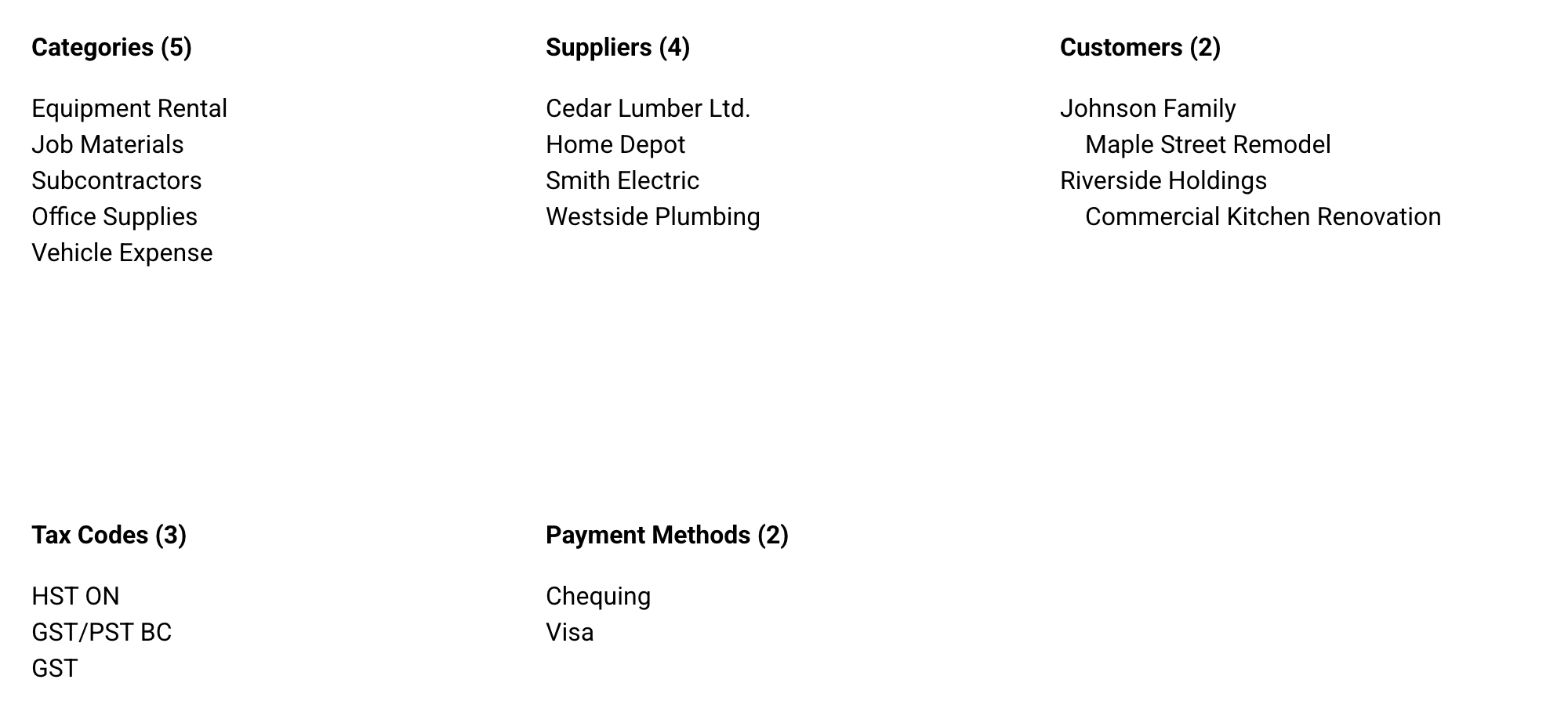
Click Details at the bottom of the Integrations page. Give the first sync a moment, then check that your categories, suppliers, customers, tax codes and payment methods are all there.

Sync after you add something in QuickBooks
Added a supplier or category in QuickBooks? Click Sync so it shows up in Buildwise. You'll see QuickBooks account synced when it's done.
Disconnect if you need to
Click Disconnect. Nothing is deleted in Buildwise or in QuickBooks. The QuickBooks column leaves your expense tables until you connect again.
What Buildwise reads from QuickBooks
| In Buildwise | In QuickBooks |
|---|---|
| Categories | Accounts of the type Expense or Cost of Goods Sold |
| Suppliers | Vendors |
| Customers | Customers, with sub-customers listed under their parent |
| Payment Methods | Bank accounts of the type Checking, and credit card accounts |
| Tax Codes | Tax codes with a purchase rate (not for US companies) |
What the status means
| Status | What to do |
|---|---|
| Connected | Nothing. You can send expenses. |
| Session Expired | Click Reconnect and sign in again. |
| Disconnected | Click Reconnect and sign in again. |
Lists also sync on their own
Buildwise reads your lists again every second day of the month, overnight. Click Sync when you need a change right away.
Inactive in QuickBooks
A supplier, category or customer you make inactive in QuickBooks isn't deleted in Buildwise. It shows greyed out on the Details page and leaves the dropdowns. Expenses that already use it keep it.
One QuickBooks company
Your Buildwise company links to one QuickBooks company. Reconnecting has to use that same company, or Buildwise refuses the link.
Who can do this
Only Owners and Administrators see Integrations. They connect, sync, disconnect and change the settings.
Next, see Set Up Your QuickBooks Settings.
If you have any questions or need support:
💬 Click the beacon on this page to chat with us
📩 Click the beacon on this page to email us