Set Up Your QuickBooks Settings
A few settings decide how every expense looks when it reaches QuickBooks. Set them once after you connect. Some steps only apply to some accounts, as the table at the bottom shows.
Here are the steps to follow:
Open the QuickBooks settings
Click Integrations in the left menu, then Details.

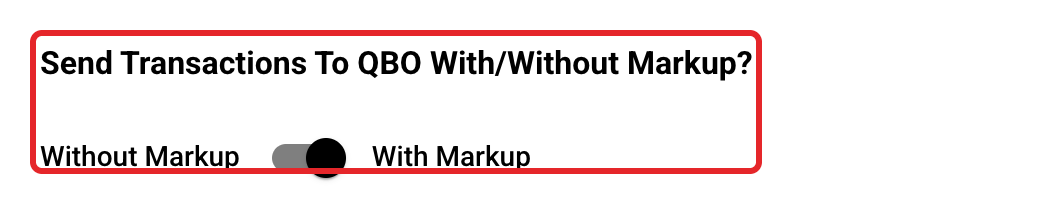
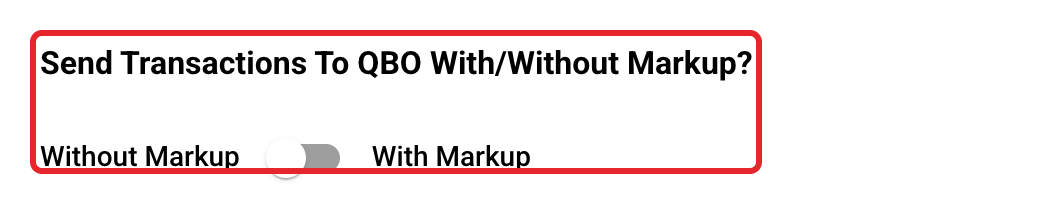
Choose with or without markup
Send Transactions To QBO With/Without Markup? decides whether each billable line carries its markup percent to QuickBooks. QuickBooks can then add the markup when you bill that cost to your client. The dollar amount on the QuickBooks line is always the cost before markup.
Result: With Markup sends each billable line's markup percent
Result: Without Markup sends a markup of 0 on every line
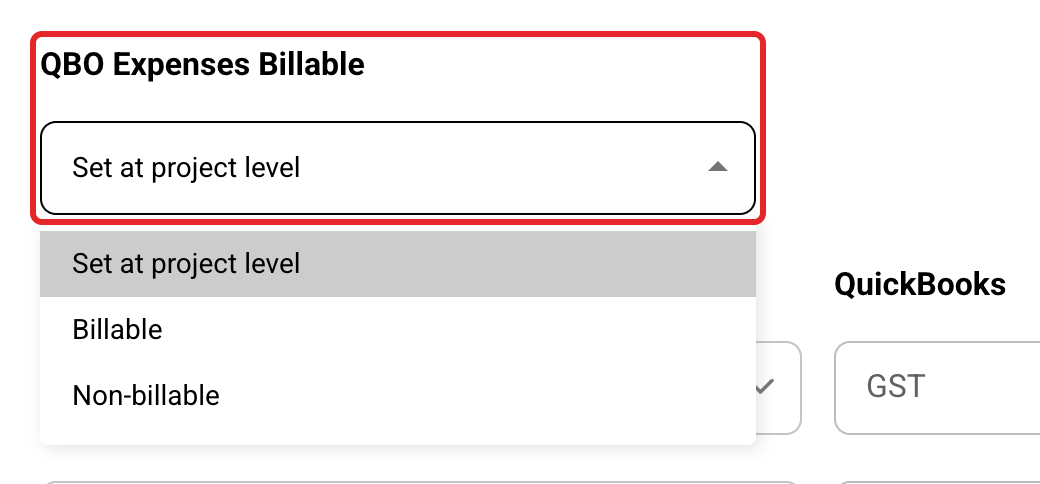
Choose billable or non-billable
QBO Expenses Billable sets where new projects start. See Should Expenses Be Billable or Non-Billable When Sending to QBO? for each choice.
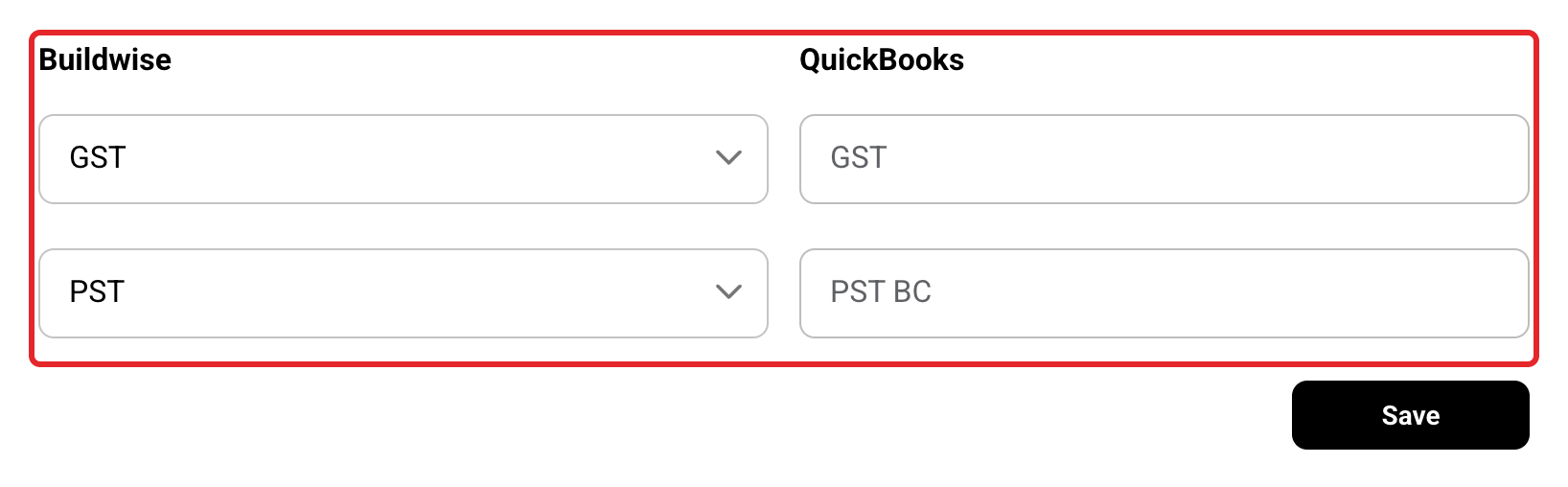
Match GST and PST
Only for GST and PST accounts. Each tax code with two rates shows here. Pick GST or PST beside each QuickBooks rate, then click Save. Buildwise fills these in for you, so you're checking them.
Click Save
Click Save after changing anything on this page. You'll see Changes have been saved.
Set each project's defaults
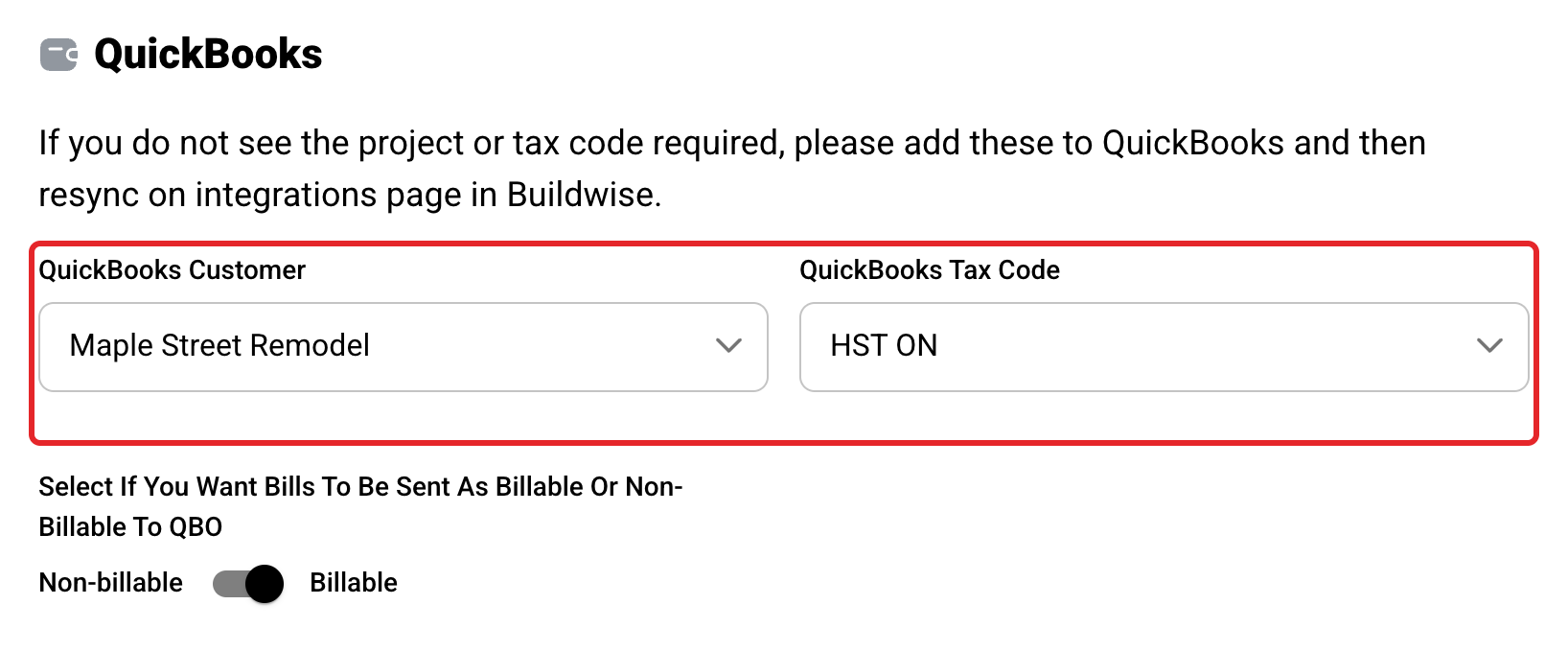
Open a project's Overview. In the QuickBooks section, pick its QuickBooks Customer and QuickBooks Tax Code. New expenses on that project fill these in for you.
Which steps apply to you
| Your account | Tax code | GST and PST matching |
|---|---|---|
| One tax, such as HST | Pick one on each project and expense | Not shown |
| GST and PST | Pick one on each project and expense | Step 4 |
| United States | Not used. Each line is sent as taxable or not. | Not shown |
Here is how the markup switch works out on a billable $1,000.00 line with a 15% markup.
| Setting | Line amount in QuickBooks | Markup sent |
|---|---|---|
| With Markup | $1,000.00 | 15% |
| Without Markup | $1,000.00 | 0% |
The tax percent comes from Buildwise
The project's tax rate sets the tax dollars. The QuickBooks tax code only decides which taxes are ticked on the expense and where the dollars go in QuickBooks.
Missing a tax code?
The dropdowns only show tax codes that have a purchase rate in QuickBooks. Add the rate in QuickBooks, then click Sync on the Integrations page.
Non-billable lines
A non-billable line always goes with a markup of 0, whatever this switch says.
Next, see Send an Expense to QuickBooks.
If you have any questions or need support:
💬 Click the beacon on this page to chat with us
📩 Click the beacon on this page to email us