Send an Expense to QuickBooks
Send a receipt or bill to QuickBooks from the Expenses page. Buildwise makes the bill in QuickBooks, adds the payment if it's paid, and attaches the receipt file.
Here are the steps to follow:
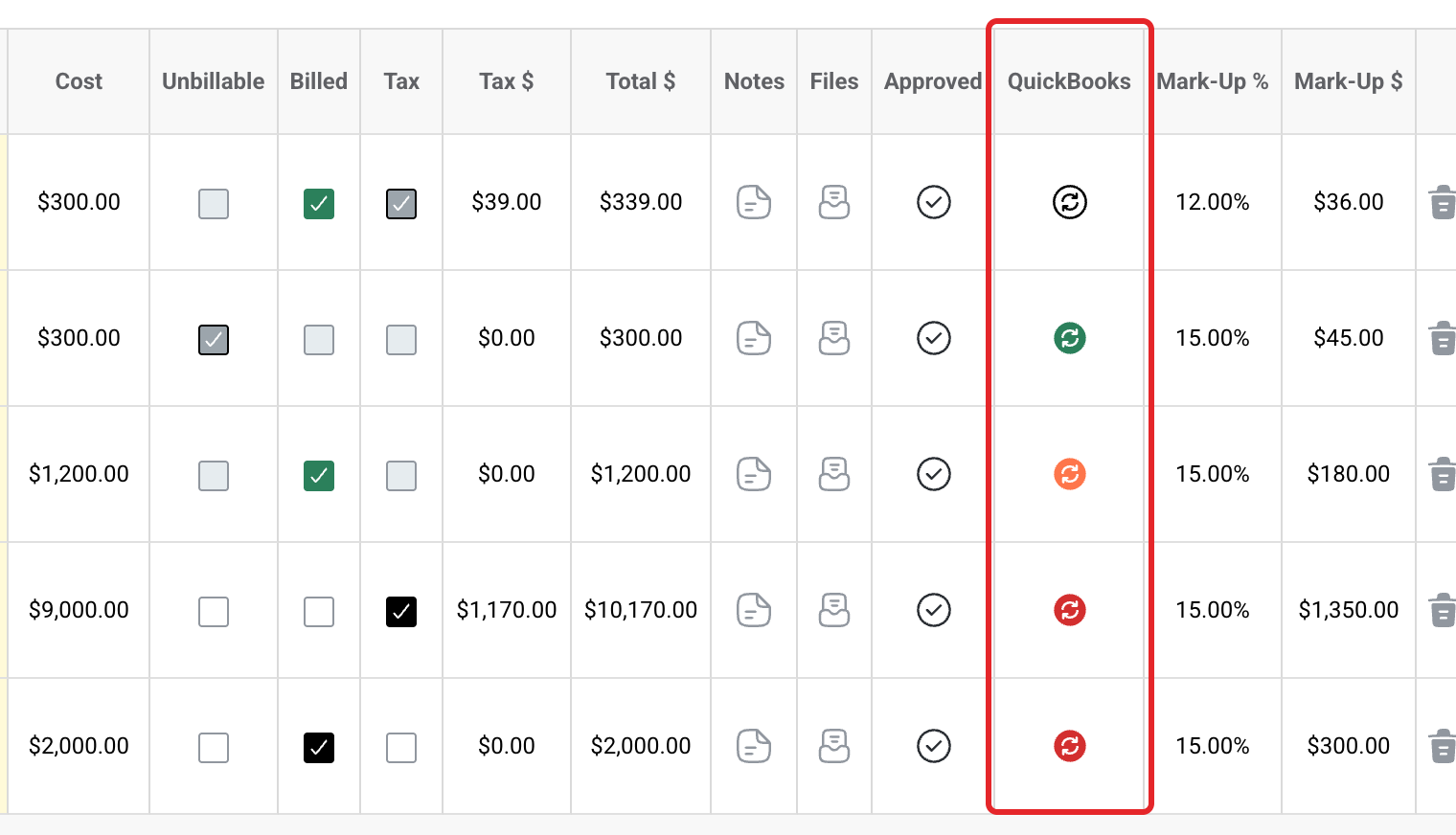
Click the QuickBooks icon
On Project Expenses or Overhead Expenses, click the icon in the QuickBooks column. The Expense / Transaction window opens.
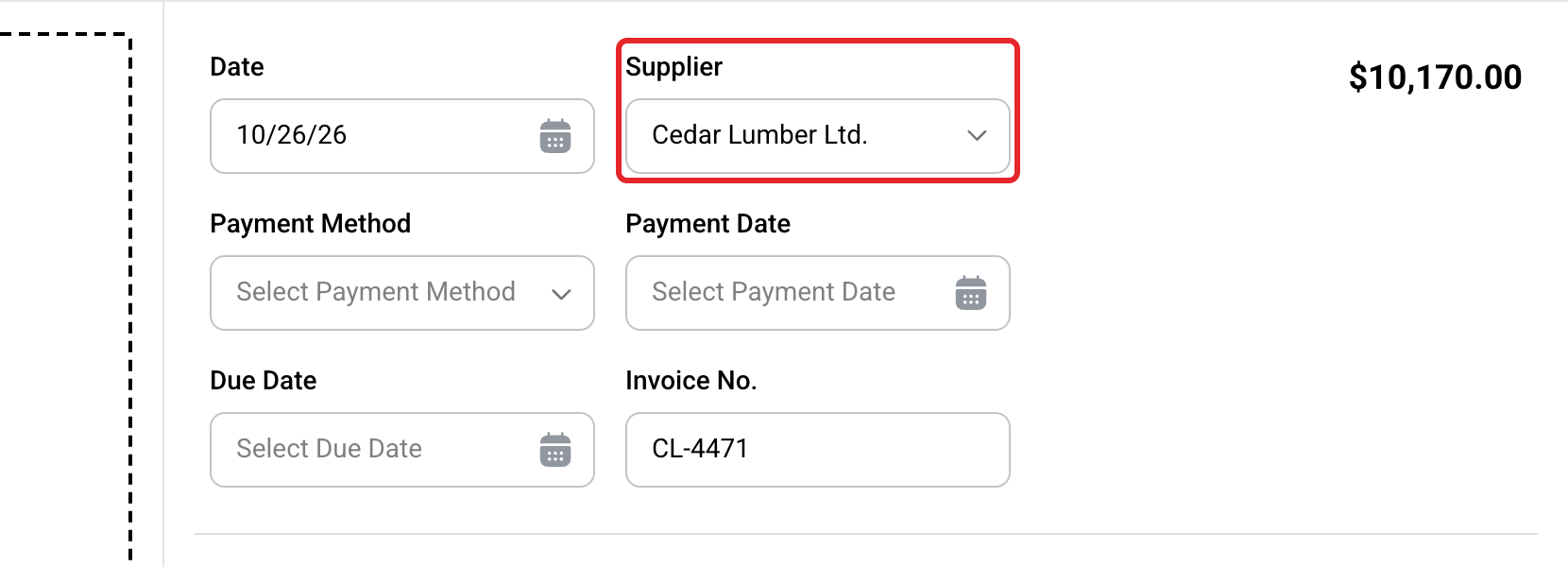
Pick the supplier
Pick the Supplier. Type the supplier's bill number in Invoice No. if it has one.
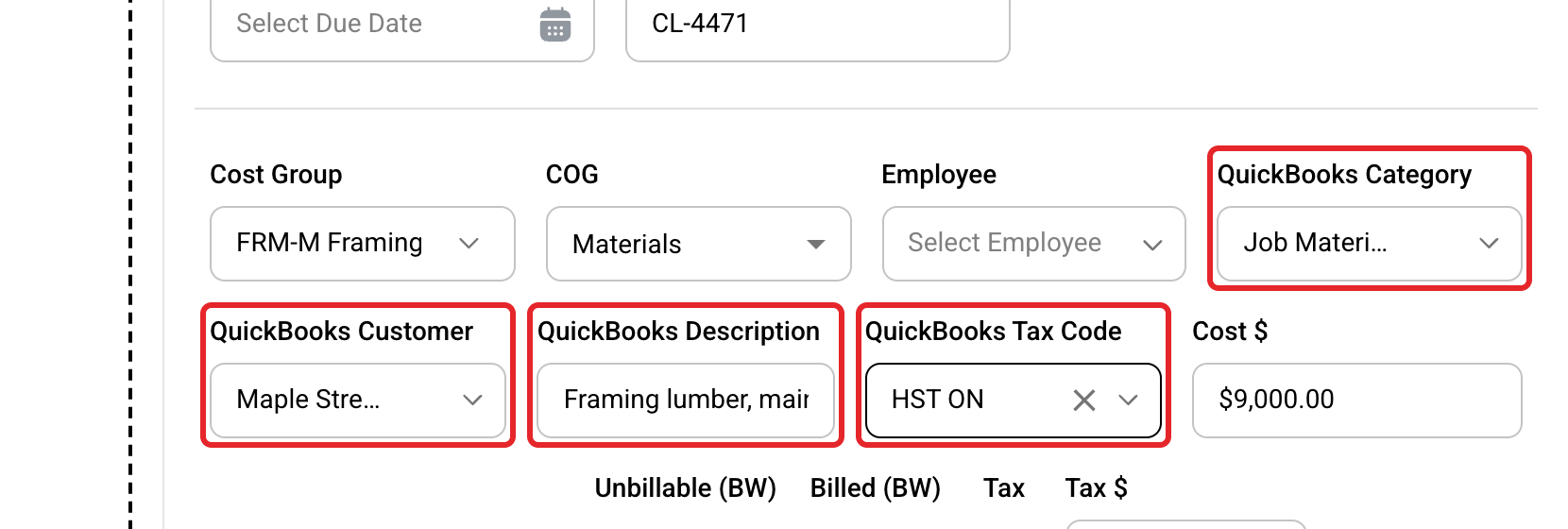
Fill in the QuickBooks boxes
Pick the QuickBooks Category, QuickBooks Customer and QuickBooks Tax Code. Add a QuickBooks Description if you like. On a split expense, fill these in on every line. Picking a tax code ticks the matching taxes for you.
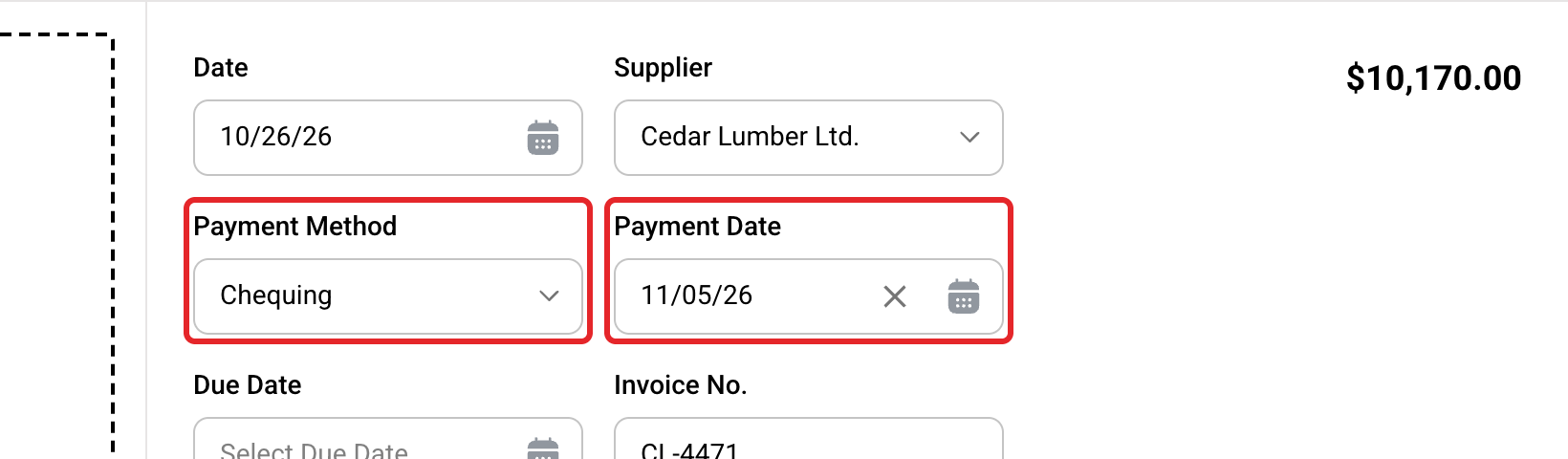
Add the payment if it's paid
Pick the Payment Method and Payment Date. See How Do I Mark an Expense as Paid in QBO?.
Click Save & Sync
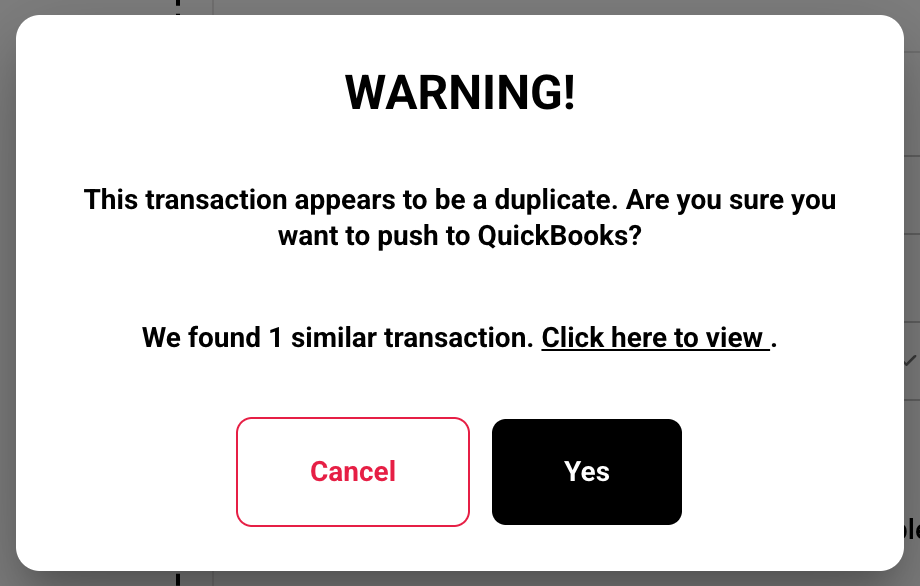
If Buildwise finds a similar expense already in QuickBooks, it asks first. Click Yes to send it anyway, or Cancel. See Does Buildwise Check for Duplicate Receipts?.

Check the icon turns green
You'll see The transaction has been synced successfully! and a green icon. If it turns red, see Fix a Failed QuickBooks Sync.
What each expense needs
| Box | Project expense | Overhead expense |
|---|---|---|
| Date and Supplier | Yes | Yes |
| QuickBooks Category | Yes, on every line | Yes, on every line |
| QuickBooks Customer | Yes, on every line | No |
| QuickBooks Tax Code | Yes, on every line (not in the US) | Yes, on every line (not in the US) |
| Payment Method and Payment Date | Only if it's paid | Only if it's paid |
What the icon colours mean
| Icon | Meaning |
|---|---|
| Outline | Not Synced. It hasn't been sent. |
| Blue | Syncing in Progress. |
| Green | Synced. It's in QuickBooks. |
| Orange | Edited Post Sync. It changed in Buildwise after it was sent. |
| Red | Error with Sync. The last try failed. |
What it becomes in QuickBooks
| The expense | In QuickBooks |
|---|---|
| Cost of zero or more | A bill |
| Cost below zero | A supplier credit |
| Cost below zero, paid with a credit card | A credit card credit |
See Supplier vs Credit Card Credits for the two kinds of credit.
What goes on the bill
| In QuickBooks | From Buildwise |
|---|---|
| Date | The expense Date |
| Bill number | Invoice No., or BW and the expense number, as an example BW10452 |
| Supplier | Supplier |
| Lines | One per line: cost before tax, category, description, customer, tax code, billable or not |
| Memo | The Notes of every line |
| Attachment | The receipt file |
Labor stays in Buildwise
Labor is never sent to QuickBooks. Save & Sync is greyed out on a labor expense.
Each expense is sent once
After it syncs, changes in Buildwise don't reach QuickBooks. See Can I Change an Expense After It Syncs to QBO?.
Who can do this
Owners, Administrators and Managers. Only Owners and Administrators have Overhead Expenses in their menu.
If you have any questions or need support:
💬 Click the beacon on this page to chat with us
📩 Click the beacon on this page to email us