Delete a Project
If you created a project by mistake or want to start over, you can delete it. Use caution: deleting is permanent.
This cannot be undone
Deleting a project erases everything on it, including estimates, change orders, expenses, labor, invoices, job logs and the schedule. There is no restore. If the job is simply finished, make the project Inactive instead.
Delete from the Projects page
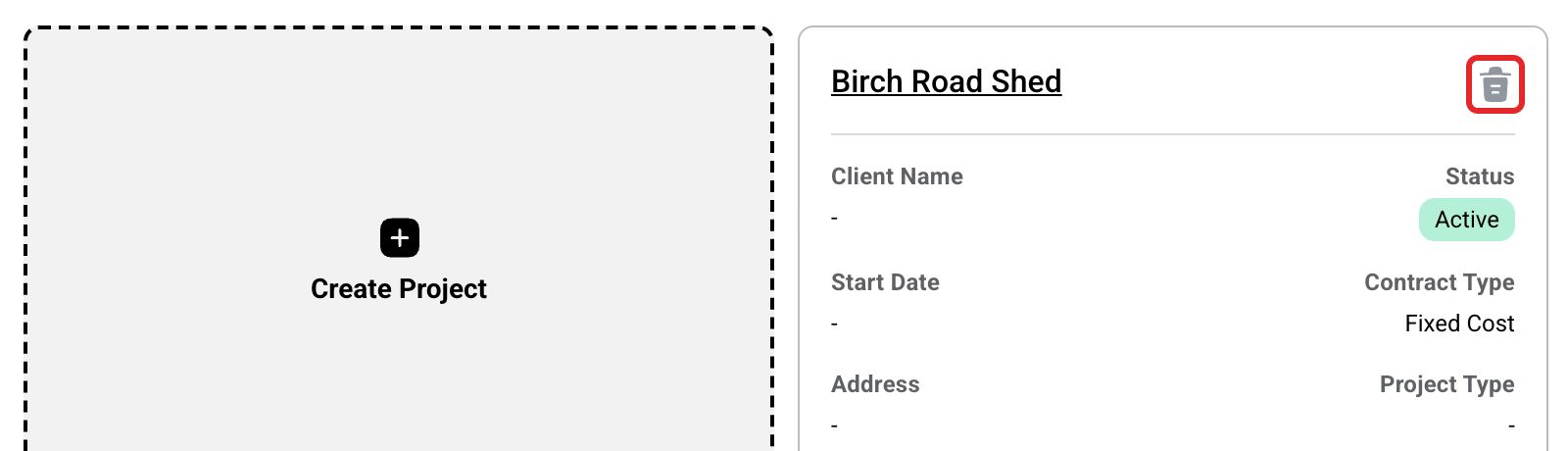
Click the trash can
Go to the Projects page and click the trash can on the project. It shows in both the tile view and the list view.
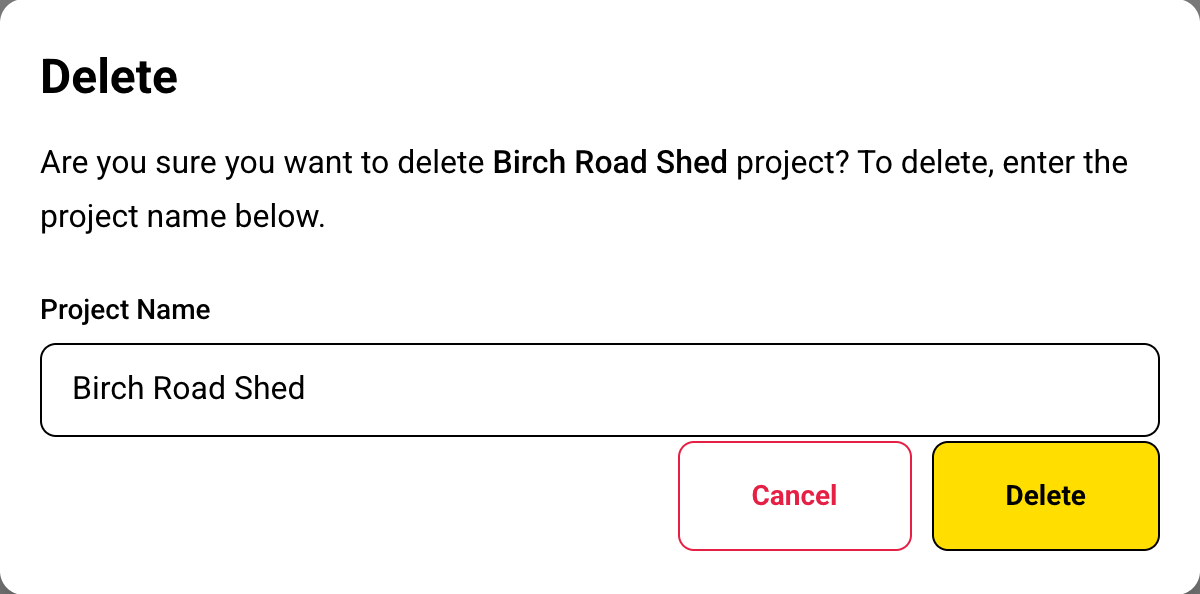
Type the project name
Type the project name exactly as it shows, then click Delete.
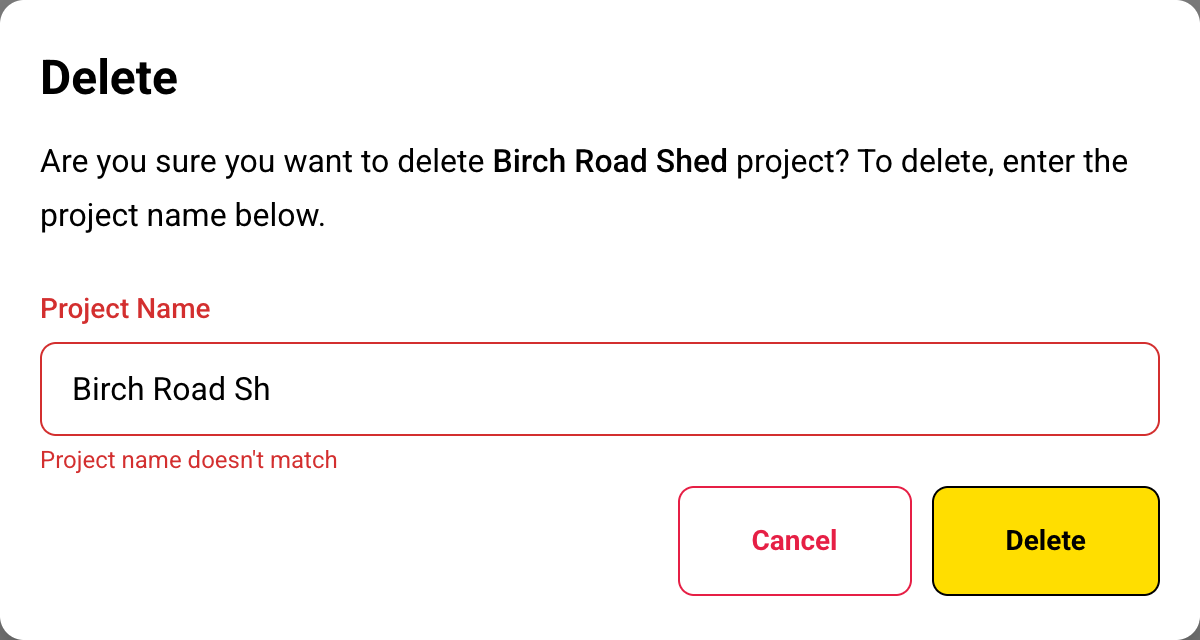
Fix the name if it doesn't match
If the name is not an exact match, you will see Project name doesn't match and nothing is deleted.
Click Okay
A Deleted message confirms the project is gone. Click Okay to close it.
Delete from the Overview tab
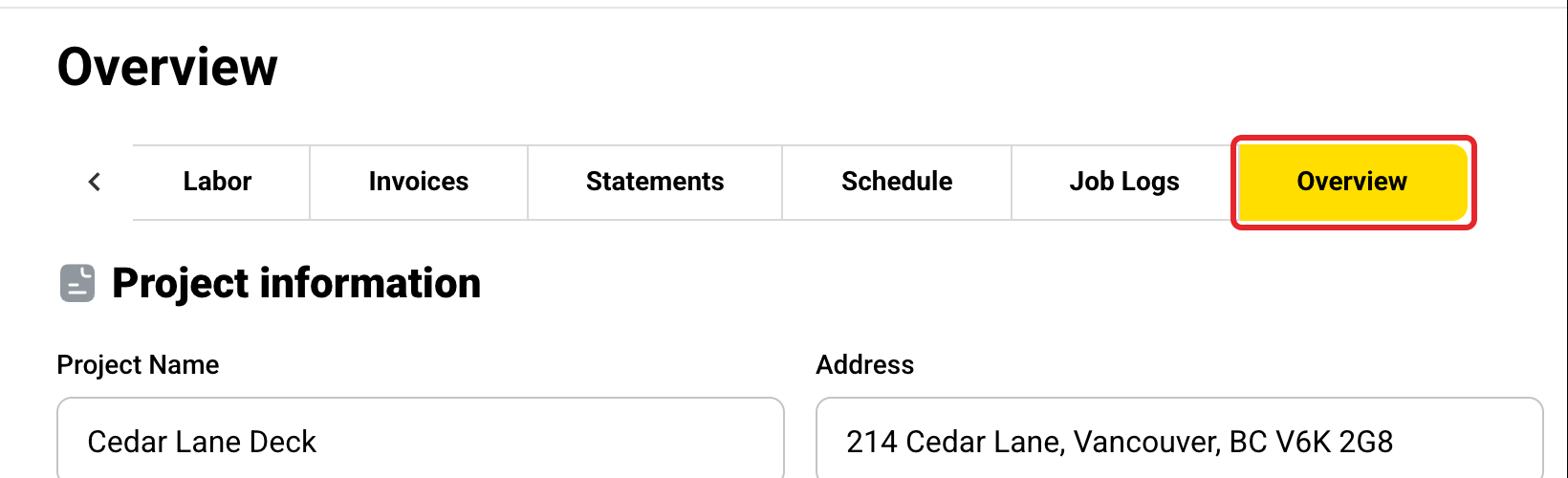
Open the Overview tab
Open the project and click the Overview tab. Check the name at the top of the page to make sure you are in the right project.
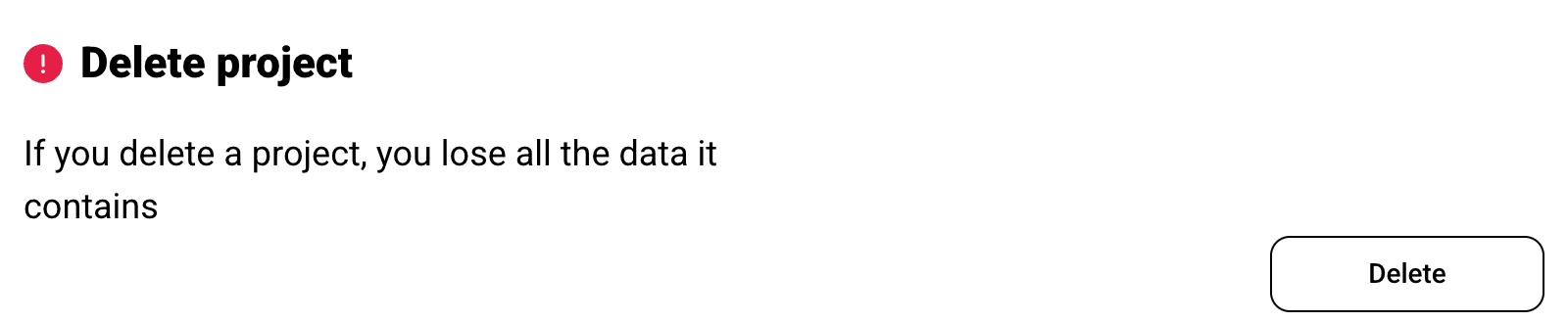
Click Delete
Scroll down to Delete project and click Delete. The same pop-up opens. Type the project name and click Delete.
Who can do this
Owners, Administrators and Managers can delete a project. Members do not see the trash can.
If you have any questions or need support:
💬 Click the beacon on this page to chat with us
📩 Click the beacon on this page to email us