Find and View a Change Order
Overview
This article covers how to find and view change orders from the Change Orders dashboard or from the Project Change Orders dashboard.
Change Orders Dashboard
All of your change orders in Buildwise can be viewed on the Change Orders dashboard.
In the left sidebar, click Change Orders to display the dashboard. Note: Change orders are listed in descending order by Date, with the most recent change order listed first.
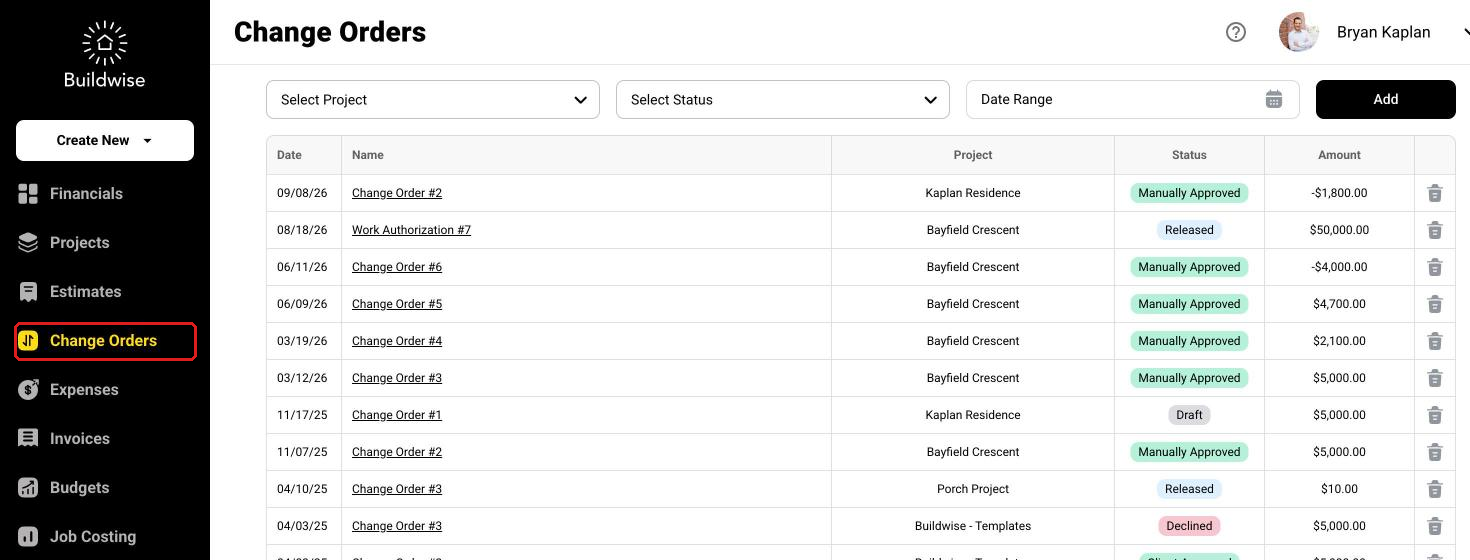
Then, you can find and view a change order by clicking the Change Order Name or by using filters.
Change Order Name
Scroll through the Change Orders dashboard and click on the Change Order Name link for the change order you want to view.
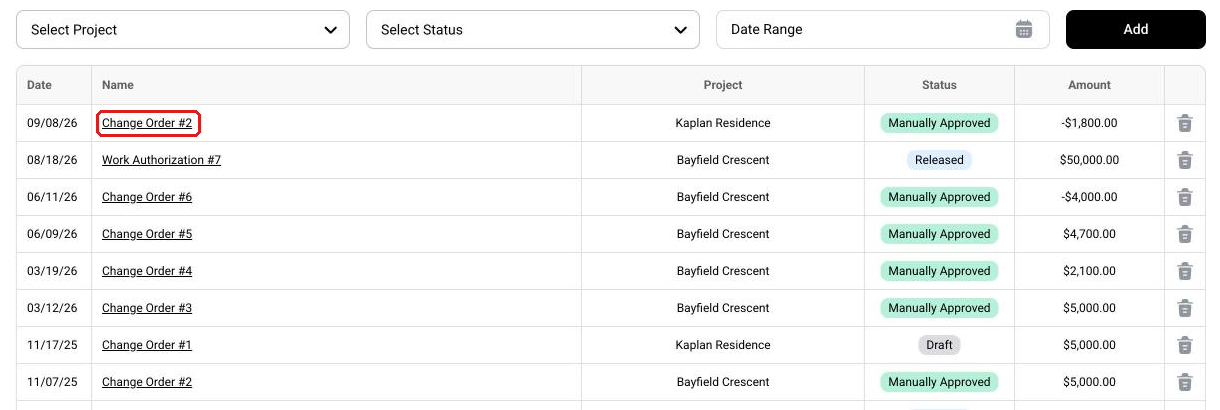
Filters
The Change Orders dashboard has three filters for finding a change order: Select Project, Select Status, and Date Range. You can use them together.
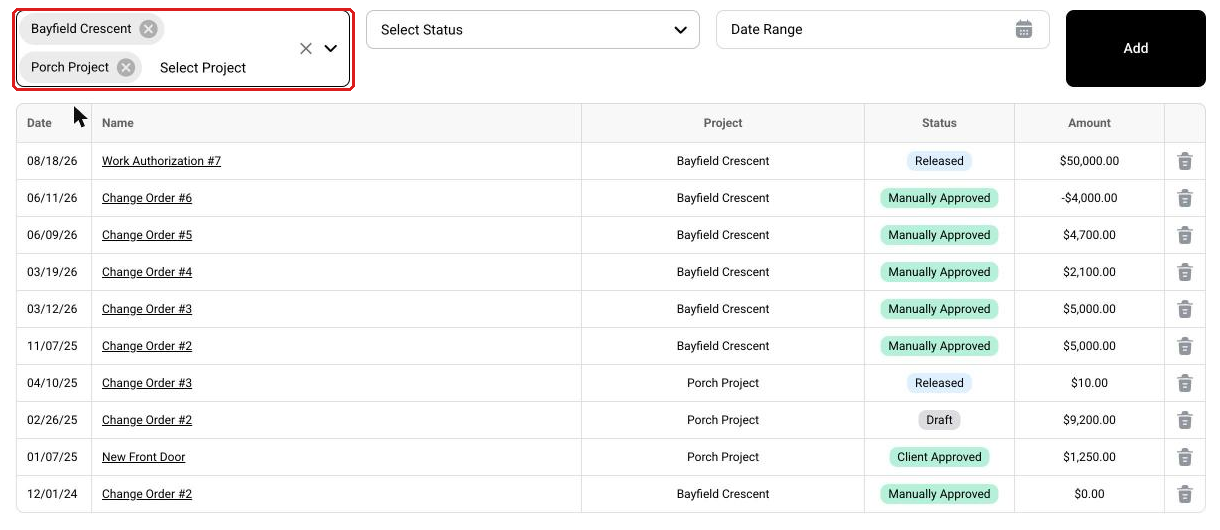
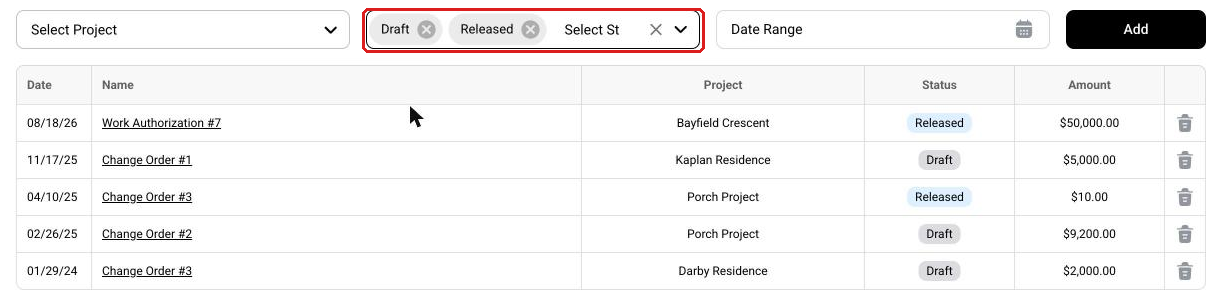
You can pick more than one option in the Select Project and Select Status filters. Each one you pick shows as a tag in the field. Click the x on a tag to remove it, or the x at the end of the field to clear them all.
Select Project Filter
Pick one or more projects in the Select Project dropdown. The dashboard shows only the change orders for the projects you picked.
Status Filter
Use Select Status to filter change orders in Draft, Released, Client Approved, Manually Approved, or Declined status. As an example, pick Draft and Released to see every change order that isn't approved or declined yet.
Date Range Filter
To filter change orders by dates, click in the Date Range field. Note: This filter uses the date the change order was created in Buildwise.
Enter the Date Range in MM/DD/YY format or use the calendar to select dates. The page displays all change orders between the dates selected.
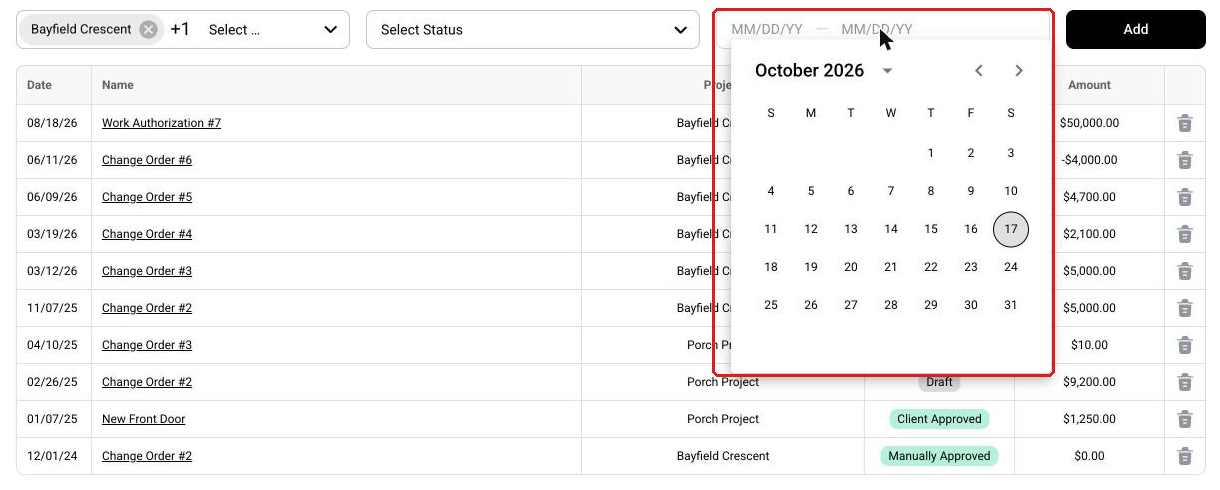
Click the Change Order Name link for the change order you want to view.
Project Change Orders Dashboard
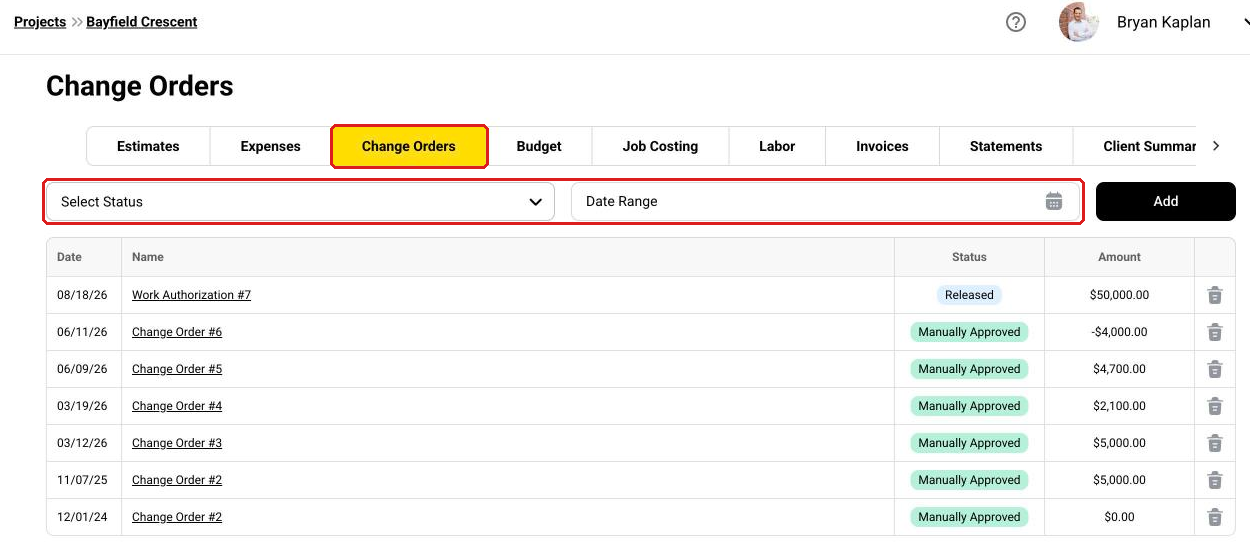
On the project dashboard, click the Change Orders tab. Note: Change orders are listed in descending order by Date, with the most recent change order listed first.
Click the Change Order Name link for the change order you want to view. You can also use the Select Status and Date Range filters.
If you have any questions or need support:
💬 Click the beacon on this page to chat with us
📩 Click the beacon on this page to email us