Attach a Receipt and Split an Overhead Expense
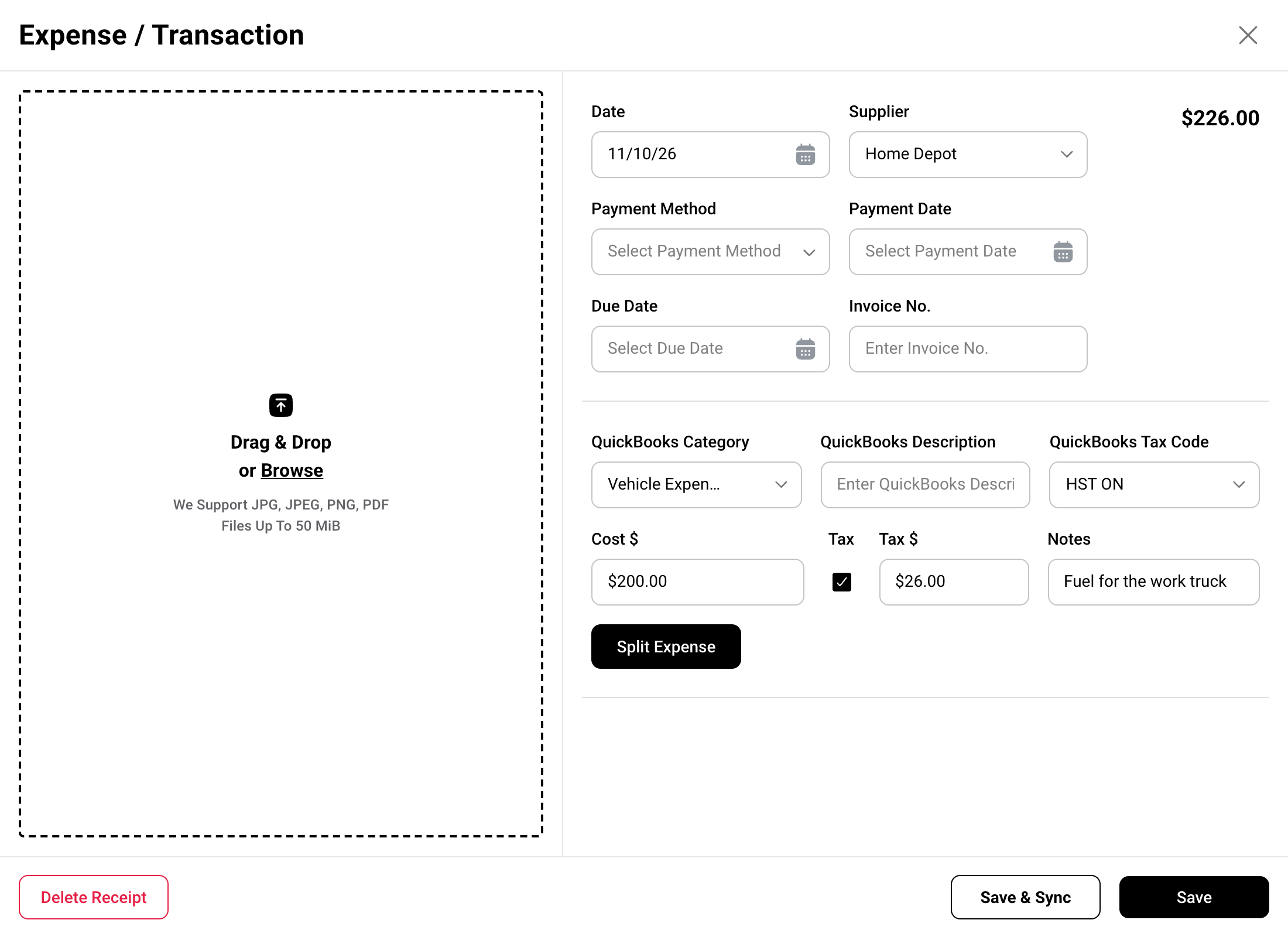
On the web app, each overhead expense opens in an Expense / Transaction window. There you can add the receipt, split one bill across QuickBooks categories, and save or send it to QuickBooks.
Attach a receipt
Open the expense
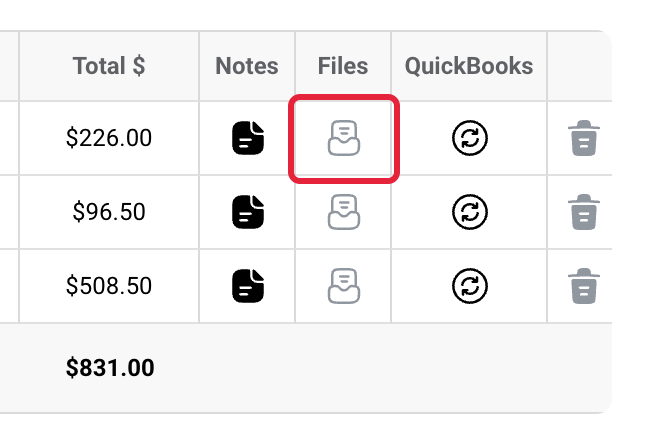
Hover over Expenses in the left menu and click Overhead Expenses. Click the icon in the Files column of the row. The Expense / Transaction window opens.
Add the file
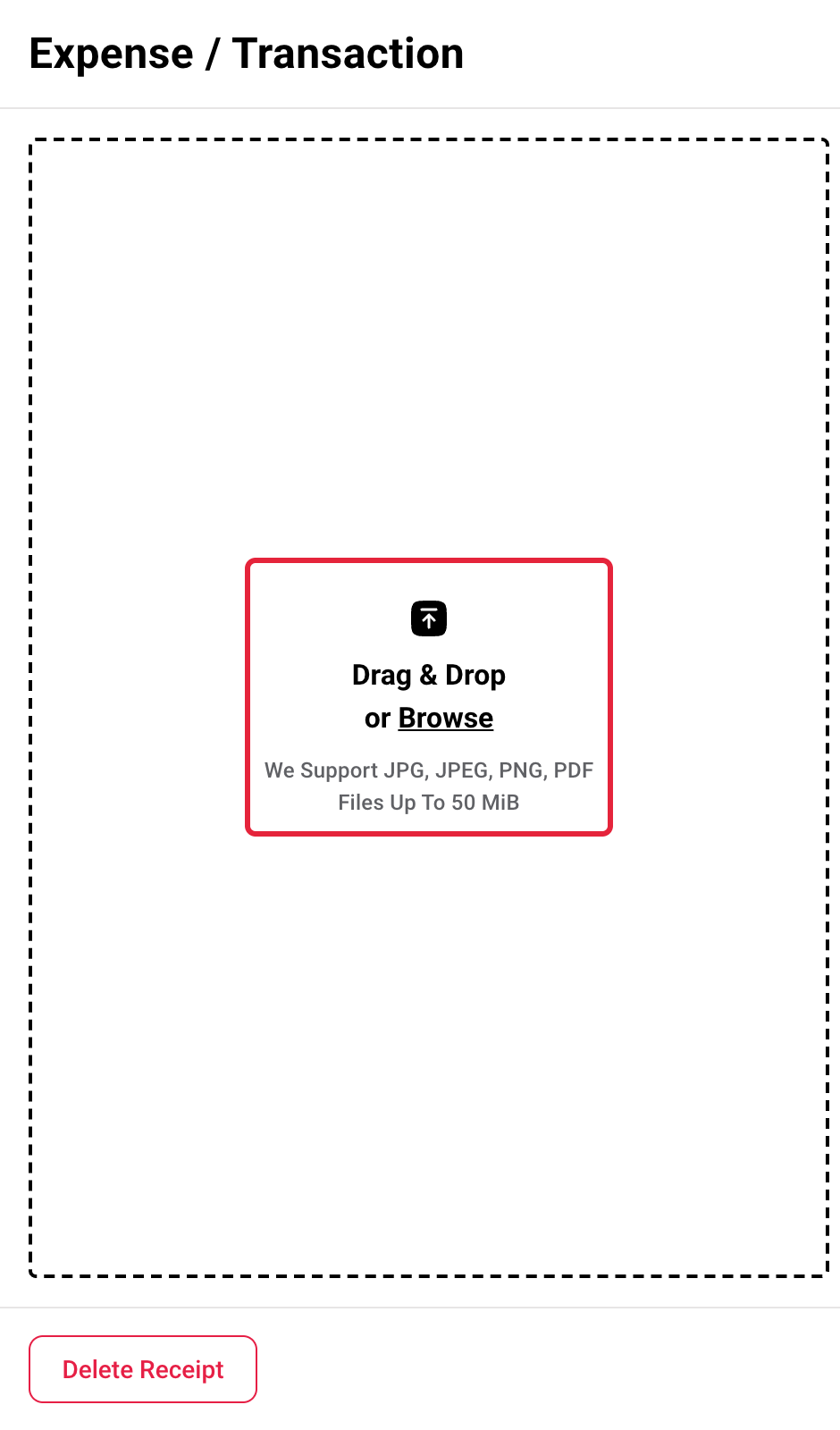
Drag the receipt into the box on the left, or click Browse. Each expense holds one file: a JPG, JPEG, PNG or PDF up to 20 MB.
Save
Click Save.
Files over 20 MB
The box says files up to 50 MiB, but a file over 20 MB won't save. Make big PDFs smaller before you add them.
Split one bill across categories
Click Split Expense
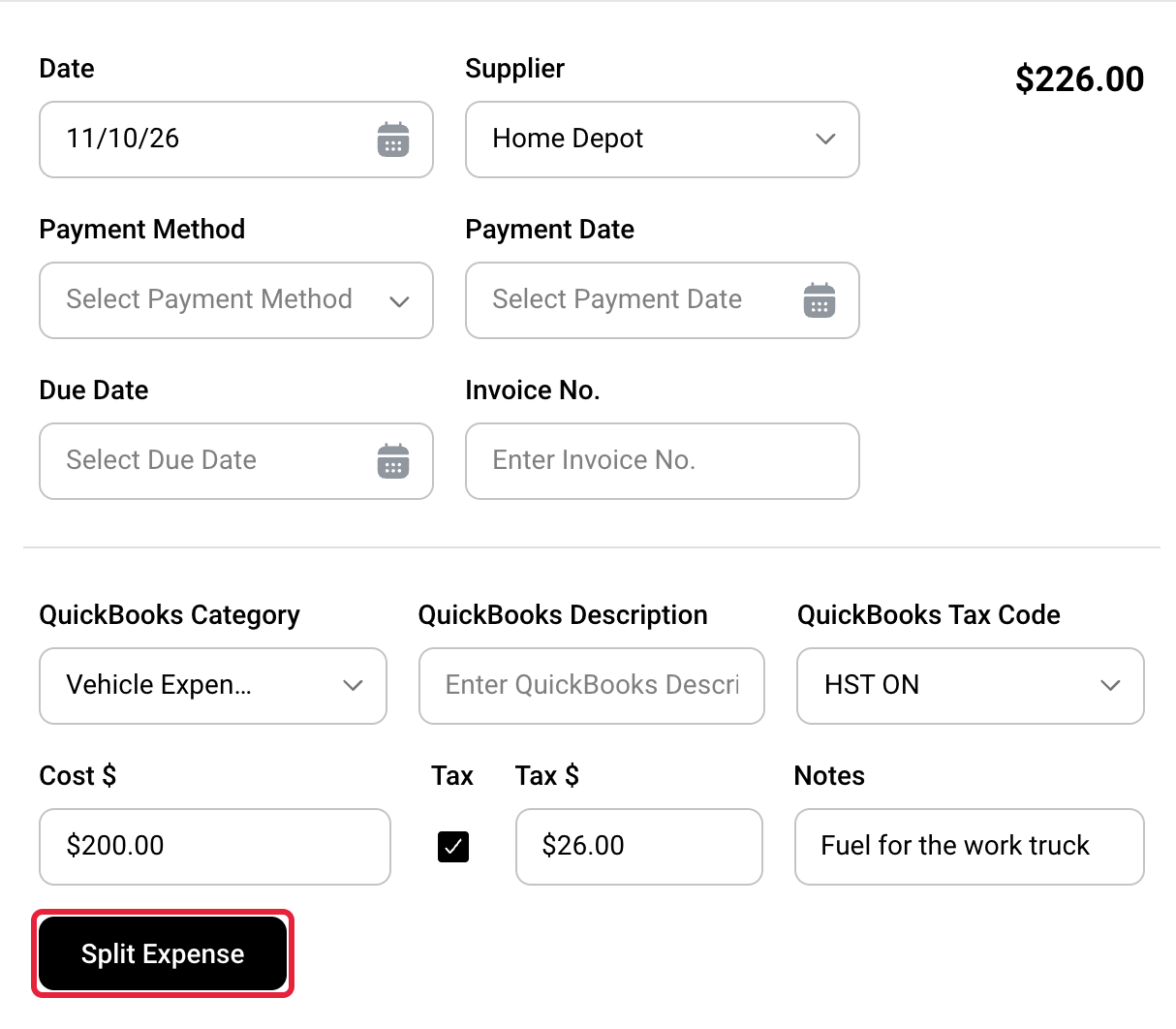
In the Expense / Transaction window, click Split Expense.
Fill in each line
For each line, pick the QuickBooks Category, type the Cost $ and tick Tax if it has tax. Click Add Line for another line. Reset removes all the split lines, so the expense goes back to one line.
Check the totals
At the bottom, Split Amount must match Total Amount, so Difference is $0.00.
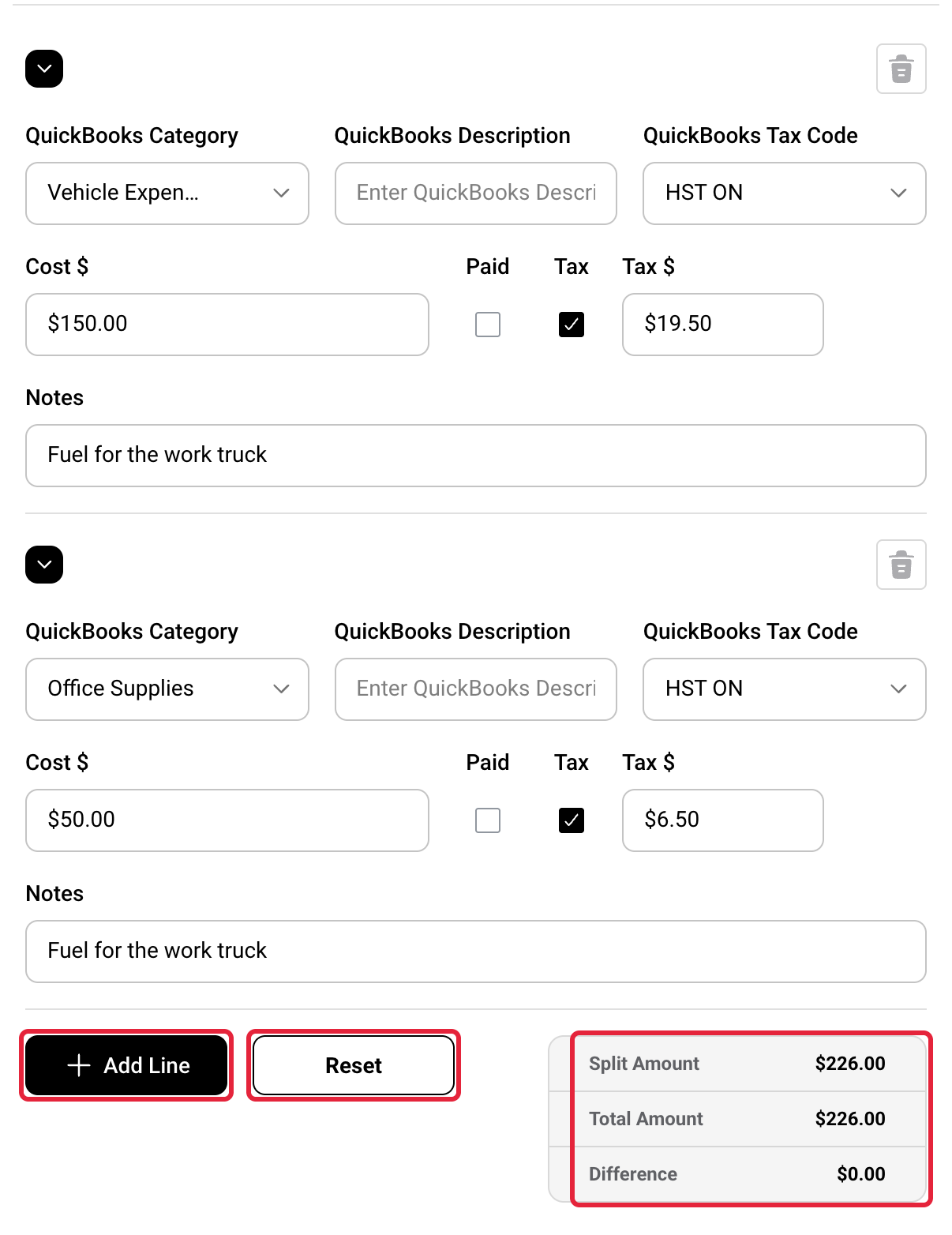
| Line | Cost $ | Tax $ (13%) | Line total |
|---|---|---|---|
| Vehicle Expense | $150.00 | $19.50 | $169.50 |
| Office Supplies | $50.00 | $6.50 | $56.50 |
| Split Amount | $226.00 | ||
| Total Amount | $226.00 | ||
| Difference | $0.00 |
Save, Save & Sync and Delete Receipt

| Button | What it does |
|---|---|
| Save | Saves in Buildwise only. You'll see The transaction has been saved successfully! |
| Save & Sync | Saves and also sends it to QuickBooks. See Send an Expense to QuickBooks. |
| Delete Receipt | Deletes the whole expense, not just the file. Buildwise asks Are you sure you want to delete this transaction? first. |
Already in QuickBooks?
When you save an expense that's already in QuickBooks, Buildwise asks Are you sure you want to edit? Click Yes to go on. The QuickBooks boxes are locked. Make those changes in QuickBooks.
To learn how to add overhead expenses, see Add and Manage Overhead Expenses.
💬 Have a question? Click the round message button in the bottom-right corner of this page, then click Send a message. We usually reply within a few hours.