Add and Manage Overhead Expenses
The Overhead Expenses page on the web app is for company costs that aren't for any project, like rent, software or fuel. Here's how to add them and how they differ from project expenses.
Who can use it
Owners and Administrators, and only while your company is connected to QuickBooks. If you can't find the page, see Why Can't I See Overhead Expenses?.
Add an overhead expense
Open Overhead Expenses
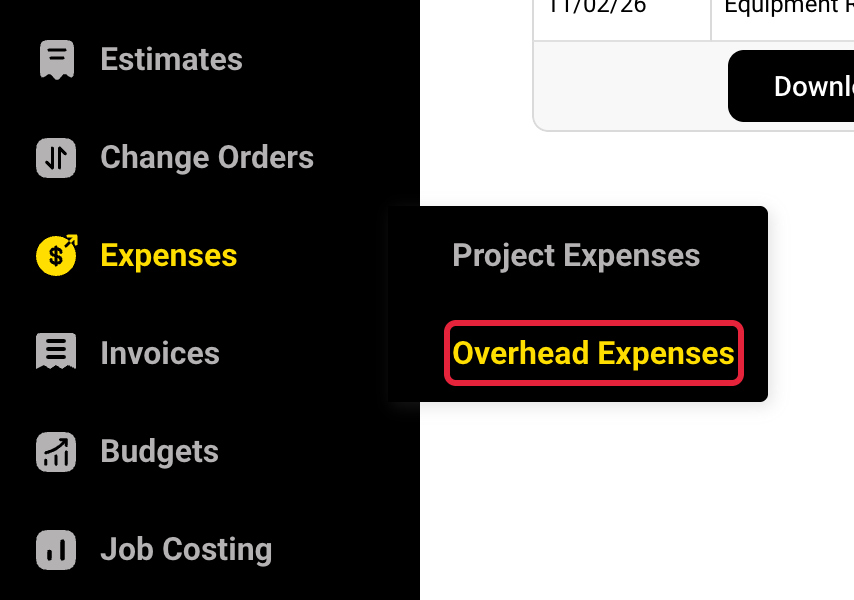
Hover over Expenses in the left menu and click Overhead Expenses.
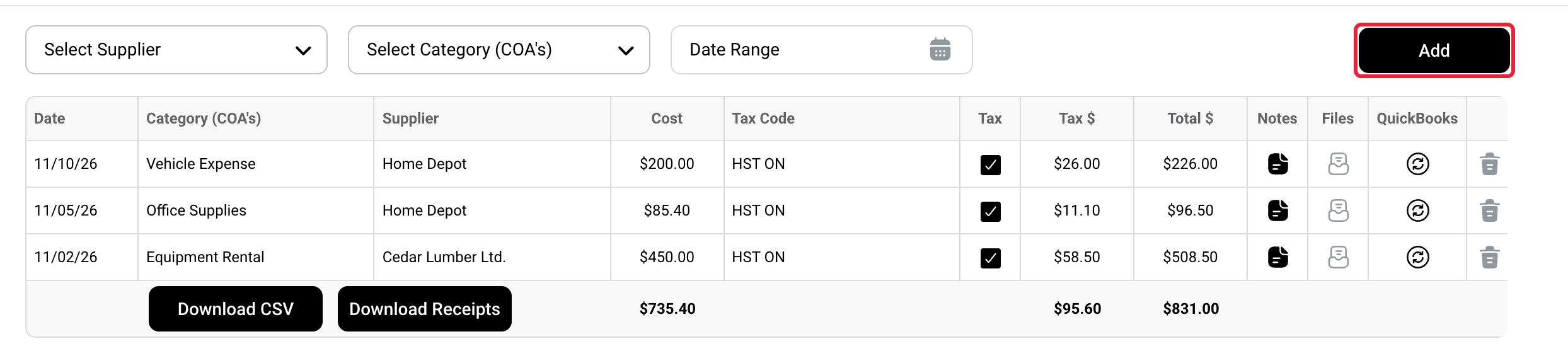
Click Add
Click Add. A new row opens at the top of the table with today's date.
Pick the category and supplier
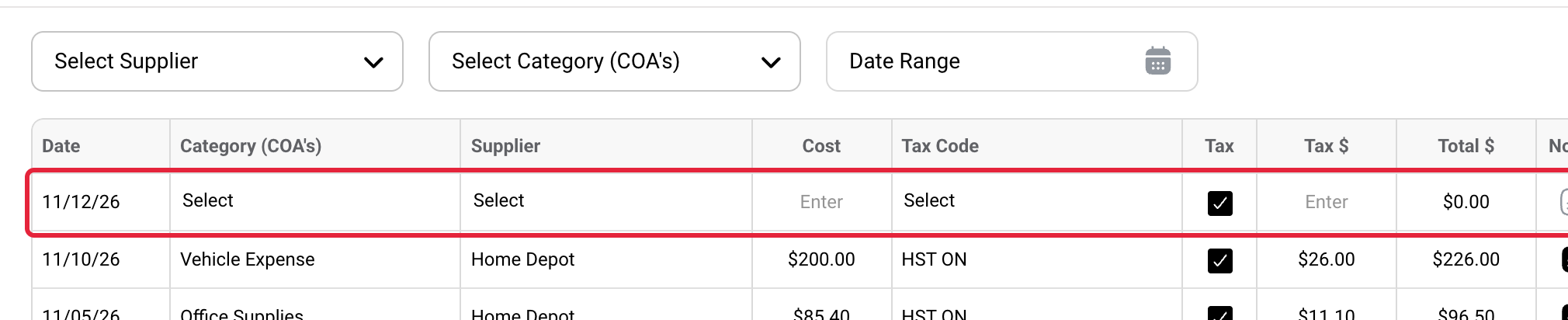
Pick the Category (COA's) and the Supplier. Both lists come from your QuickBooks. In Canada, also pick a Tax Code.
Type the Cost
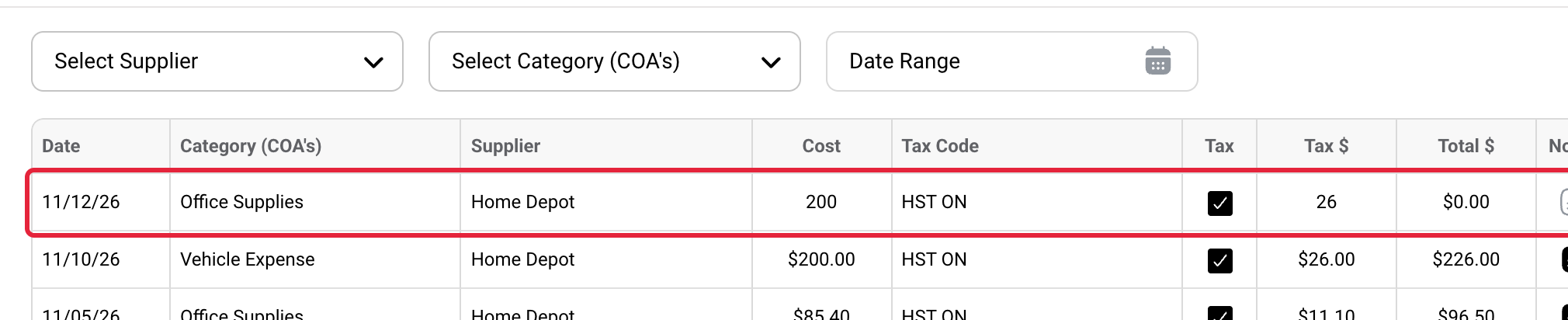
Type the amount before tax in Cost. To enter a credit, put a minus sign in front of it.
Tick the tax
Tick the tax boxes that are on the receipt. Buildwise works out the tax in dollars for you.
Save the row
Press Enter or click outside the row. Date and Cost must be filled in. If one is empty, it turns red.
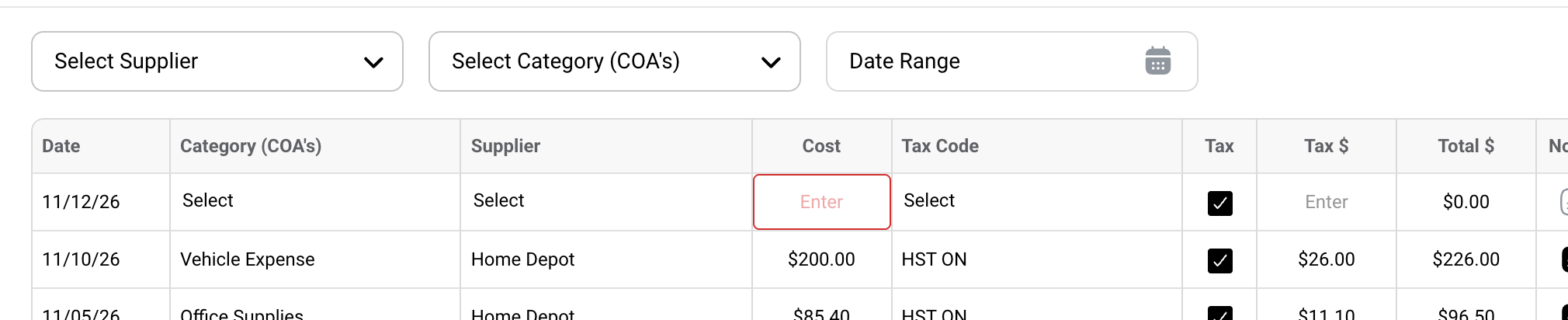
How tax works on an overhead expense
| What | How it works |
|---|---|
| The tax rate | Comes from your company tax rate in Settings, not from a project. |
| Tax or GST box | Starts ticked when Web Default is on in Settings. |
| PST box | Always starts unticked. |
| A greyed-out tax box | That tax rate is missing. The box says You must set a tax rate in Company Settings in order to apply sales tax. |
| The tax amount | Saved in dollars, to the cent. You can type over it to match the receipt. |
Changing the cost after typing the tax yourself
If you typed a tax amount yourself and then change the Cost, Buildwise asks Recalculate tax?
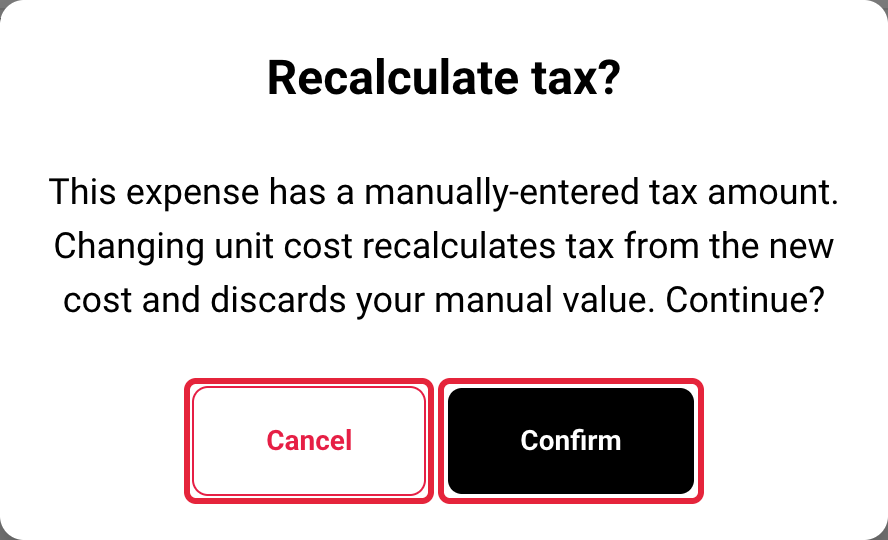
- Click Confirm to use the new cost and work the tax out again from it.
- Click Cancel to keep the tax you typed. The cost stays as it was.
What the money columns show
| Column | What it shows |
|---|---|
| Cost | The amount you typed, before tax. |
| Tax $ | The tax in dollars. Companies with GST and PST see GST $ and PST $ instead. |
| Total $ | Cost + tax. It should match the receipt. |
| Example | Cost | Tax | Total $ |
|---|---|---|---|
| 13% Tax | $200.00 | Tax $ $26.00 | $200.00 + $26.00 = $226.00 |
| 5% GST | $200.00 | GST $ $10.00 | $200.00 + $10.00 = $210.00 |
How it differs from a project expense
| Project expense | Overhead expense | |
|---|---|---|
| Project | Yes | None |
| Cost Group and COG | Yes | None |
| Markup | Yes | None |
| Billable to a client | Can be | Always unbillable |
| Budgets, Job Costing, Financials and other project reports | Included | Never included |
| In QuickBooks | Billable or non-billable | Always non-billable |
To learn more, see Should Expenses Be Billable or Non-Billable When Sending to QBO?. To send an overhead expense to QuickBooks, see Send an Expense to QuickBooks.
Next: Find, Download and Delete Overhead Expenses and Attach a Receipt and Split an Overhead Expense.
💬 Have a question? Click the round message button in the bottom-right corner of this page, then click Send a message. We usually reply within a few hours.